How to create your account
You need an Aflote account before you can create a Flote. It takes about a minute, and this is the screen you see first.
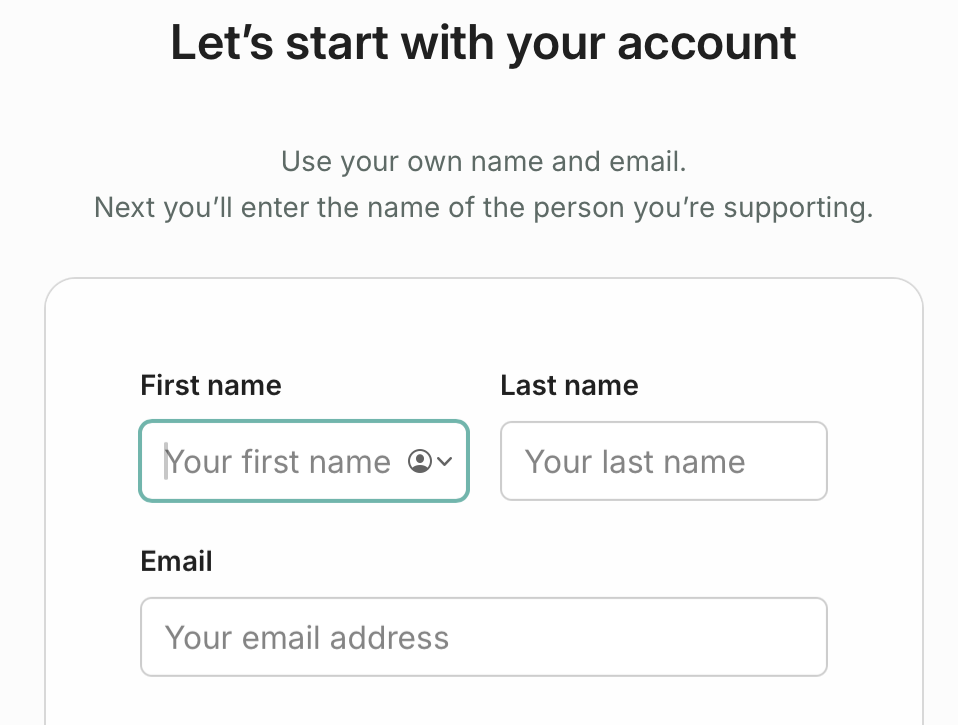
This screen is about you, not the person you are supporting. You are the one signing in, so this is your name and your email. Theirs comes next, on the first screen of the Flote itself.
There are two ways to create your account, and you only need one:
- Option 1: Continue with Google. The quicker one. Nothing to type, no password to create, and no email to verify.
- Option 2: Use your email address. Two more screens, and you choose a password.
Option 1: Continue with Google
Google shows its own screen asking whether to share your name and email address with Aflote. Pick the account you want to use, confirm, and you go straight to the Flote.
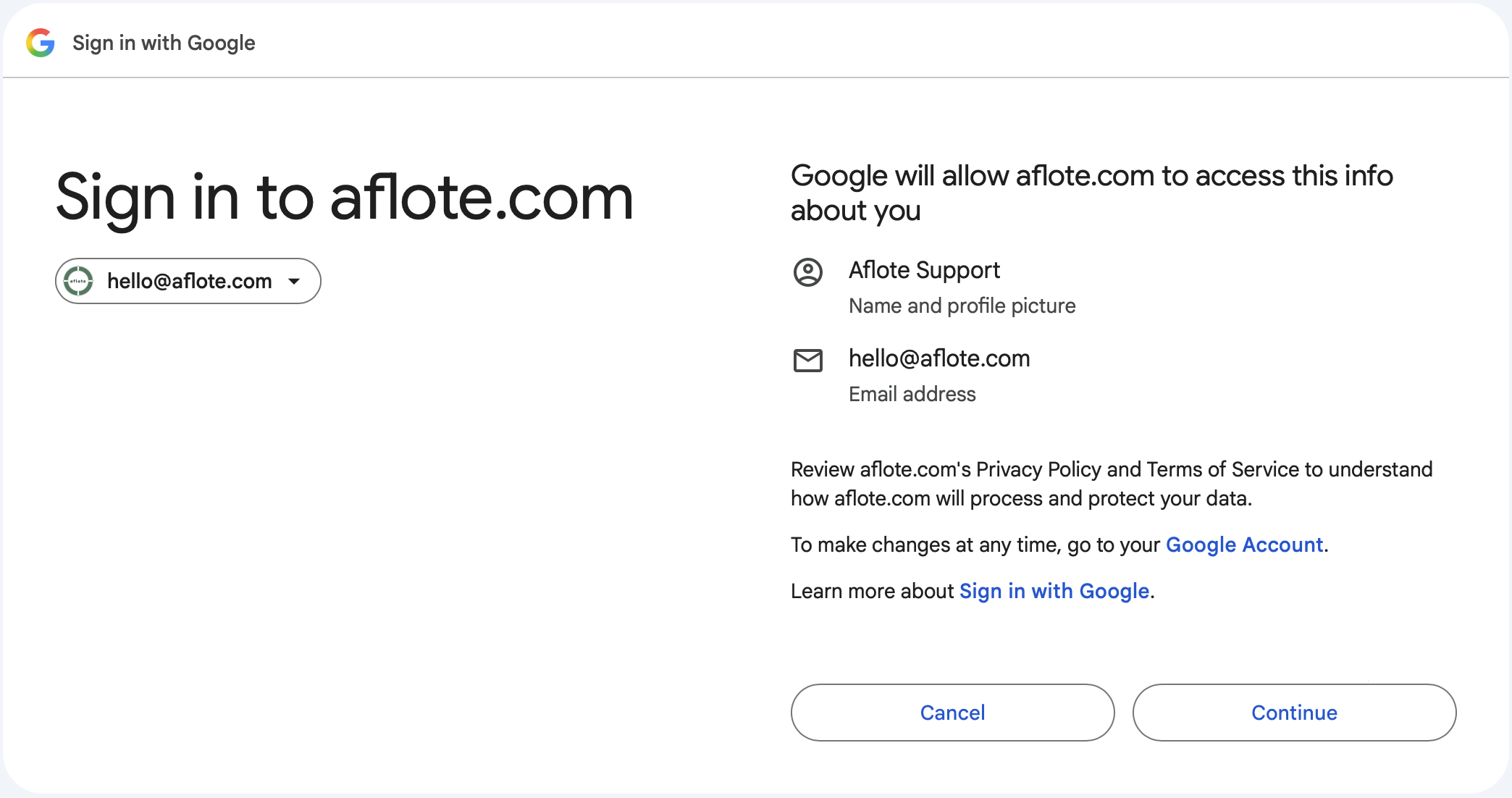
Tip: Already made an account with a password? Continue with Google works for you too, as long as you sign in with the same email address.
Option 2: Use your email address
Fill in your name and email, then there are two more screens before you reach the Flote.
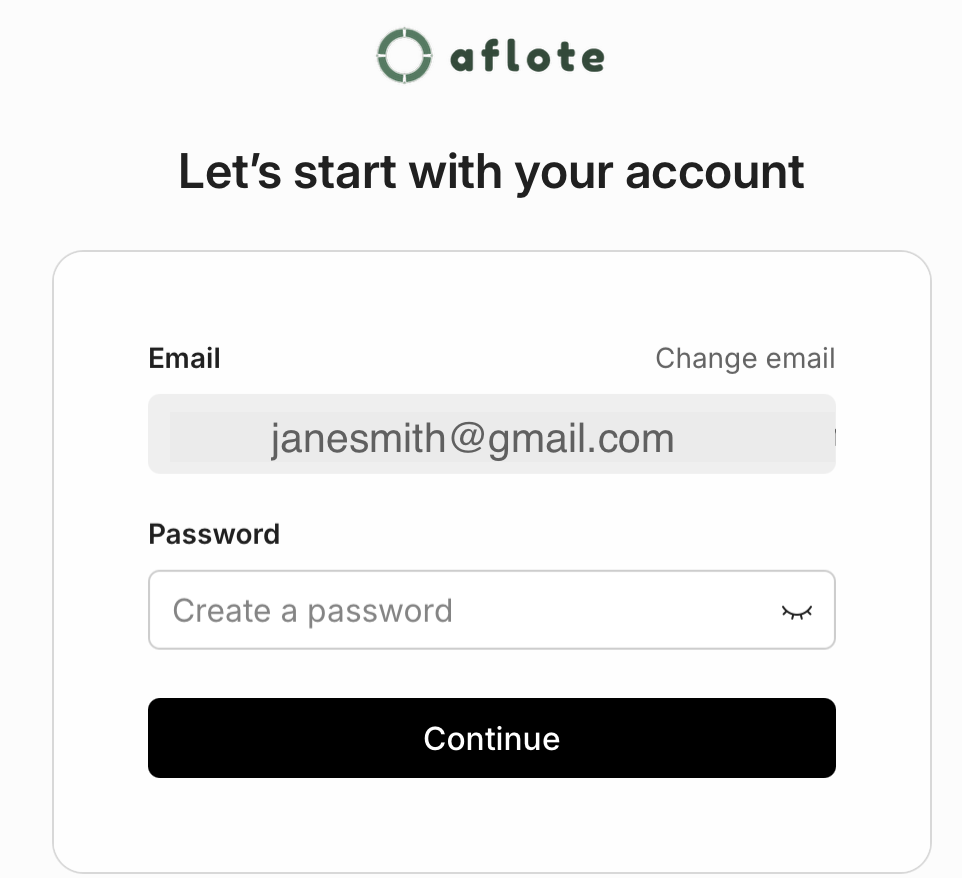
Choose a password. Your email address is already filled in from the screen before, so the password is the only thing to enter. The eye icon at the end of the field shows what you have typed, which is worth using rather than guessing.
Then verify your email. We send a six-digit code and you type it in here. It usually arrives within a few seconds.
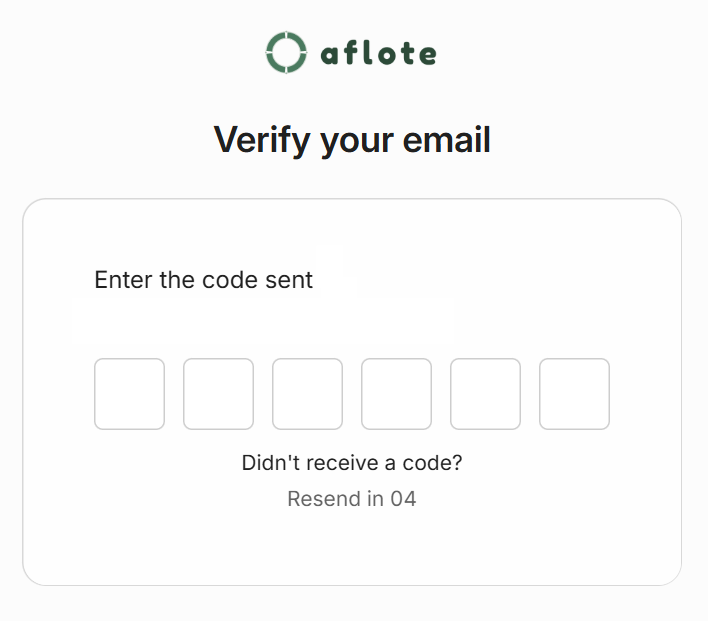
If it does not appear, check your spam folder first: it is a new sender, and that is where it goes. "Resend" becomes available after a short countdown.
What happens next
Once the code is accepted, you land on the first screen of your Flote, and the rest is how to create a Flote.
Important: If you signed up in the name of the person you are supporting, rather than your own, email support@aflote.com and we will sort it out with you. Your sign-in identity is tied to the email address the account was made with, so changing a display name later does not change what you sign in with.
Related articles
Was this article helpful?