How to create a Flote
A Flote is one page for the people who want to help someone you love. You name what would actually be useful, share one link, and your circle signs up for what they can do.
It takes about five minutes and it is free. Nothing here is permanent, and you can change any of it afterwards.
You will need an Aflote account first. It takes about a minute to set up. See How to create your account for step-by-step instructions.
Who is this Flote for?
Enter the name of the person you are creating this Flote for.
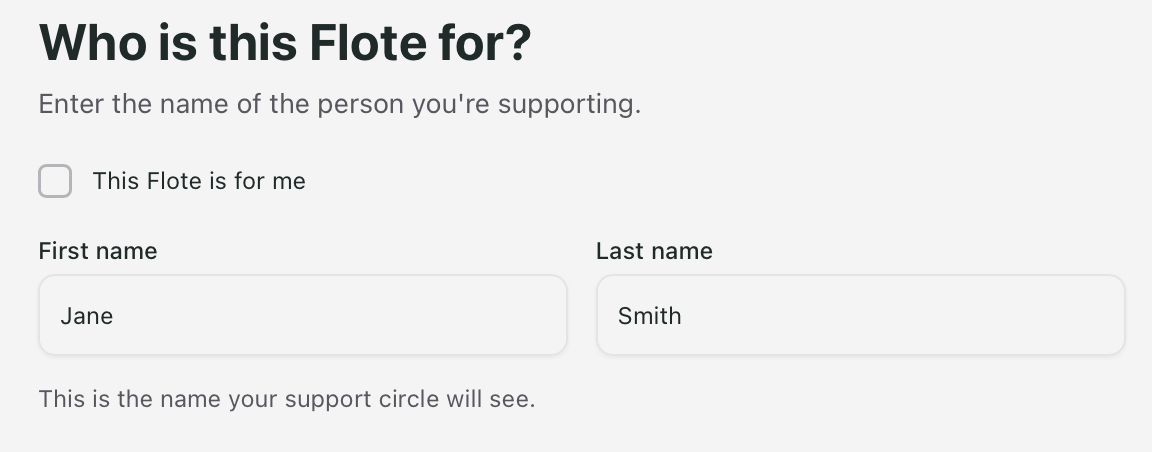
If the Flote is for you, tick This Flote is for me above the fields. That fills in your own name and skips the next screen.
You can change it later in Settings.
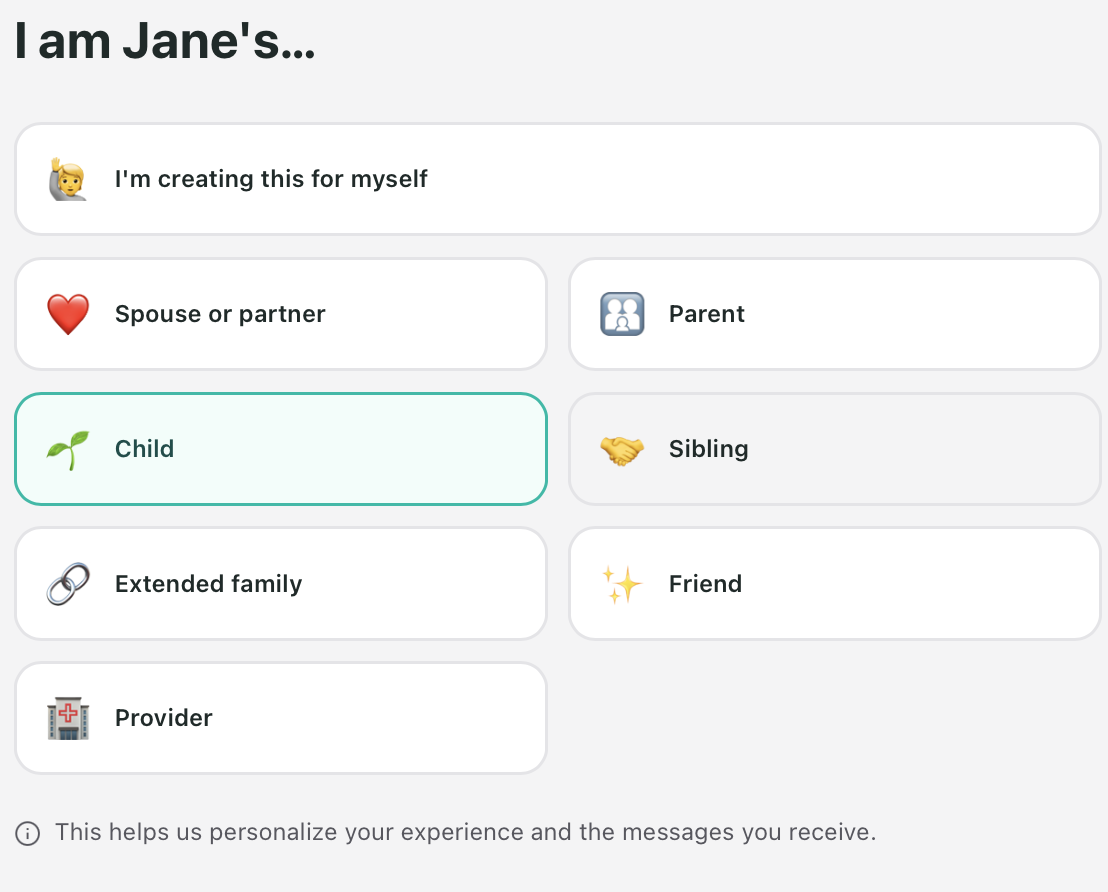
How are you related?
Skip this one if you ticked "This Flote is for me." You will go straight to How can people help?
Pick from spouse or partner, parent, child, sibling, extended family, friend, or provider. This tells people who is organizing things, so they know who they are replying to.
If none of them is quite it, choose the closest. A grandchild picks extended family, a neighbor picks friend.
How can people help?
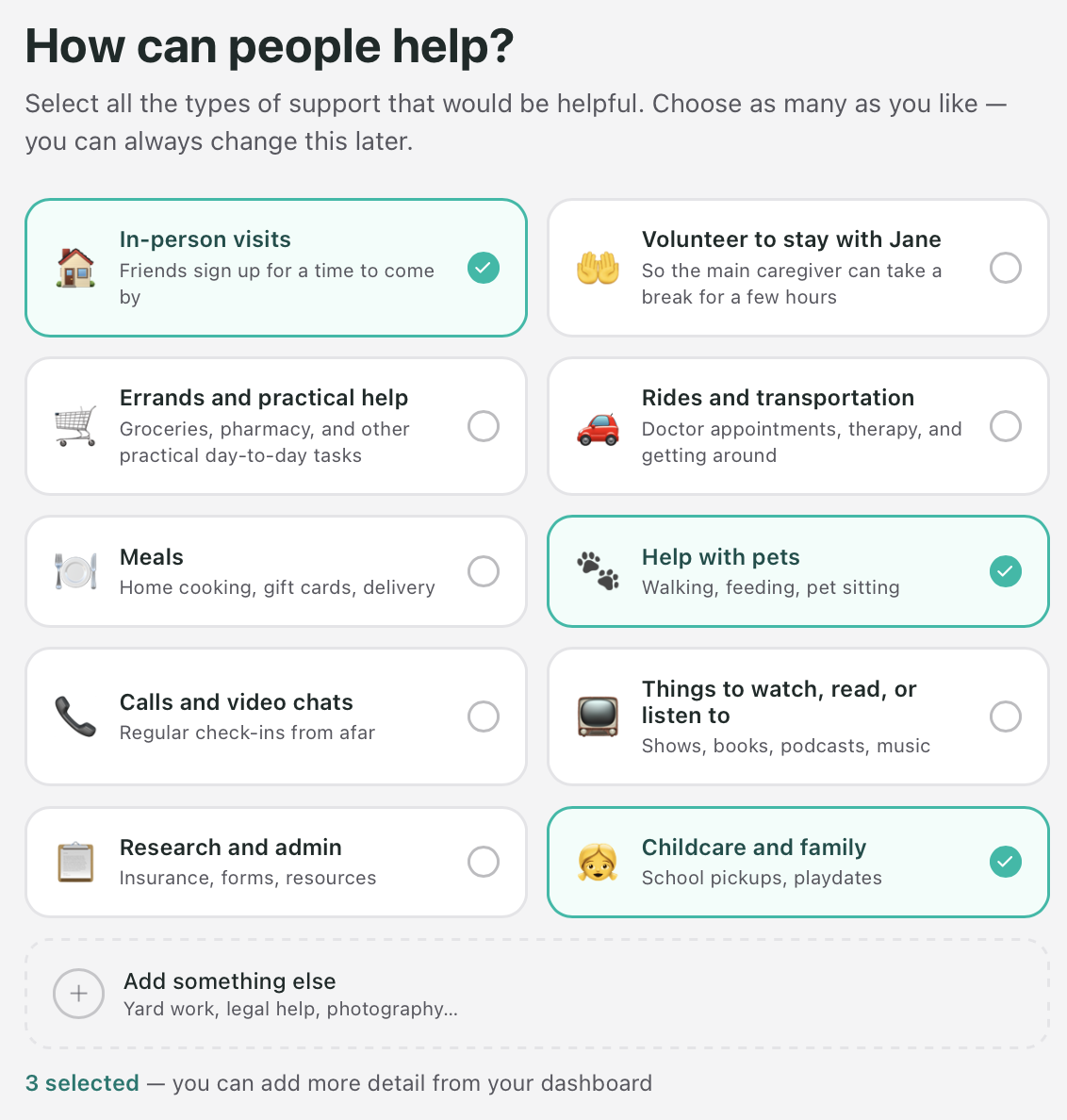
Pick the kinds of help that would genuinely make a difference. There are several to choose from, and you can add your own:
- In-person visits
- Someone to stay with them, so the main caregiver can take a break
- Errands and practical help
- Rides and transportation
- Meals
- Help with pets
- Calls and video chats
- Things to watch, read, or listen to
- Research and admin
- Childcare and family
The second one is named after the person the Flote is for, so it reads "Volunteer to stay with Jane" rather than anything generic.
Think about the range of people in your circle. The friend five states away cannot bring a meal, but they can call, or send something to watch. Someone who barely knows the family might want one small, clear errand rather than a visit. Every category you leave off is a way somebody was willing to help and never got asked.
The one thing worth being honest about: only list what you would actually accept. If a meal at the door would feel like an intrusion, leave meals off. You can add any of these later, and adding something new nudges your circle.
Choosing In-person visits is what adds the next two screens.
Where will visits take place?
You will only see this screen and the next one if you chose In-person visits. If you did not, you go straight to Who can see your Flote?
Home, a hospital, or a care facility. Start typing and pick the address from the list.
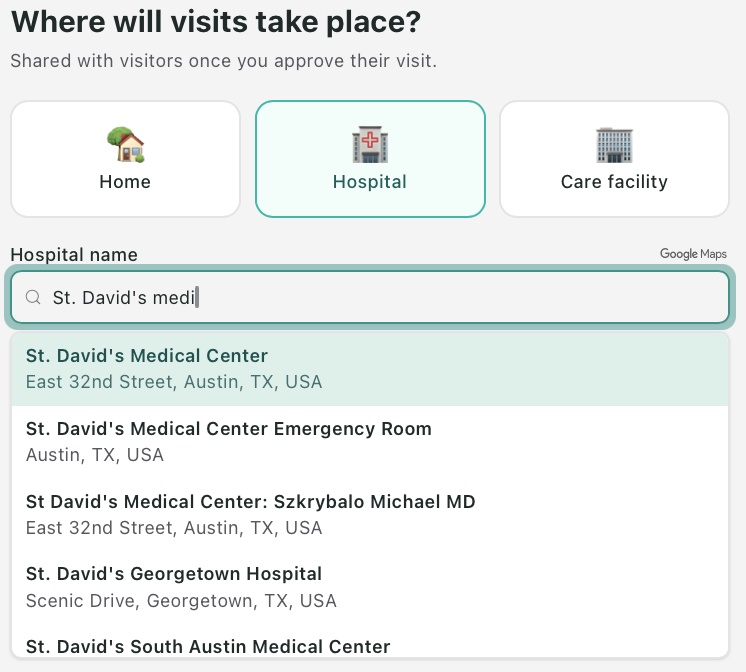
Before you approve someone, the most they can see is the city and state. The full address is shared with a visitor once you approve their visit.
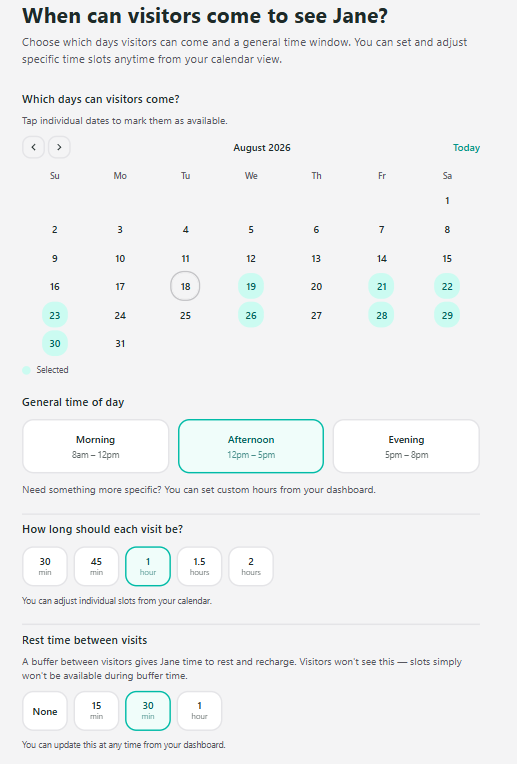
Which days can visitors come?
You will only see this screen if you chose In-person visits.
Choose the days and times that work, how long a visit should be, and how much gap you want between them.
You can also add optional Visitor notes for practical guidance such as "use the side door," "check in at the front desk," or "ring twice, the bell is quiet." You can add or edit these anytime from Settings.
Who can see your Flote?
The last screen asks whether the Flote is private or public.
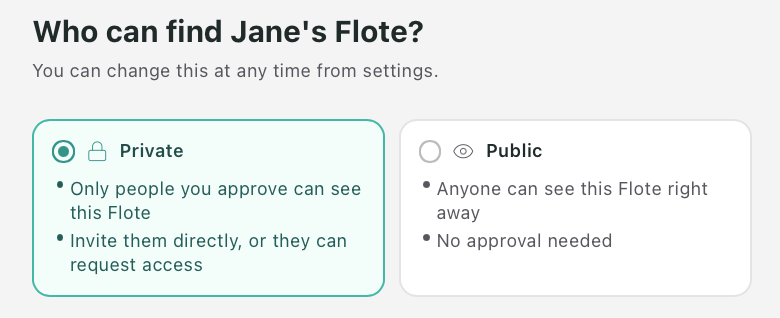
- Private means only people you approve can see it. You invite them directly, or they request access and you say yes.
- Public means anyone with the link can see it straight away, with no approval.
Most families choose private. Either way, Flote pages are never listed in Google search results.
What happens next
You land on your Flote dashboard, and there is a link to share. Send it to a few people first rather than everyone at once, so the page has some activity on it before the wider circle arrives.
If you need to change any of your Flote's information
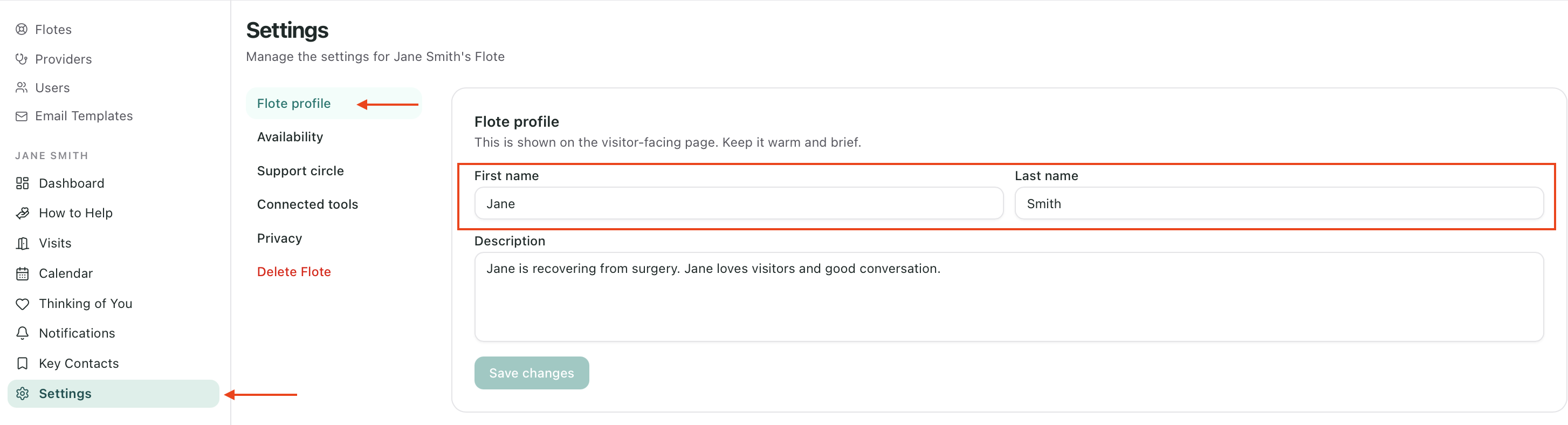
If the name on the Flote is wrong, open the Flote, go to Settings, and edit it under Flote profile. Any admin can change it.
Important: If you created your account in their name, rather than the Flote, email support@aflote.com and we will sort it out with you. This is the one thing on this page you cannot fix yourself: your sign-in identity is tied to the email address the account was made with, and changing your display name later does not change what you sign in with.
Related articles
Was this article helpful?