How do I update my password?
There are two pathways for updating your password:
If you know your current password
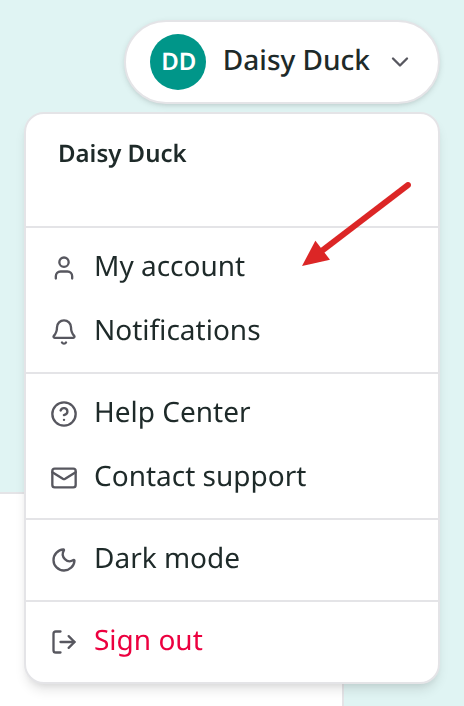
Open your account menu by clicking on your name in the top right corner and selecting My account.
Find the Password section.
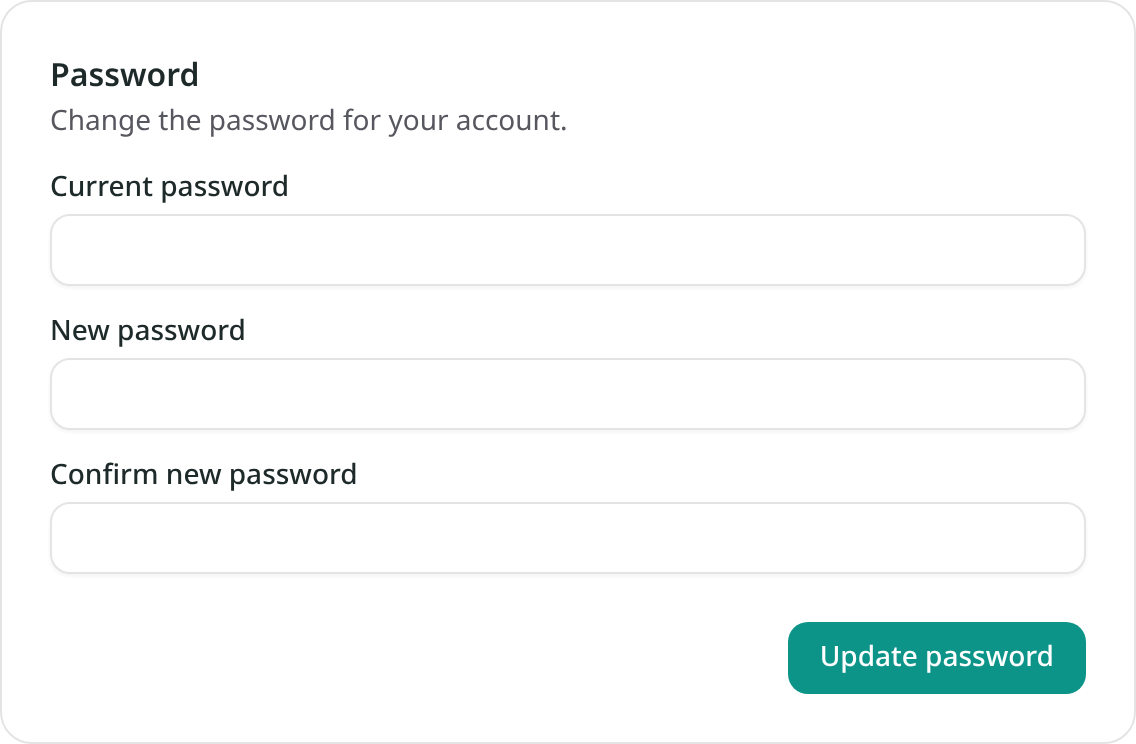
Enter the password you use now in Current password.
Type the password you want to use in New password, then type the same new password in Confirm new password. Important: Make sure to choose a password different from your current one.
Select Update password. When the change succeeds, you see Password updated and all three fields clear. You stay signed in on the device you are using. Use your new password the next time you sign in.
Aflote also sends a confirmation email titled Your Aflote password was changed. You do not need to click an email link to finish the change.
If you do not know your current password
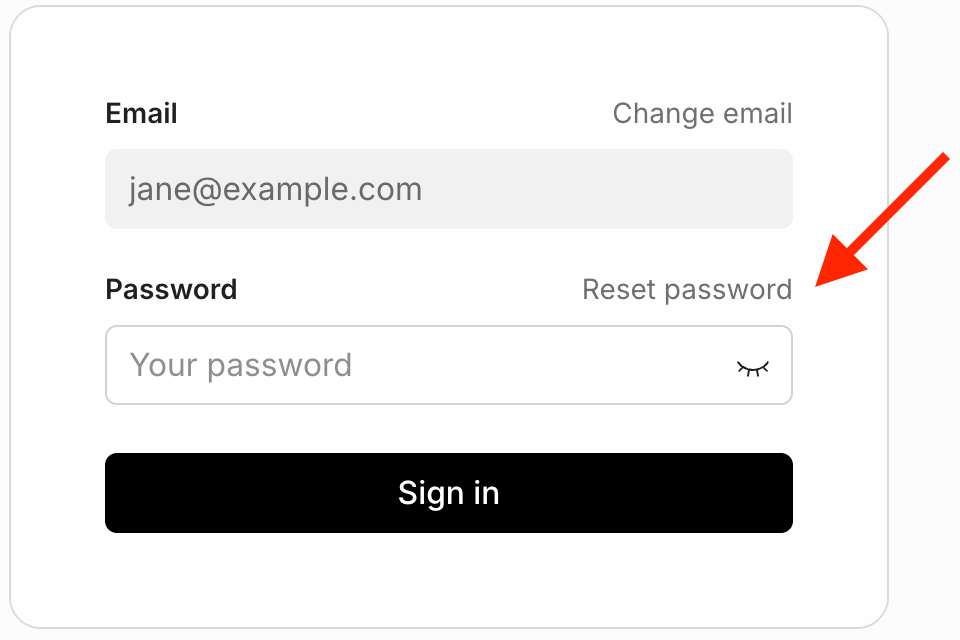
Open your account menu and select Sign out. Go to the sign-in page and enter the email address you use for Aflote. Then select Reset password.
If you use Google to sign in, select Sign in with Google. If you have forgotten your Google password, use Google's forgot-password flow. Otherwise, you can sign straight in with Google.
Related articles
Was this article helpful?