How do I cancel a visit I signed up for?
We understand that plans can change. If you need to cancel a scheduled visit, the process is quick, simple, and doesn't require an Aflote account.
There are three common scenarios you might find yourself in. Select the option below that best fits your situation to jump directly to the corresponding instructions further down this article:
- If your visit has already been confirmed: Cancel from your email
- If the family has not approved your visit yet: Cancel a pending request
- If you'd still like to visit on another day: Pick a new time instead
Cancel from your email
You can cancel your visit directly from either your confirmation email or a reminder email sent by Aflote. Both emails include the same cancellation link, so you can use whichever one is easier to find.
Option 1: Confirmation email
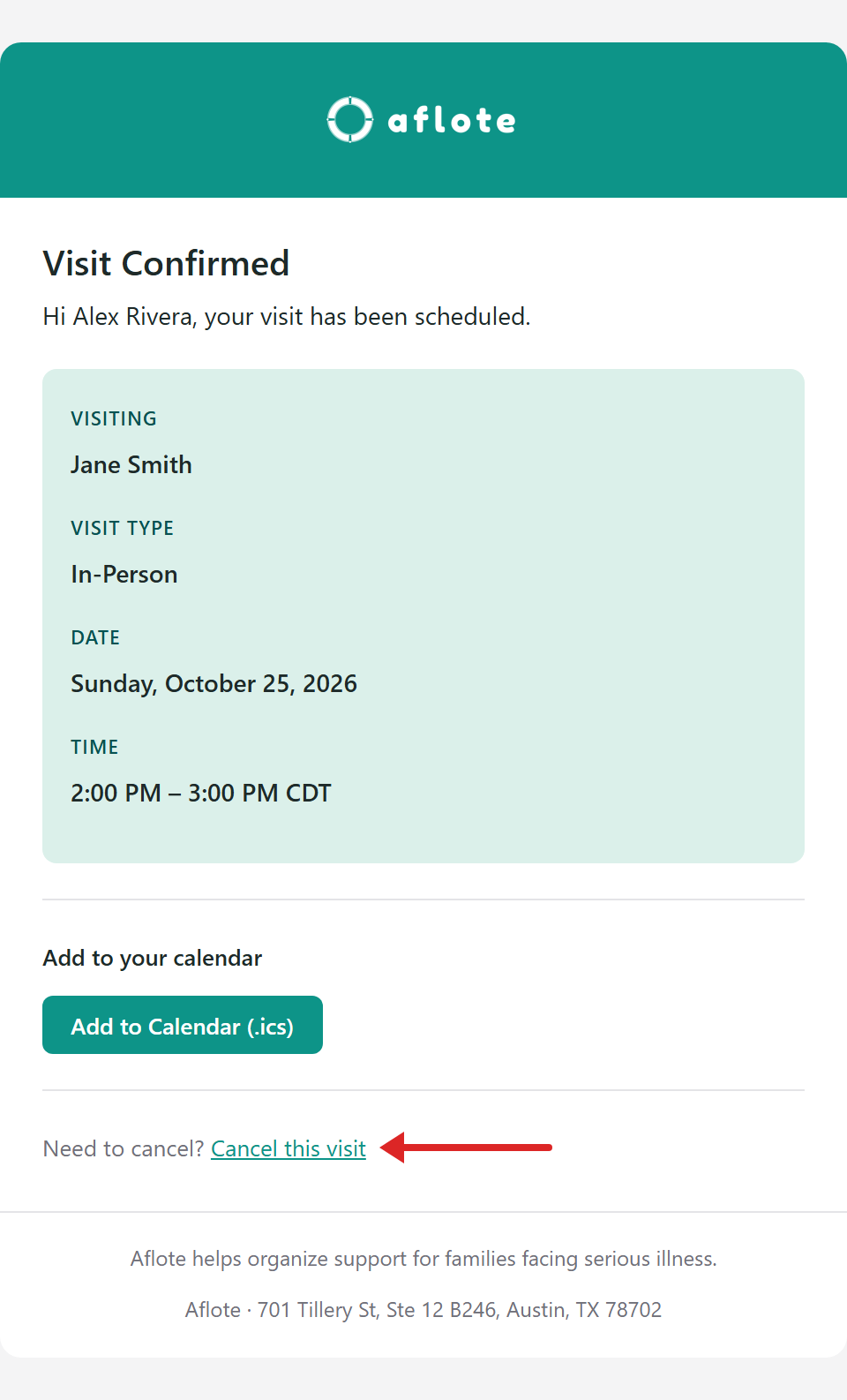
Look for an email from Aflote with the subject line Visit confirmed.
Scroll to the bottom of the email and select Cancel this visit under Need to cancel?
A page titled Cancel Your Visit will open, showing the person's name and the scheduled date and time. Under Reason for canceling, you can leave a message explaining why you can no longer attend. This step is optional, so you can leave it blank.
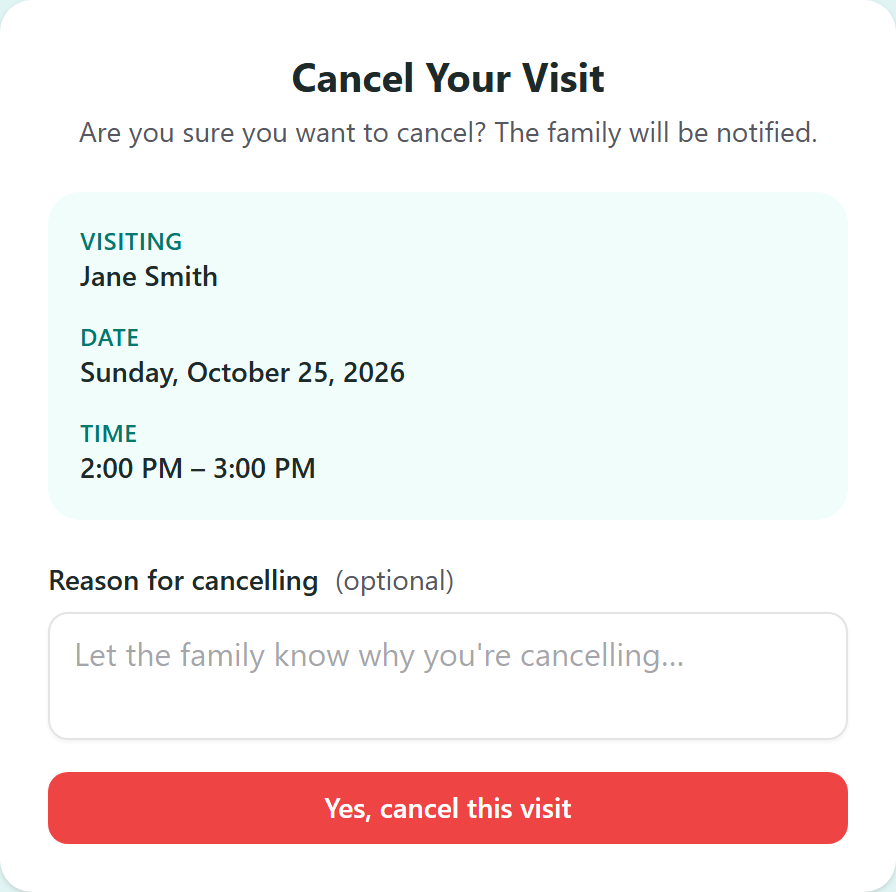
Select Yes, cancel this visit to complete the cancellation.
Once your visit is canceled, you'll see a confirmation message saying Your visit has been canceled and We've let the family know. No further action is needed.
Option 2: Reminder email
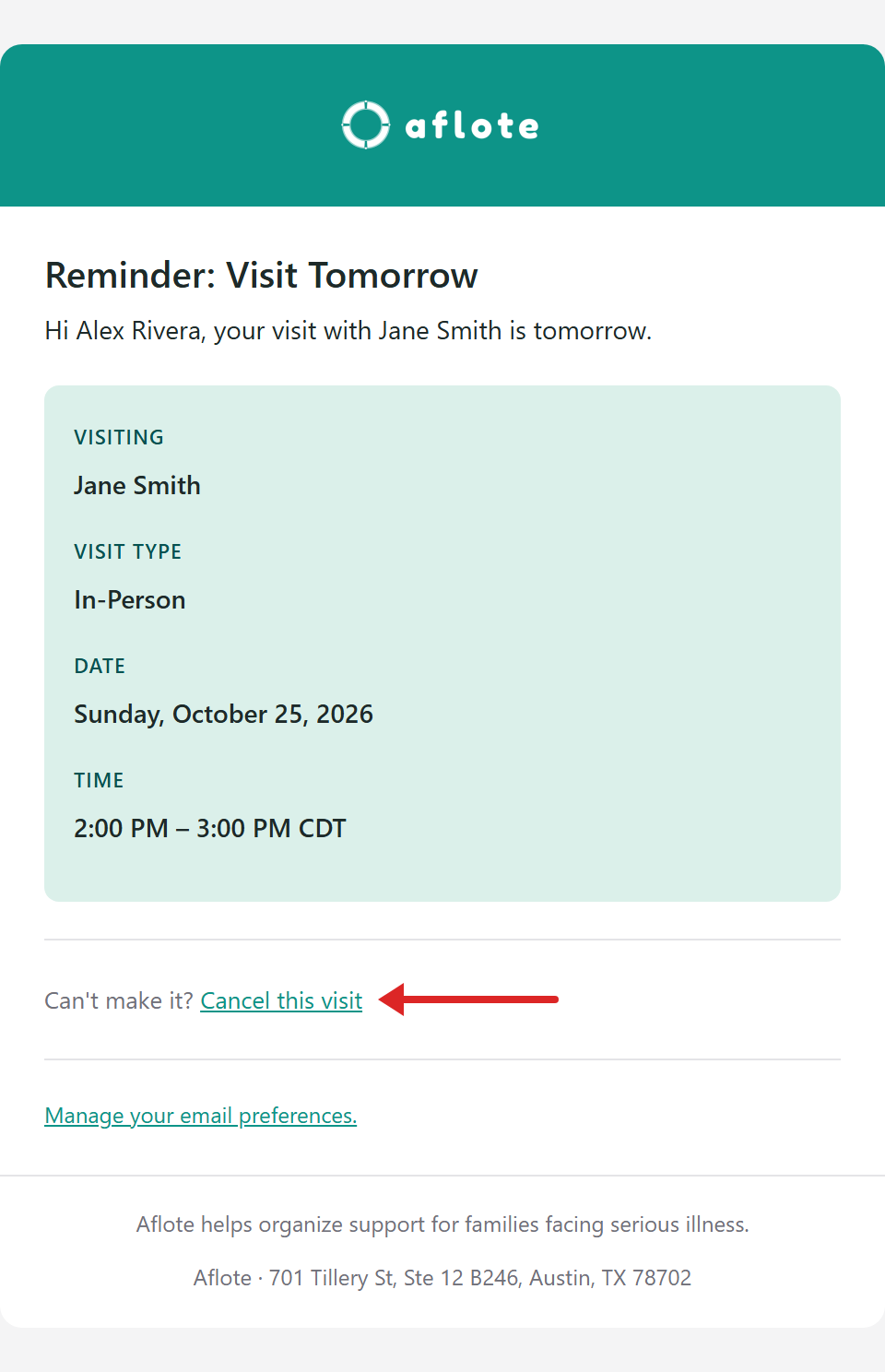
Look for an email from Aflote with a subject line similar to Reminder: You have a visit with [name] tomorrow.
Scroll to the bottom of the email and select Cancel this visit under Can't make it?
A page titled Cancel Your Visit will open, showing the person's name and the scheduled date and time. Under Reason for canceling, you can leave a message explaining why you can no longer attend. This step is optional, so you can leave it blank.
Select Yes, cancel this visit to complete the cancellation.
Once your visit is canceled, you'll see a confirmation message saying Your visit has been canceled and We've let the family know. No further action is needed.
Important things to know
- Canceling a visit cannot be undone. If you cancel by mistake, you'll need to schedule the visit again.
- If you select Cancel this visit in your email again, you'll see a message saying Already Canceled. This simply means your visit was successfully canceled and no further action is needed.
Can't find the email?
Try searching your inbox for Aflote or the name of the person you're visiting. Be sure to check your spam or junk folder as well.
If you still can't find either email, reach out to the family directly to let them know you can no longer make the visit.
Cancel a pending request
When you request a visit, the family must approve it before it's confirmed. You'll receive an email from Aflote with the subject line Visit request submitted, but this email won't include an option to cancel. The Cancel this visit link only becomes available once the family approves your request.
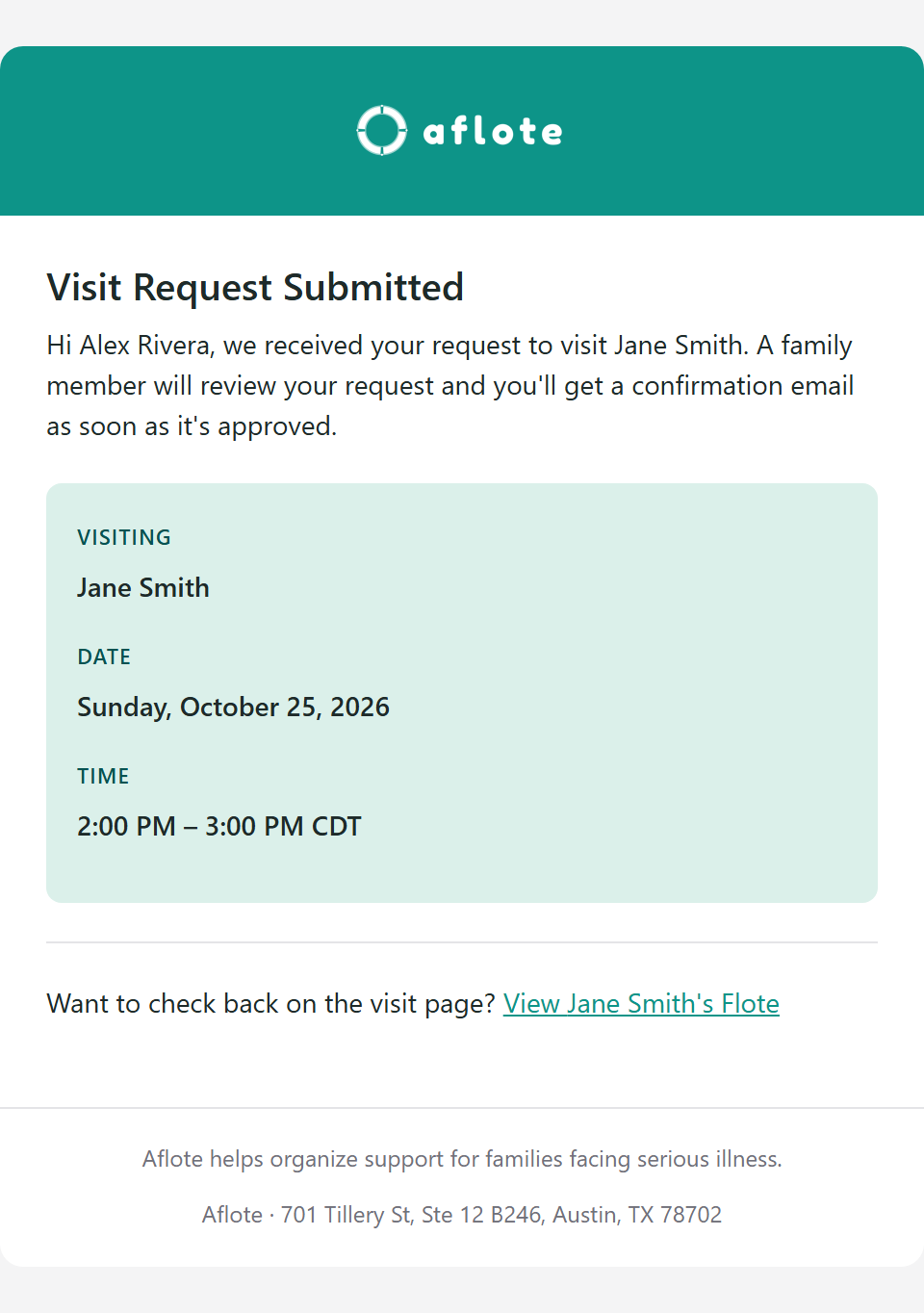
If you can no longer make the visit while your request is still pending, reach out to the family directly so they can decline your request and free up that time.
Pick a new time instead
If you'd like to visit on a different day or at a different time, you'll need to cancel your original visit and book a new one. Aflote doesn't currently offer an option to reschedule visits directly.
Step 1: Cancel your original visit
Follow the instructions for whichever option applies to you:
- If your visit has already been confirmed: Cancel from your email
- If the family has not approved your visit yet: Cancel a pending request
Step 2: Book a new visit
Once your original visit has been canceled, you can choose a new date and time by following the same process you used to book your first visit. For step-by-step instructions, see How to book a visit on a Flote.
Who's notified when you cancel
- You get an email confirming the cancellation, with the date, time and any reason you wrote. It includes a calendar update that should take the visit off your calendar.
- The family gets an email with the date and time of the visit, and your reason if you wrote one. Other supporters on the Flote aren't notified.
Related articles
Was this article helpful?