How do I sign up to bring a meal?
You can easily sign up to bring a meal on the day that works best for you. Once you sign up, that meal shows as taken care of, so nobody else brings the same meal that day.
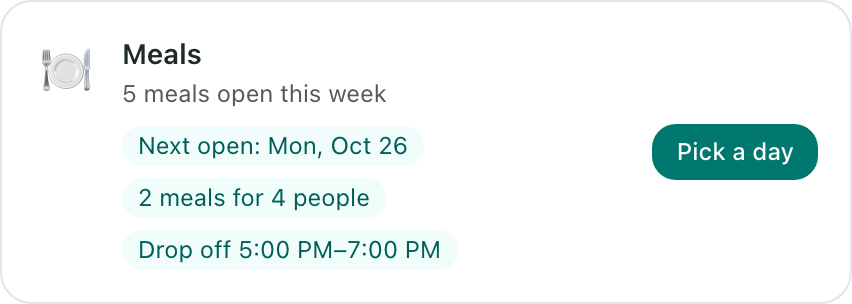
Find the Meals card
Open the Flote link. Under How you can help, find Meals and select Pick a day. You can also find it by choosing Ways to Help in the Flote's navigation.
Pick a meal and a day
The top of the screen shows the drop-off place, the address and the time window, plus any note from the family. Select Map to see how far it is.
Under Pick a day, each day lists its meals and how many people each one feeds. Tick the meal you can bring. What the meal's people like and what to avoid shows right under it. A meal someone has already signed up for shows a check and the first name of the person bringing it.
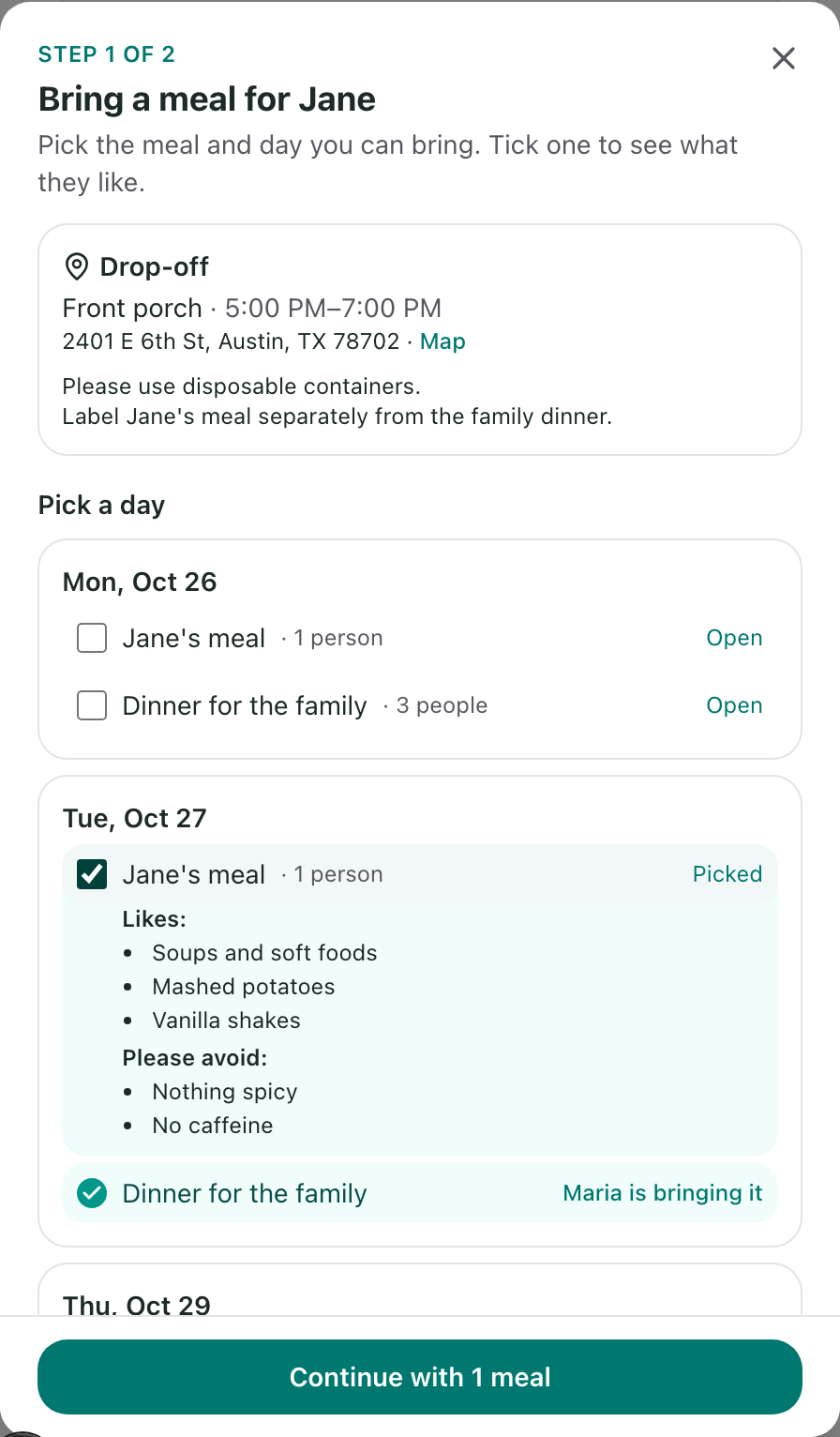
You can tick more than one meal or day. When you are ready, select Continue with 1 meal.
Add your details
Check the meals you picked, then add Your name and Email. Your email is where the address and your reminder go. Phone and Note for the family are optional. If you are signed in, your name and email are filled in for you.
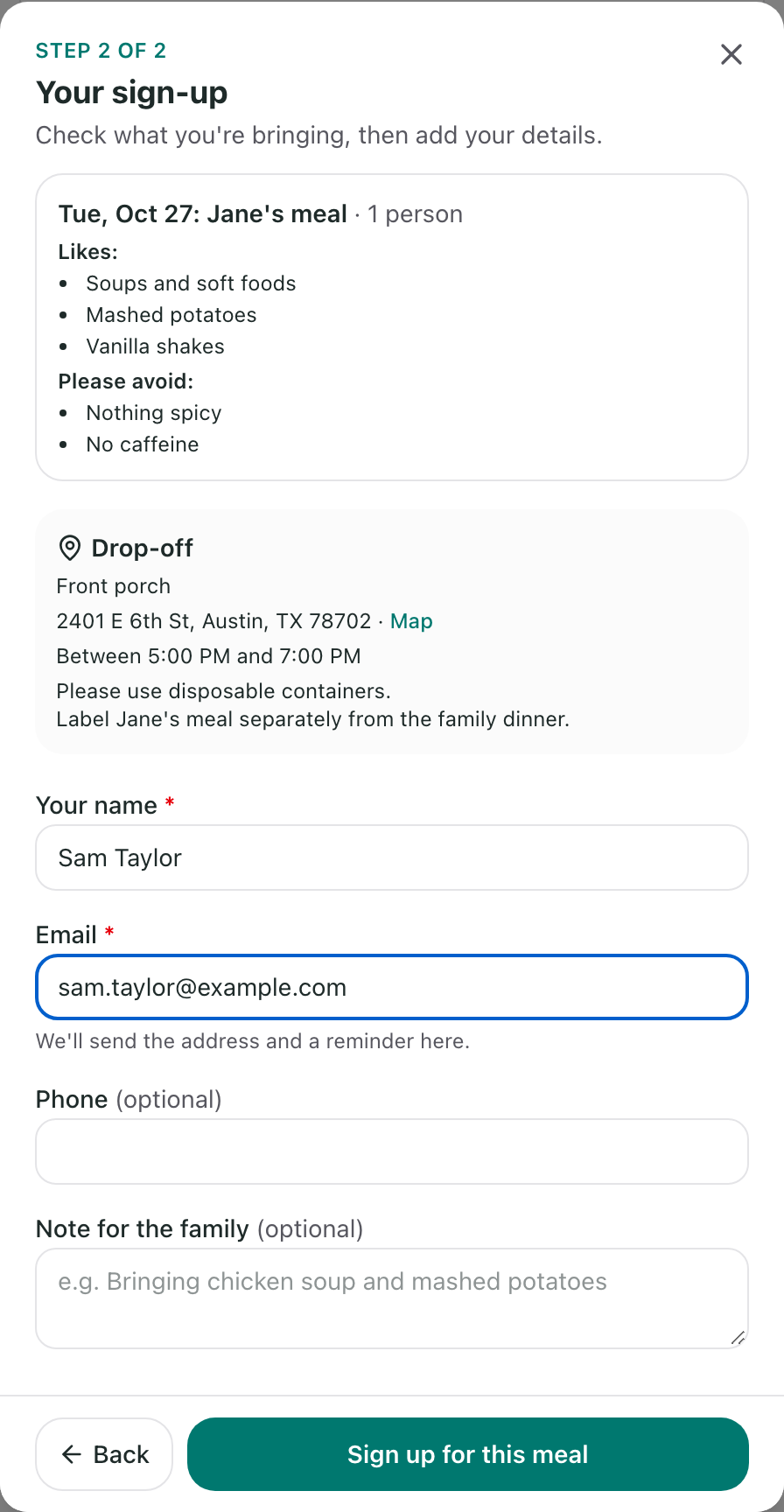
Select Sign up for this meal.
On a public Flote, anyone with the link can sign up, and you do not need an Aflote account. On a private Flote, you need to be signed in as part of the family's circle.
After you sign up
You will see Thank you! and a confirmation email will arrive with:
- the meal and the day you are bringing it
- what they like and what to avoid
- the full drop-off address and time window
- a phone number to call or text if something comes up at drop-off, when the family has added one
If the meal is more than two days away, we send a reminder two days before, so there is time to shop and prep. The Flote's admins get an email too, with your name and email, so they know who is coming.
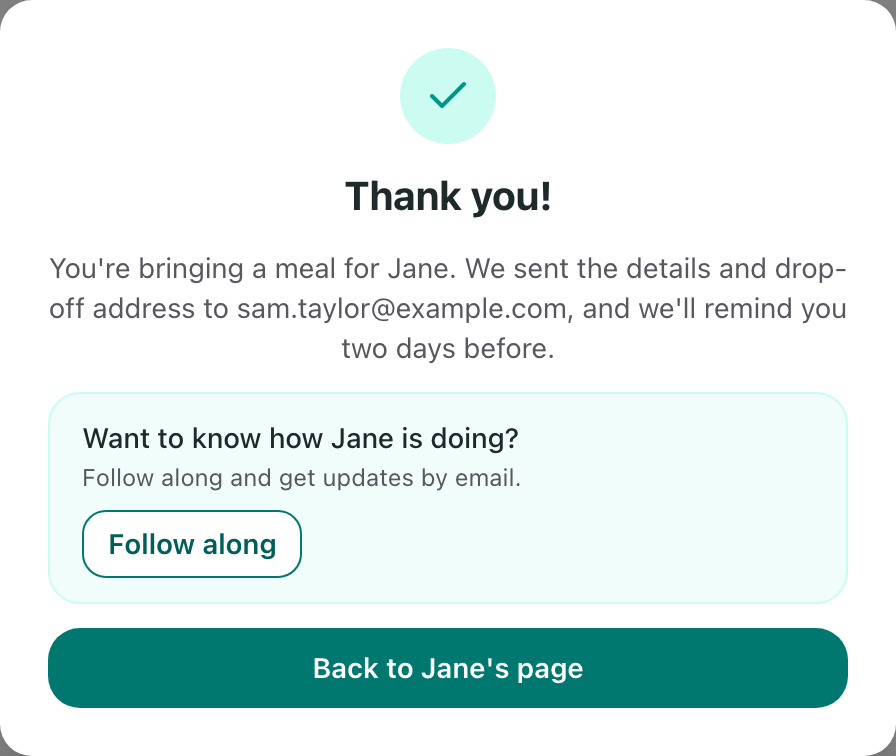
On a public Flote, the thank-you screen also offers Follow along, so you get updates on how they are doing by email. It is optional.
If you can't make it
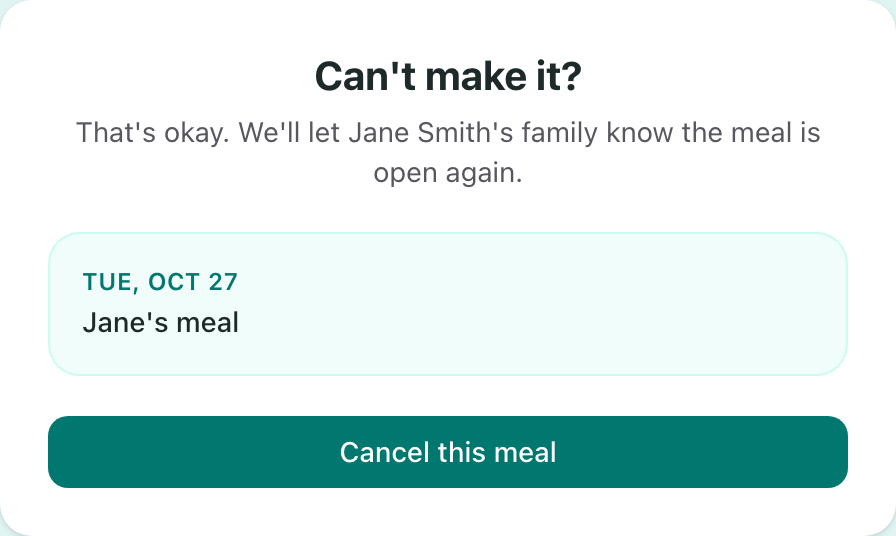
Open your confirmation email and select Can't make it? Cancel this meal under the meal. On the page that opens, select Cancel this meal. The meal opens up again for someone else, and we let the family know.
Setting up meals for your own Flote? See How to set up meals on your Flote.
Related articles
Was this article helpful?