Change your visit settings
Use Visits to keep followers up to date when the situation changes. You can say whether visits are welcome, add a message for followers, set the visit location, and share practical notes before someone books.
During chemo, recovery, or a hard week, the right answer is sometimes a little space. Instead of repeating an awkward conversation or turning away an unexpected visitor, use Visit status to say what you need: when visits are welcome, when someone should check first, or when visits are paused for now.
Important: You must be an Admin of the Flote to change visit settings.
Open Visits
Open your Flote and choose Visits in the left navigation. The page has sections for Visit status, Visit location, and Visitor notes.
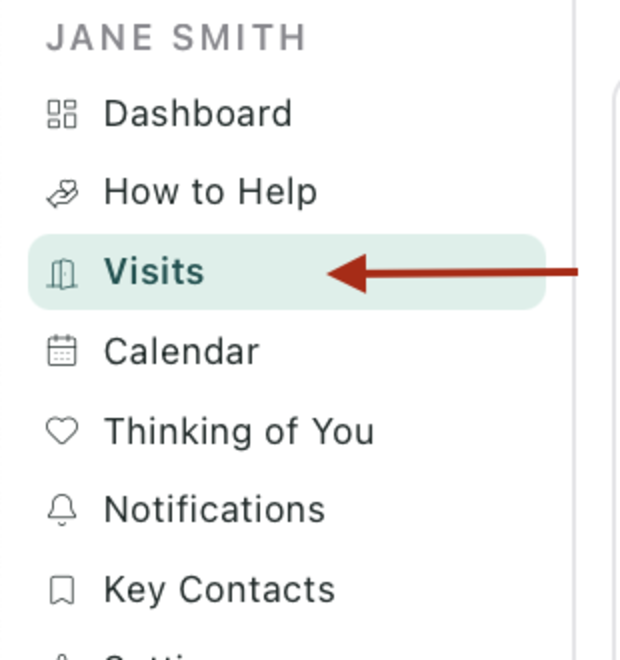
Tell followers whether visits are welcome
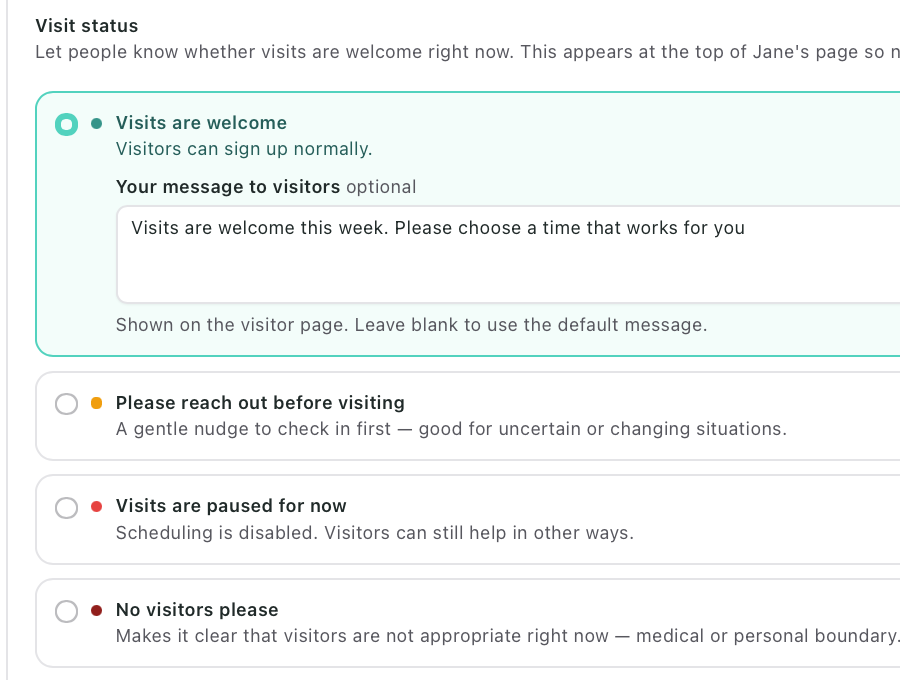
Under Visit status, choose the message that fits right now:
- Visits are welcome lets visitors sign up normally.
- Please reach out before visiting asks visitors to check in before they come when plans may be changing.
- Visits are paused for now disables scheduling while visitors can still help in other ways.
- No visitors please disables scheduling and makes a medical or personal boundary clear.
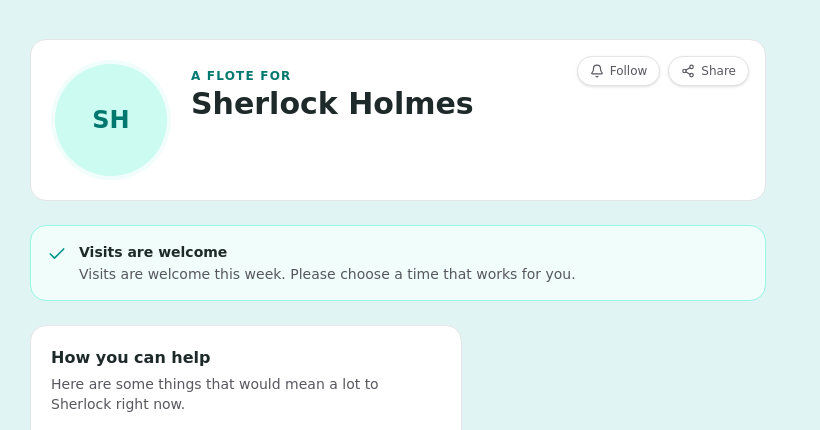
After you choose a status, you can add an optional message in Your message to visitors. It appears with the status on the follower-facing page. Leave the message blank to use Aflote's default wording, then choose Save.
Followers see the status and your optional message at the top of the Flote page:
Update the visit location
Under Visit location, choose Home, Hospital, or Care facility. Add the structured address details, including the unit, floor, or room when they apply. Choose Save changes when you are done.
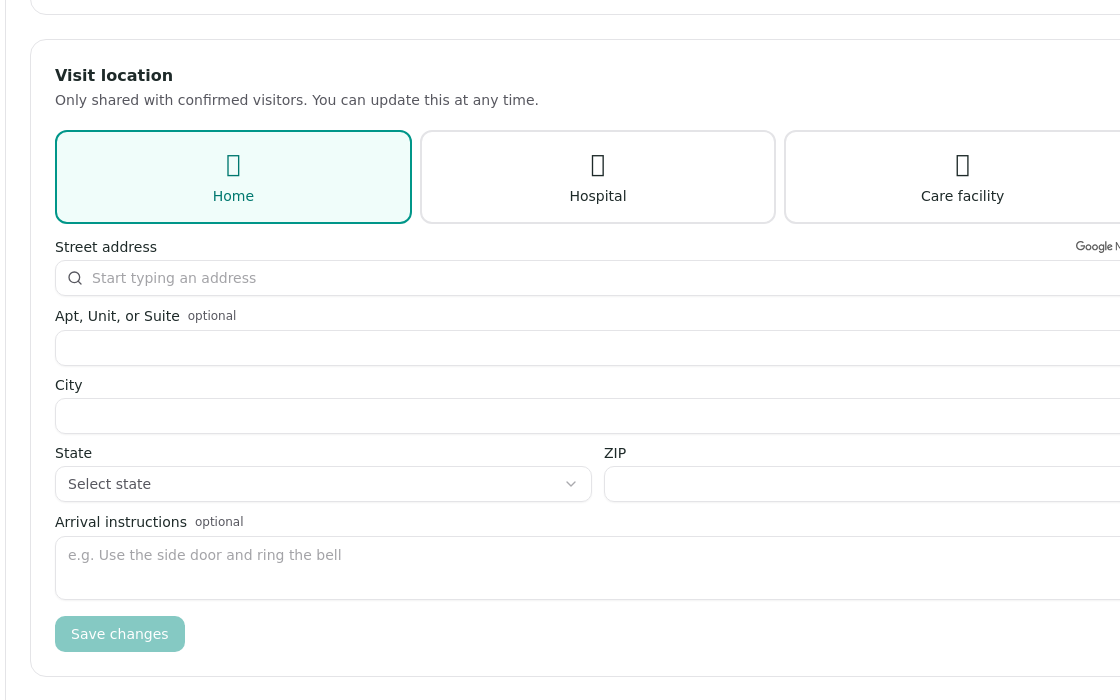
The full structured address is shared only with confirmed visitors. You can update it whenever the location changes. Put practical guidance such as parking, entrance, or check-in directions in Visitor notes.
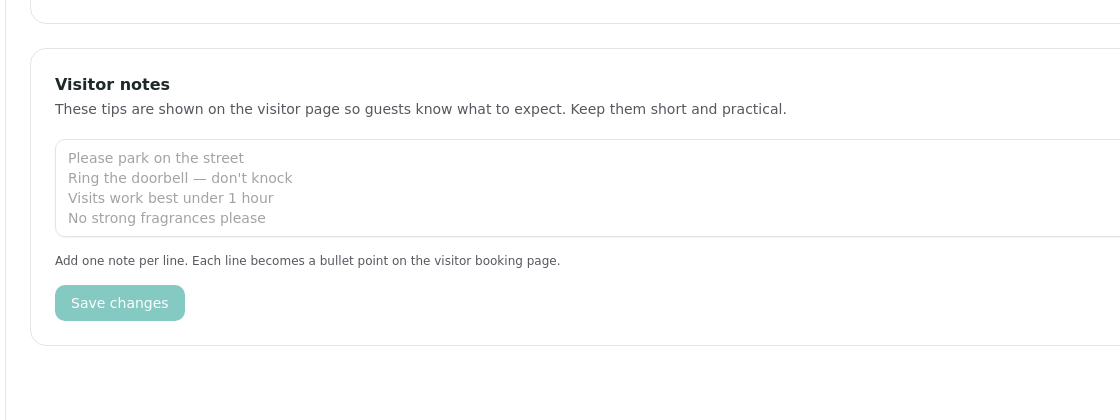
Add visitor notes
Use Visitor notes for short, practical details that help someone prepare before they book. Put one note on each line, such as where to park, how to arrive, or a helpful limit on visit length.
Each line becomes a bullet on the follower-facing booking page and in the confirmation they receive for an in-person visit. Visitor notes are not shown for phone or video calls. Choose Save changes after you update the notes.
Related articles
Was this article helpful?