How do I send a thank-you e-card?
Write a thank-you right in Aflote and send it as an e-card. It arrives by email from your family's name, under the design you pick.
Write a thank-you
In Thank Yous, select Write thank-you next to their name. You can also select it at the top of their page.
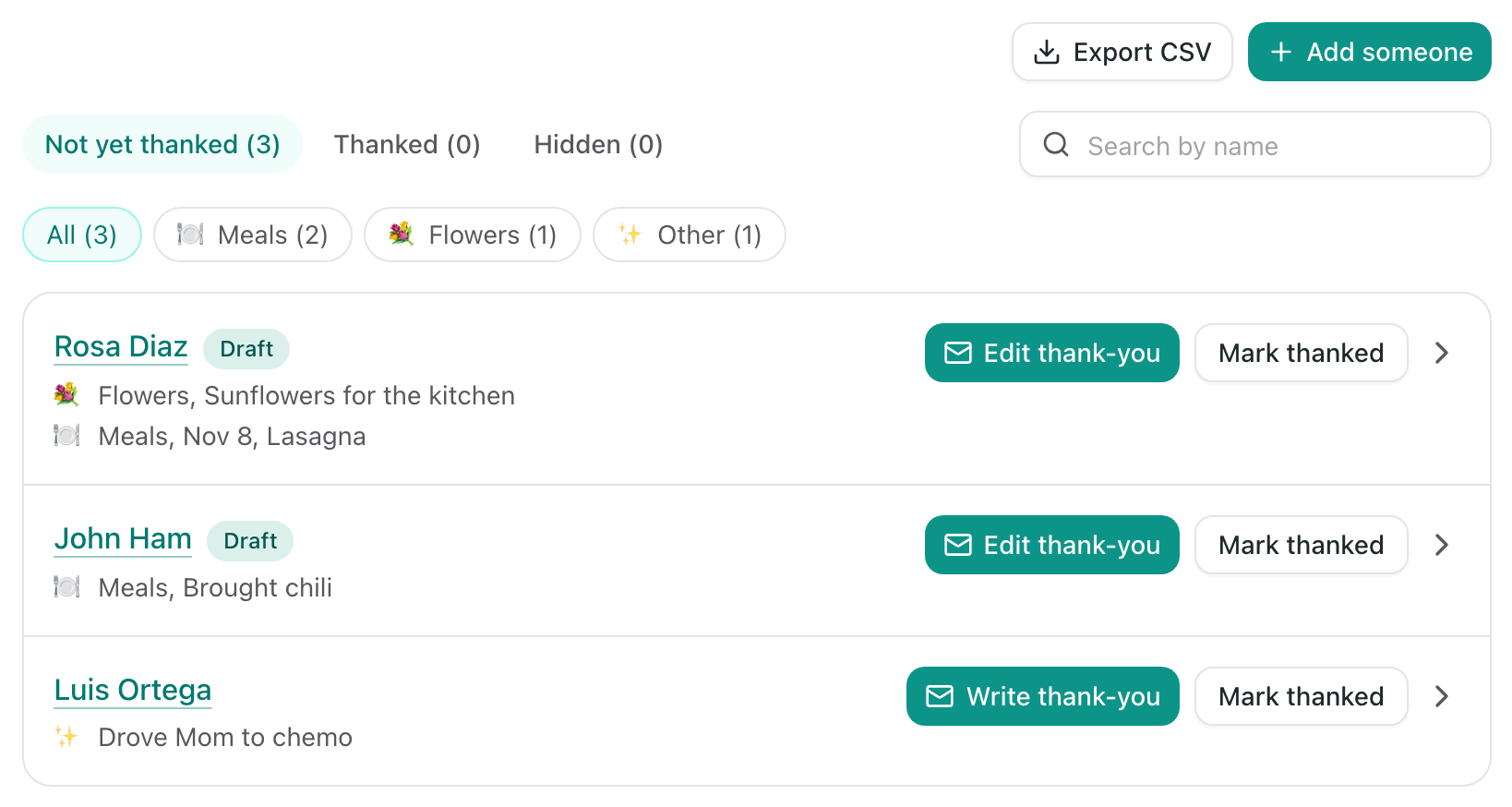
A window opens with your message on the left and the card on the right.
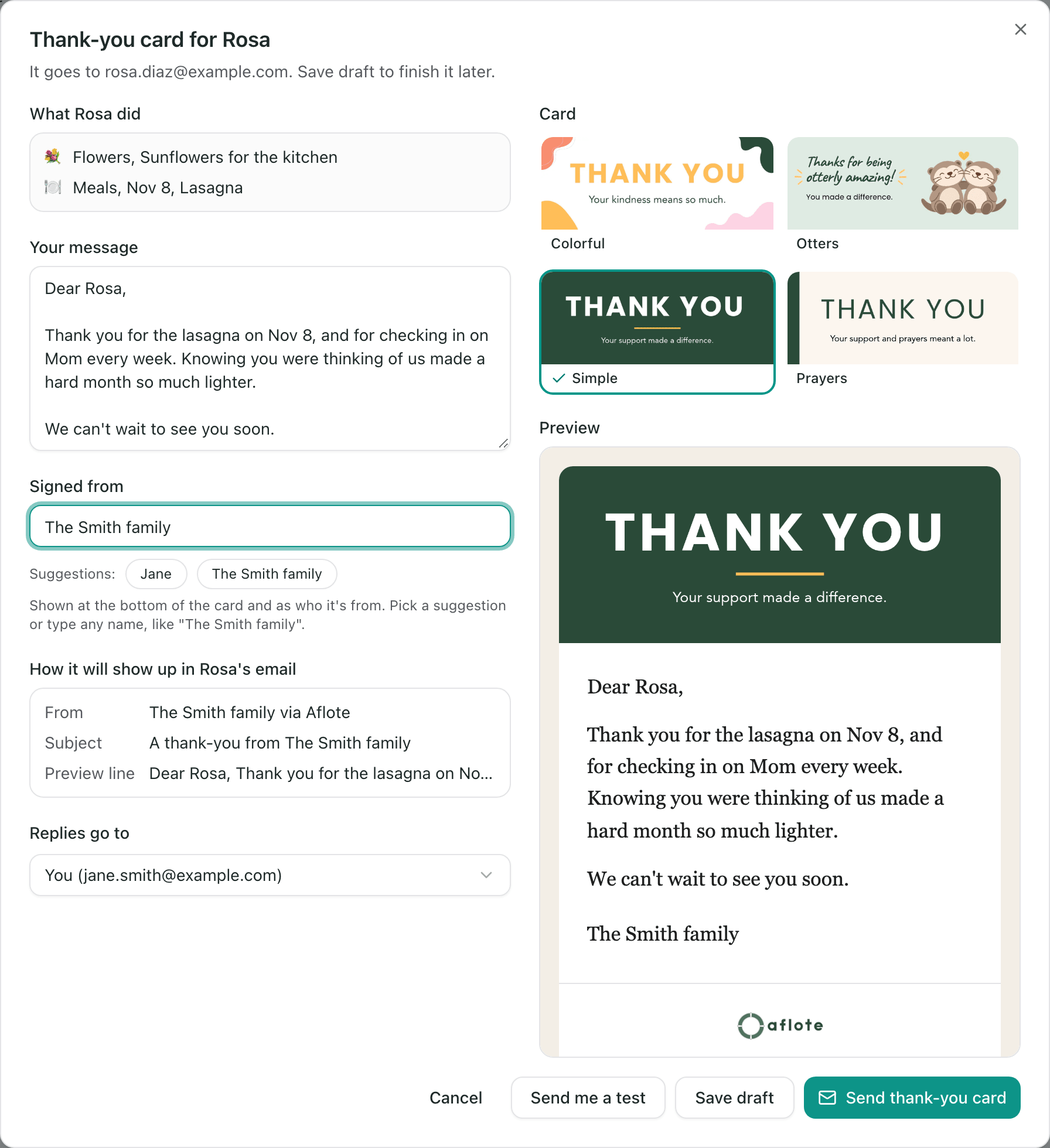
Write your message under Your message. What they did is listed just above it, including any Thinking of You message in full, so you can mention it.
Under Signed from, add who the card is from, like "Jane" or "The Smith family". Select a suggestion to fill it in.
Check How it will show up in their email: the From name, the Subject and the Preview line, the first words of your message they see before they open it.
Under Replies go to, choose who gets their reply. It is you unless you pick another admin of your Flote, like a family member you are writing the cards for.
Under Card, choose a design: Colorful, Otters, Simple or Prayers. Preview shows the card exactly as it will arrive.
Select Send thank-you card to send it now, or Save draft to finish it later.
Tip: To see the card in your own inbox first, select Send me a test. Only you get it, with "[Test]" in the subject, and nothing changes on the list.
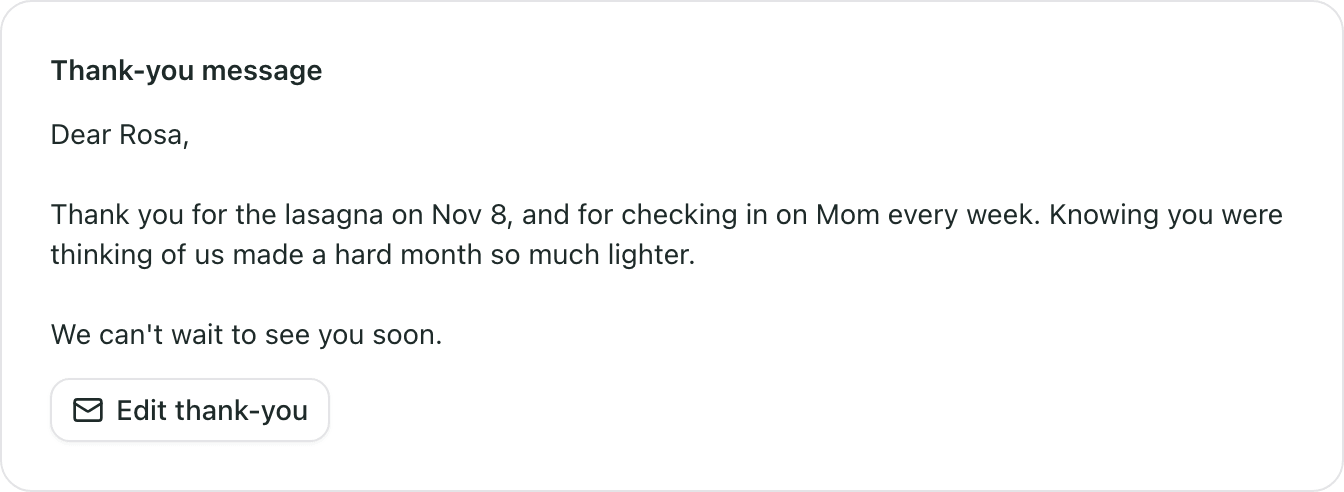
People with a saved message show a Draft tag on the list, and the button changes to Edit thank-you. Your message also shows on their page under Thank-you message, and it is included when you export the list.
What they get
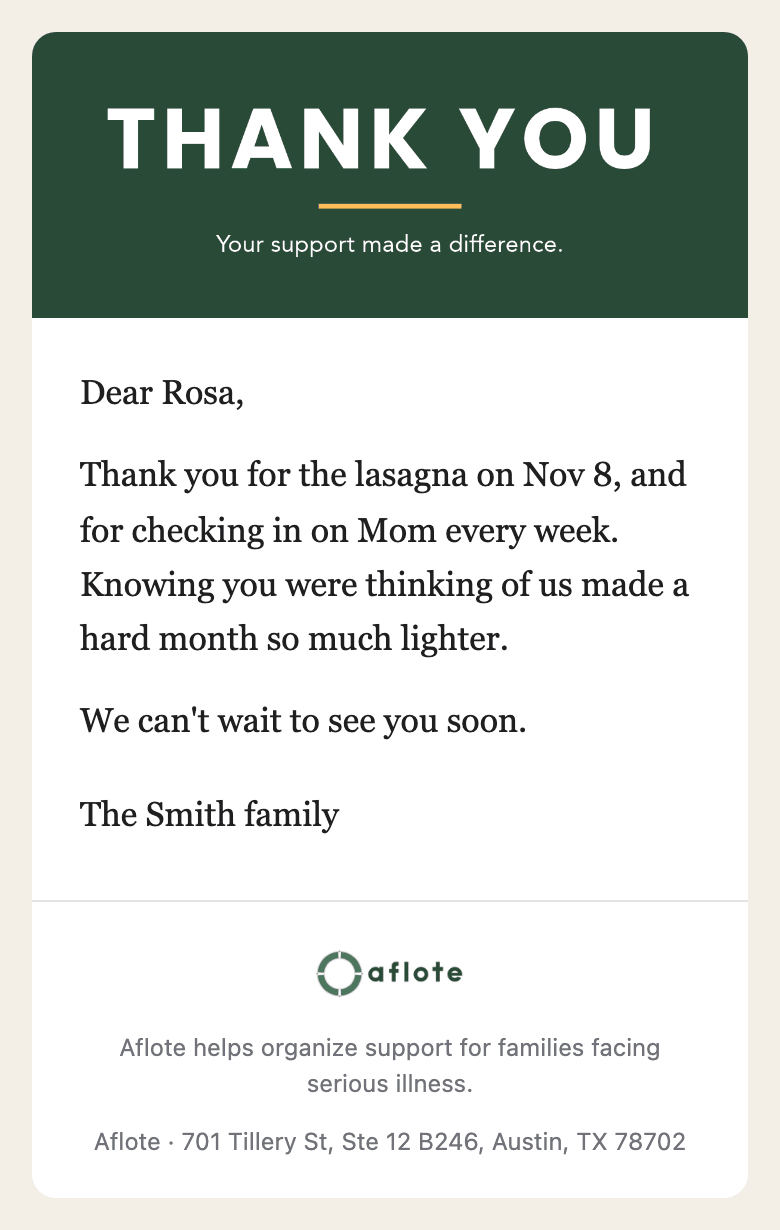
The card goes to the person's email and they move to Thanked. You do not need to select Mark thanked too.
In their inbox, the card is from your Signed from name, like "The Smith family via Aflote", with the subject "A thank-you from The Smith family". Inside is your message under the design you picked.
If they write back, the reply goes to whoever you chose under Replies go to. Their page shows Card sent with the date.
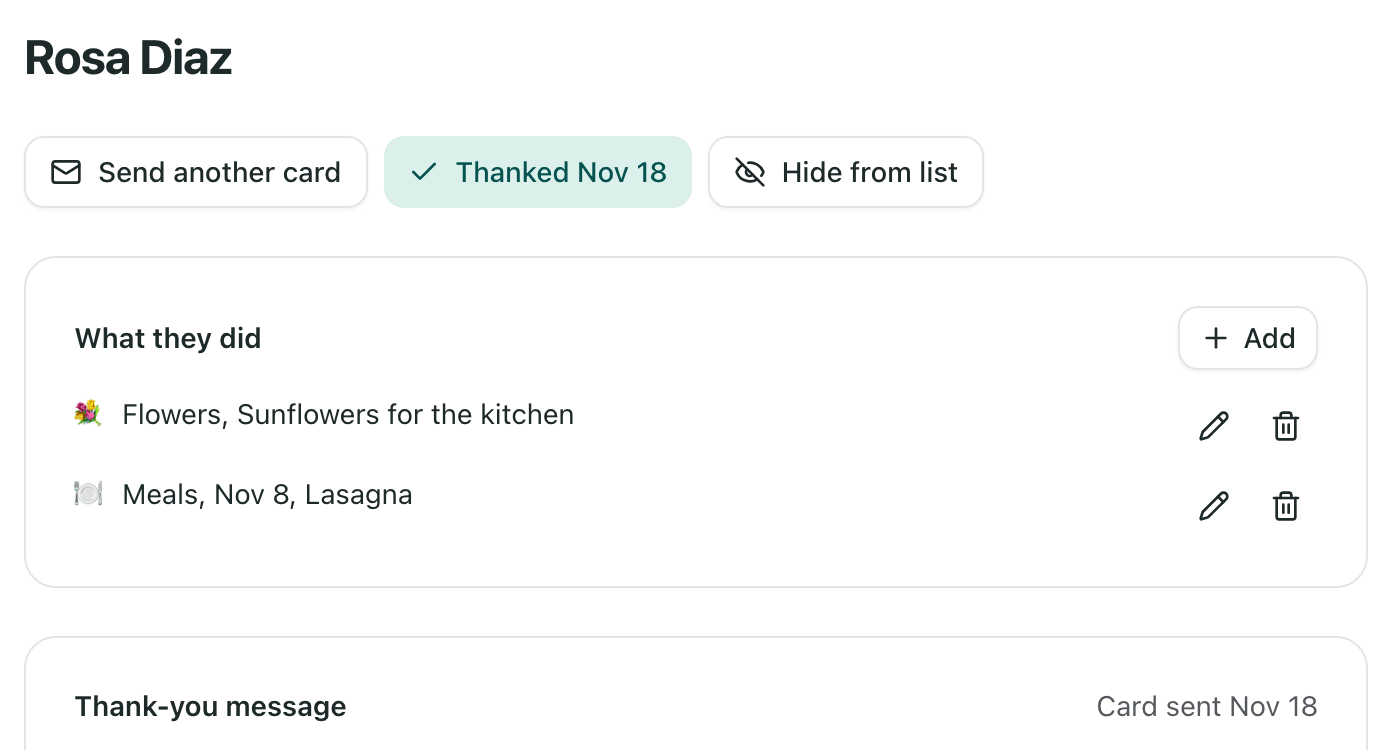
Tip: To send someone a second card later, select Send another card.
If someone has no email
The card window asks for their email in a yellow box at the top. Type it to send the card, and it is saved to their page too.
If you would rather write that one by hand, select Save draft and leave the email blank. Your message is included when you export the list with their address, as described in How do I keep track of everyone who helped?
Related articles
Was this article helpful?