How do I sign up to help?
If someone sent you a Flote link, open it to see what would help and choose one practical need you can take on. A public Flote lets you sign up without an Aflote account.
Find Ways to Help
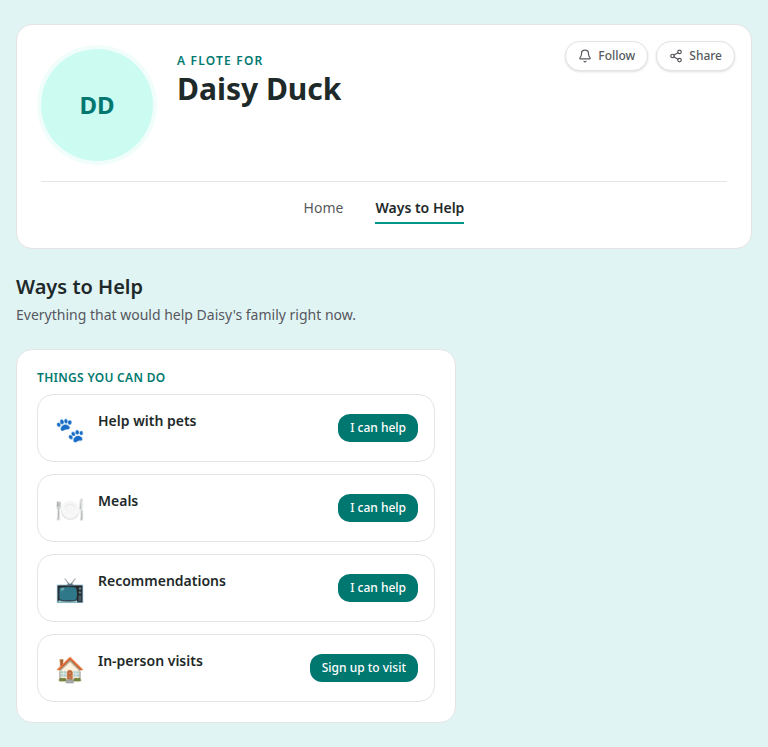
Open the Flote link, then choose Ways to Help in the Flote's navigation. This opens the full list of ways to help. Find Things you can do for practical needs, such as help with pets or meals. Choose I can help for the need you can take on.
You may also see a shorter How you can help list on Home. Choose Ways to Help to see the full list, or Home to return to the main Flote page.
Want to spend time with the person instead? The date, time and approval steps are in How to book a visit on a Flote.
Claim a practical need
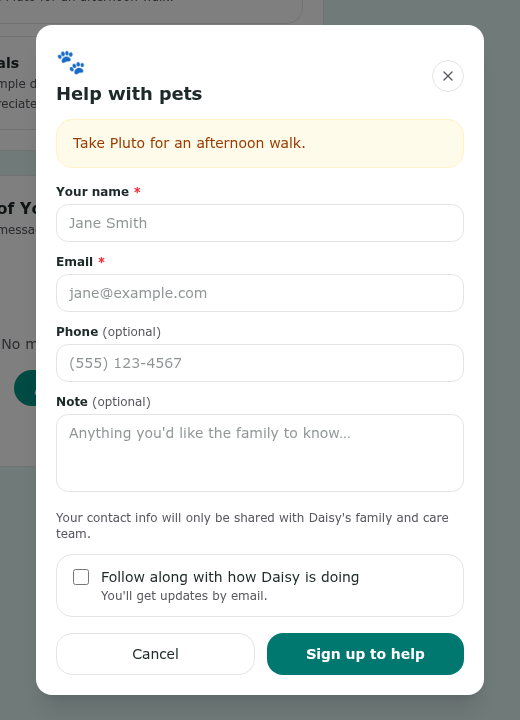
After you choose I can help, the form asks for:
- Your name (required)
- Email (required)
- Phone (optional)
- Note (optional), for any details the family should know
On a private Flote, your name and email are filled in automatically when you are signed in. On a public Flote, enter your name and email along with any other details you want to share. You do not need an account to help on a public Flote.
Before choosing Sign up to help, select the Follow along checkbox when you see it on the form to stay in the loop. The label includes the name of the person whose Flote you're visiting. You'll get updates by email. It's a simple way to keep up with how they're doing and stay connected with the family.
If you select it, submitting the form will take you to a separate follow sign-up. Following requires an Aflote account, but it's optional: you can still sign up to help without following.
Choose Sign up to help when you are ready. The family receives your name, email, phone number if you added it, and note.
The finished state says You're signed up to help! It also says A confirmation has been sent to your email. The family will be in touch soon. Choose the Back to button with the person's name to return to their Flote when you are done.
When you need an account
You can claim a practical need while signed out when the Flote is public. The form asks for your name and email so the family knows who offered help.
Private Flotes work differently. Signed out, you see Private Flote and Request access, rather than the help list. The page says You'll sign in with your email to request access. You need to sign in or create an Aflote account before you can request access and see how you can help.
Related articles
Was this article helpful?