How do I keep track of thank-you cards?
Aflote keeps track of everyone who pitched in and how they helped, so when you are ready to send thank-you cards, the list is already made. Mark people off as you go, add anyone who helped outside your Flote, and export names and addresses when you sit down to write.
Important: Only your Flote's owner and admins can see the Thank-You Tracker. Supporters never see the tracker, and nobody is told they are on it.
Access the Thank-You Tracker
Open your Flote and select Thank-You Tracker in the sidebar, just below Ways to Help.
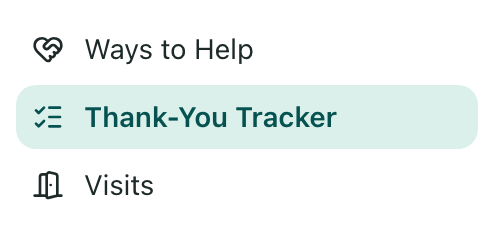
You can also get there from Ways to Help: select See everyone who has helped at the top of the page.

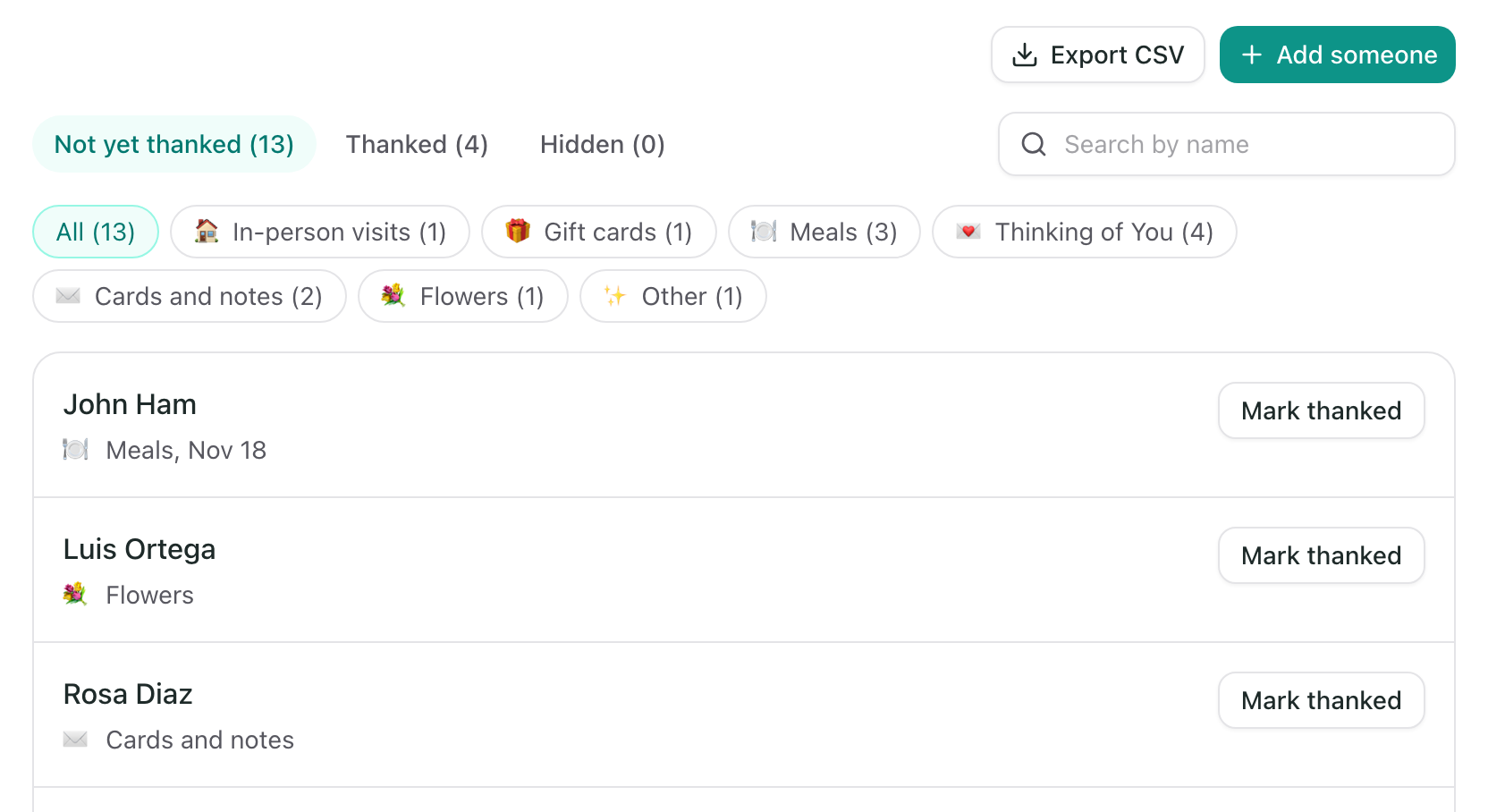
Everyone who signed up to help, booked a visit, signed up to bring a meal, sent a gift or left a Thinking of You message is already on the Thank-You Tracker, with what they did listed under their name. A person who helped in several ways appears once. Visits and meals show as soon as someone signs up, like "Bringing a meal, Nov 7: Dinner for the family", with an Upcoming tag so you know not to thank them yet. Once the day passes, the tag goes away and the line changes to "Brought a meal".
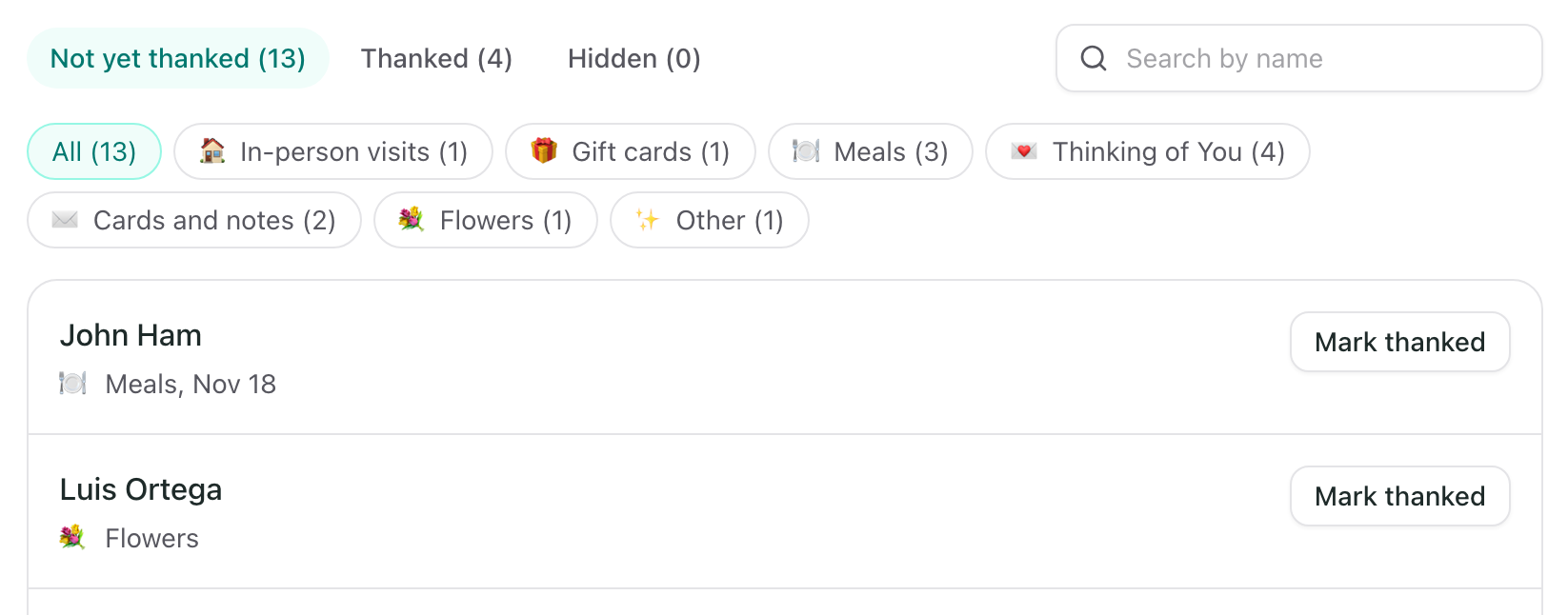
Each line shows the same emoji as its Ways to Help tile, and a Thinking of You line shows what they wrote, so you can mention their words in your card. Anyone who gave money shows the total next to their name. To see only one kind of help, like In-person visits or Gift cards, select it in the row of choices above the list.
Add someone manually
Support does not always come through your Flote. When it reaches you another way, like a card in the mail, flowers at the hospital or a check from a neighbor, you can add that person yourself so everyone you want to thank is in one place.
Select Add someone.
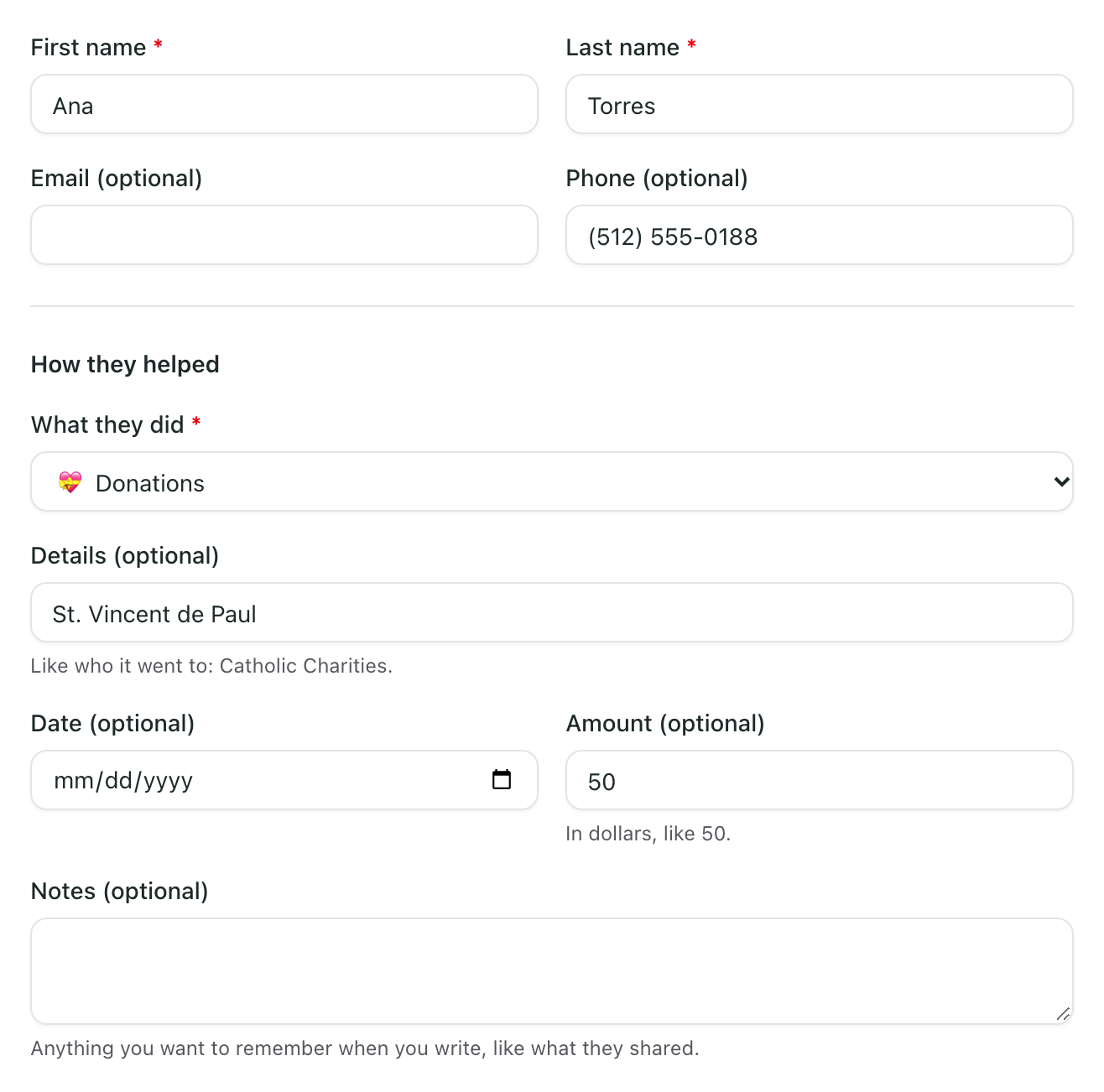
Add their first name and last name. Add an email or phone number too if you have one.
Under What they did, choose what they did. Add a date, an amount or a few words if you want them on the card. For money given to a charity in their honor, choose Donations. If nothing fits, choose Other and say what they did.
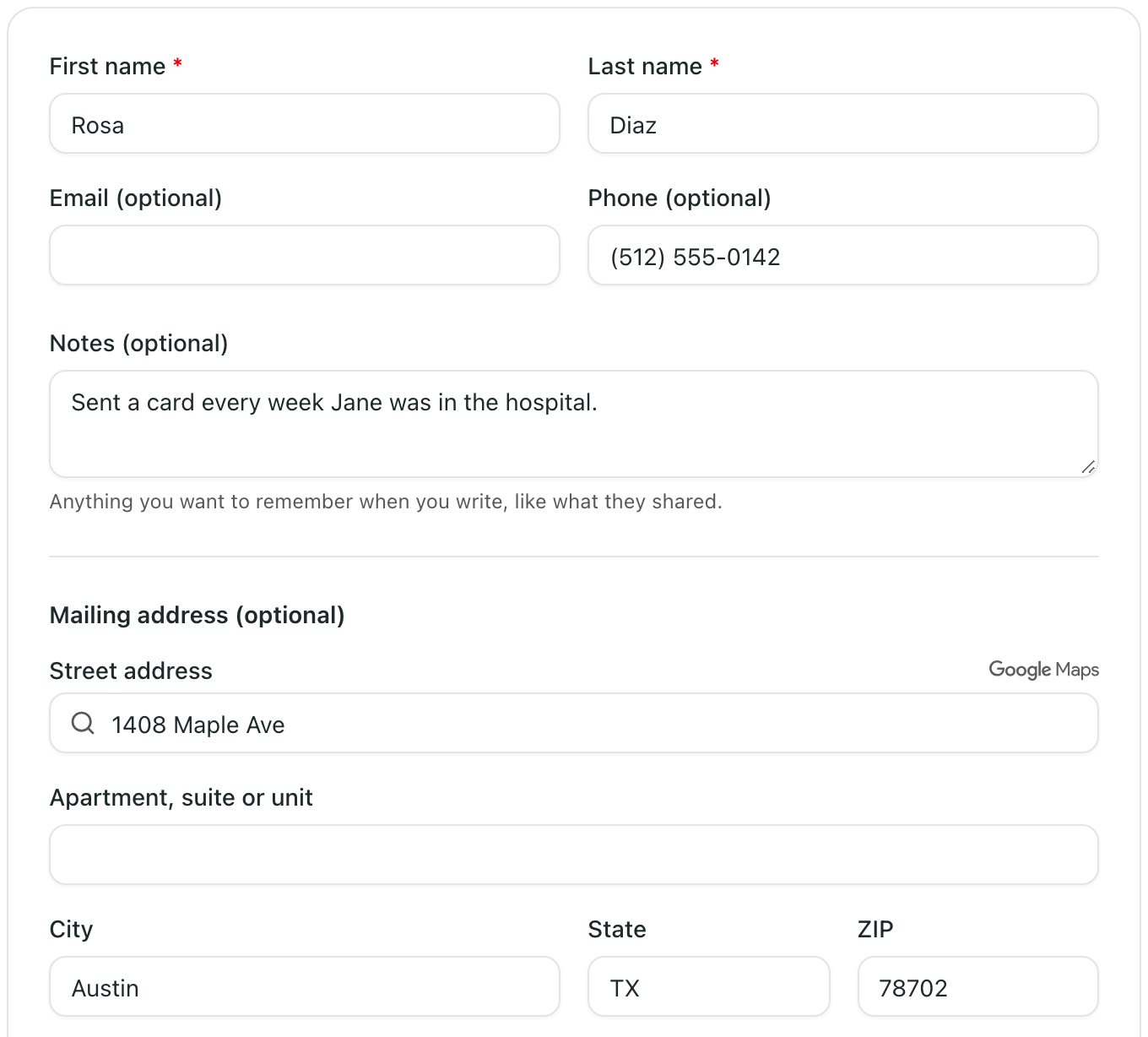
Add a mailing address at the bottom if you have one. Start typing the street and choose the right match to fill in the city, state and ZIP.

Select Add to list.
If you add someone whose email is already on the list, their details are added to that person rather than creating a second entry.
Add an address or notes
Select anyone's name to open their page. There you can add or change their email, phone number and mailing address, and keep notes for yourself, like the story they shared, so each card can be personal. Select Save when you are done.
Draft your thank-you message
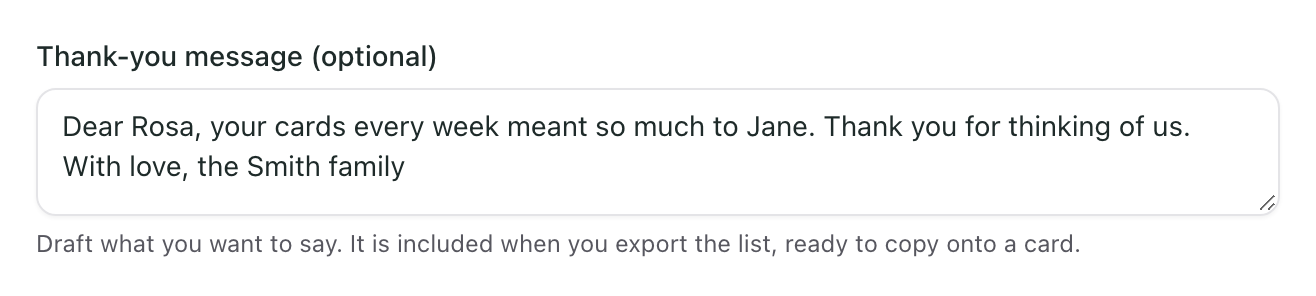
You can write each card right in Aflote and copy it out when you are ready. Open the person's page, write your message under Thank-you message, and select Save. If they sent a Thinking of You message, it shows in full under What they did, so you can mention it. Your draft is included when you export the list, so it is ready for a mail merge or to copy onto a card by hand.
Mark someone thanked
As you write, you can easily keep track of who you have already thanked or sent a card to, so nobody gets missed and nobody gets two. Everyone starts under Not yet thanked.
To mark someone, select Mark thanked next to their name.
They move to Thanked, with the date you marked them, so you can pick up where you left off. Selected by mistake? Select Thanked again to move them back to Not yet thanked.
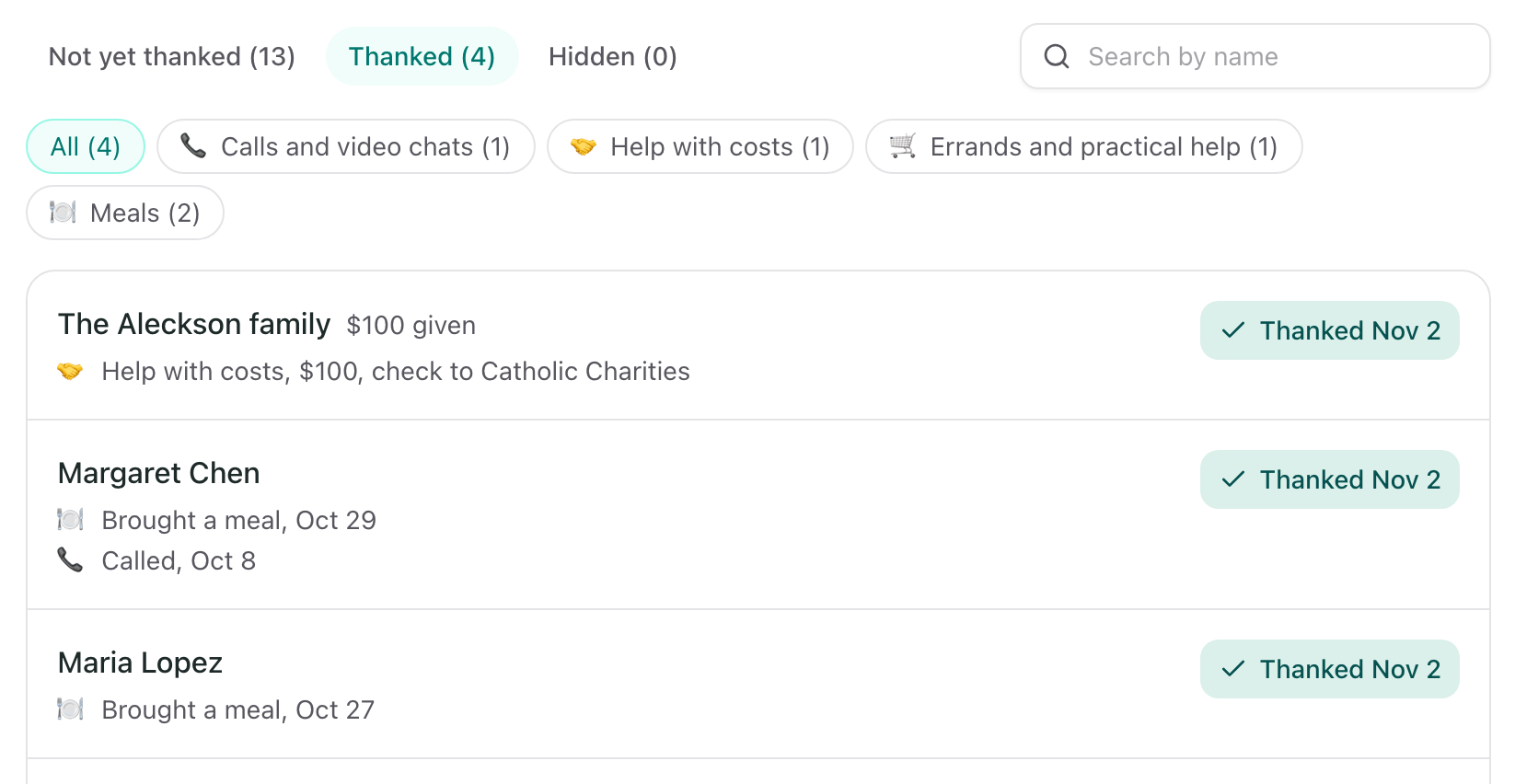
Tip: Nobody is notified when you mark them thanked. The Thanked list is only there to help you keep your place.
Hide someone
Sometimes someone who helped is close enough that a card is not needed, like your sister who brought dinner or a friend you will thank in person. If you do not need to keep track of them, you can hide them, so Not yet thanked stays focused on the cards you still plan to send.
- Select their name to open their page.
- Select Hide from list.
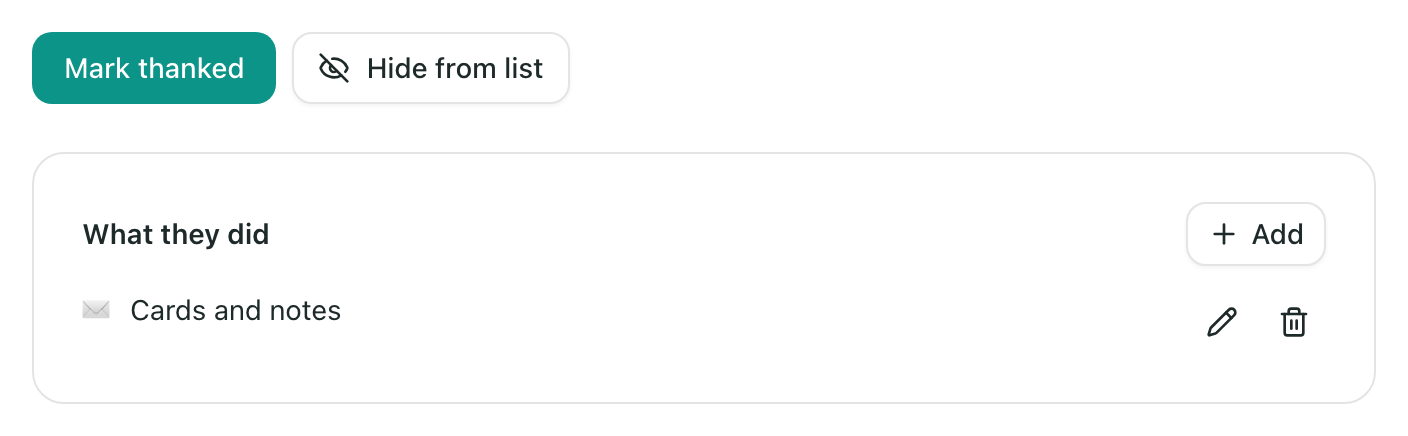
They move to Hidden. Nothing is deleted and nobody is told. If they help again, their new help still shows under their name, and they stay out of your export unless you are looking at Hidden.

To bring someone back, open them from Hidden and select Show on list. They return to Not yet thanked or Thanked, wherever they were before.
Export the list
You can export the list to a spreadsheet in one click. Select Export CSV, and Aflote downloads the people you are looking at, one row per person, with their name, email, phone number, address, what they did and any thank-you message you drafted. It opens in Google Sheets, Excel or Numbers, ready for a mail merge or to hand to someone helping you write.
A few columns make the spreadsheet easy to sort and filter:
- Kind of help lists each kind once, like "Meals, Thinking of You". Filter it for text that contains Meals to see everyone who brought food.
- Earliest date and Latest date are real dates, so you can sort by them or filter to a week.
- Status says Not yet thanked or Thanked.
If you picked one kind of help, like Flowers, only those people are exported.
Related articles
Was this article helpful?