How to ask for gift cards on your Flote
Gift cards can turn a broad offer to help into groceries, meals, rides, or household basics your family can use right away. Add the brands that would be most useful, and people in your circle can buy from those brands directly.
Add gift cards to your Flote
You must be a Flote admin to access Ways to Help and edit these settings. Open your Flote and select Ways to Help. This page shows everything you are currently asking your circle for. Select Edit.
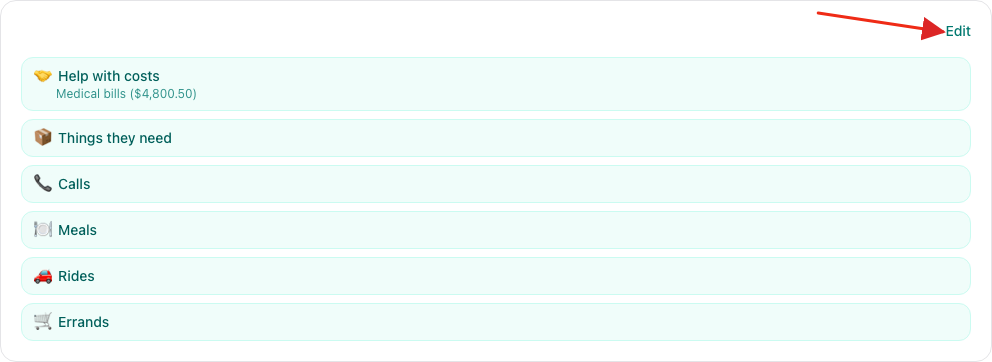
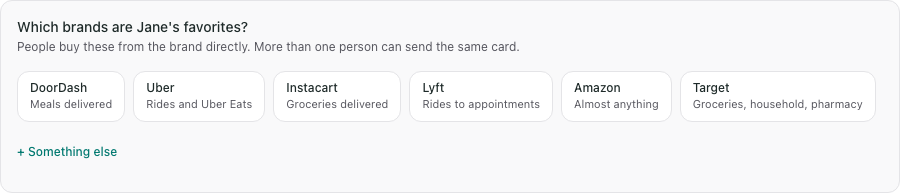
Under How can people help, select Gift cards if it is not already selected. Then scroll to Which brands are their favorites?

Select any of the suggested brands your family would use:
- DoorDash
- Uber
- Instacart
- Lyft
- Amazon
- Target
To add another brand, select Something else, enter its name, and select Add.
In the new brand row, paste the brand's full https:// gift-card link. If you
leave the link blank, your circle will still see the brand name, but there will
not be a Buy a card button for it.

Add where the card should be sent
Some brands ask for a recipient during checkout. You can add a name, email address, and mobile number under Who should the gift cards be sent to? so people do not have to message you for that information.
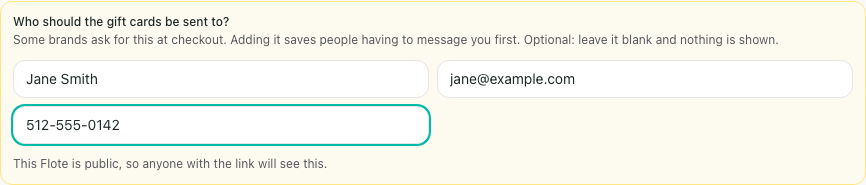
These details are optional. Leave the fields blank if you do not want to share them. The note below the fields tells you who can see the information. On a public Flote, anyone with the link can see it. On a private Flote, only people you have approved can see it.
Select Save when your list is ready.
What your circle sees
Gift cards appear under Ways to give on the supporter view of your Flote. Each brand with a link has a Buy a card button that opens the brand's own website. Aflote does not currently sell the card, take payment, or receive the card.
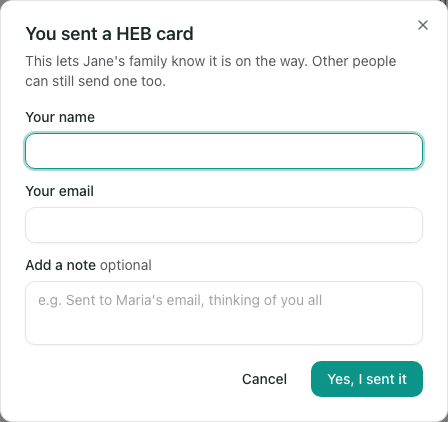
After buying a card, a supporter can return and select Already sent one? to tell your family what they sent.
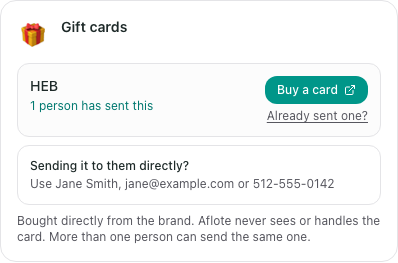
This opens a short form for their name, email address, and an optional note. They select Yes, I sent it to add their report. Reporting is optional, so the number shown may not include every card you have received.
Gift cards are not reserved or claimed. More than one person can send the same brand, and the brand stays available until you remove it from your list.
See who sent a gift card
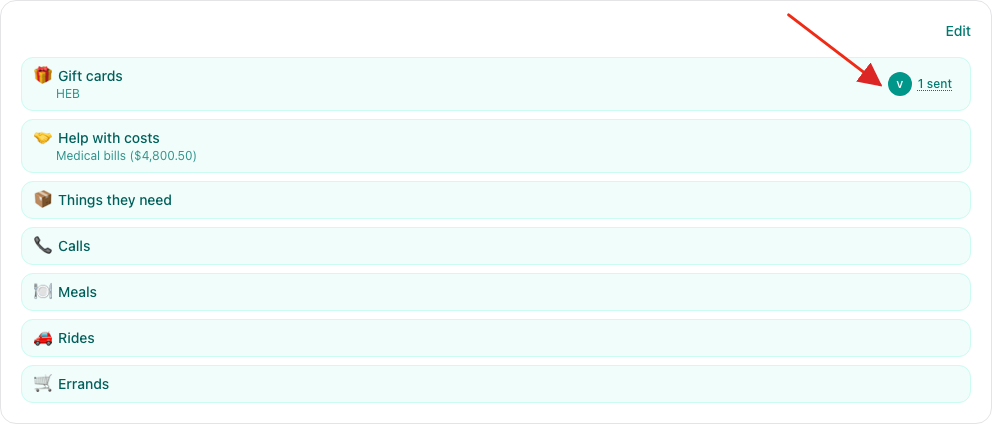
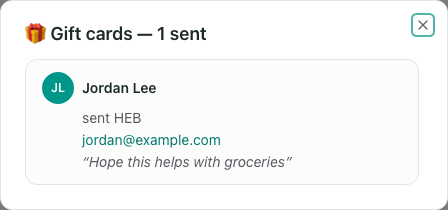
Return to your Flote's Ways to Help page. The Gift cards row shows the brands you selected and, when someone has reported a card, a sent count. Select that count to open the reported gift cards list.
The list shows the supporter's name, email address, the brand they sent, and any note they included.
You can remove a brand by selecting Edit, then the Remove icon beside its name. Removing it from your current list does not erase cards people reported sending earlier.
Related articles
Was this article helpful?