How do I ask my circle for recommendations?
Some questions are better asked of everyone at once. "Does anyone know a good estate lawyer?" or "Can anyone recommend an at-home nurse?" get better the more people answer, and a question on your Flote keeps every answer in one place instead of scattered across texts.
Important: Only Flote admins can ask questions. Anyone who can comment on your updates can answer, upvote, react and reply.
Ask a question
- Open your Flote dashboard and find Updates.
- Select Ask a question.
- Type your question where it says Ask your circle something.
- Select Ask.
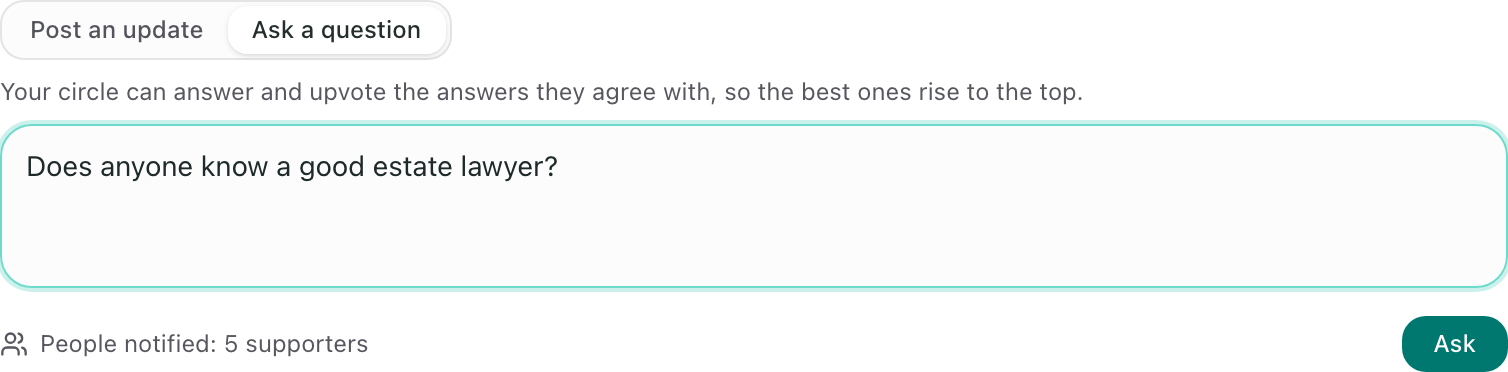
Your circle gets an email with your question and an Answer button, the same way they hear about a new update. Questions are text only, so there is no Photo option.
How your circle answers
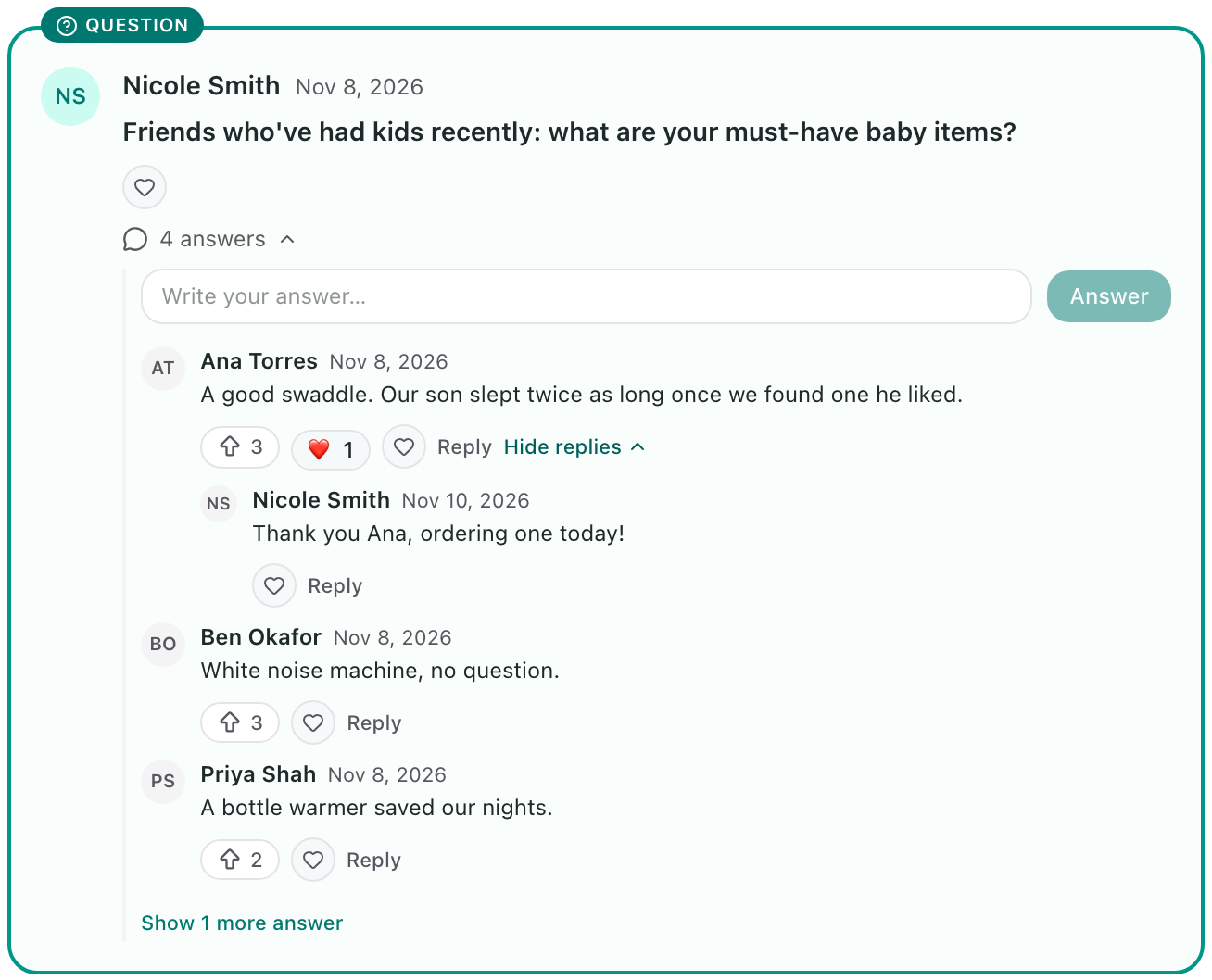
Your question shows up in Updates outlined in teal, with a Question label, so it stands out from your updates. Anyone who can comment on your updates can write an answer. If you are signed in, you answer and upvote as yourself. On a public Flote, people who are not signed in give their name and email once, and only their name is shown.
Like the comments on an update, the answers stay tucked away until someone selects the answer count below the question, such as 4 answers. The Write your answer box opens first, so anyone can add an answer without scrolling, then the 3 answers with the most upvotes. Show 1 more answer (or the number left) shows the rest.
Each answer has an upvote button with a count. People upvote the answers they agree with, and the answers with the most upvotes are listed first. Selecting the button again takes the upvote back, and nobody can upvote their own answer.
Heart or reply to an answer
To thank someone for an answer, you can react to it or reply to them.
- React: select the heart below the answer and choose a reaction. Select the same reaction again to take it back. Reactions show your thanks without changing which answers are listed first. Only upvotes do that.
- Reply: select Reply below the answer, type where it says Reply to and the person's name, then select Reply. Your reply appears underneath their answer.
Replies stay tucked away so the answers are easy to read. An answer with replies shows View 1 reply (or the number of replies) next to Reply. Select it to read them, and Hide replies to put them away again.
The person you replied to gets an email saying you replied, with your reply in it. Someone signed in can turn these emails off with Comments and replies in their email notification preferences.
Replies are not counted as answers. They can't be upvoted, and they are not in the answer emails.
Pin a question to the top
New updates appear above older ones, so a question can slide down the page. To keep it at the top while you keep posting:
- Find your question in Updates.
- Select the pin next to the edit and delete buttons.
The question is marked Pinned and stays above every update until you select the pin again to unpin it.
Get the answers by email
Each Flote admin gets one email each evening with that day's new answers, grouped by question. On a day with no new answers, there is no email.
If you would rather hear about each answer as it comes in, or not by email at all, change Answers to your questions in your email notification preferences.
Hide an answer
If an answer isn't helpful, you can hide it from your circle without deleting it.
- Find the answer under your question.
- Select the crossed-out eye next to it. On a computer, it appears when you point at the answer.
The answer stays on your dashboard, greyed out and marked Hidden from your circle, and nobody else can see it. Select Unhide to bring it back.
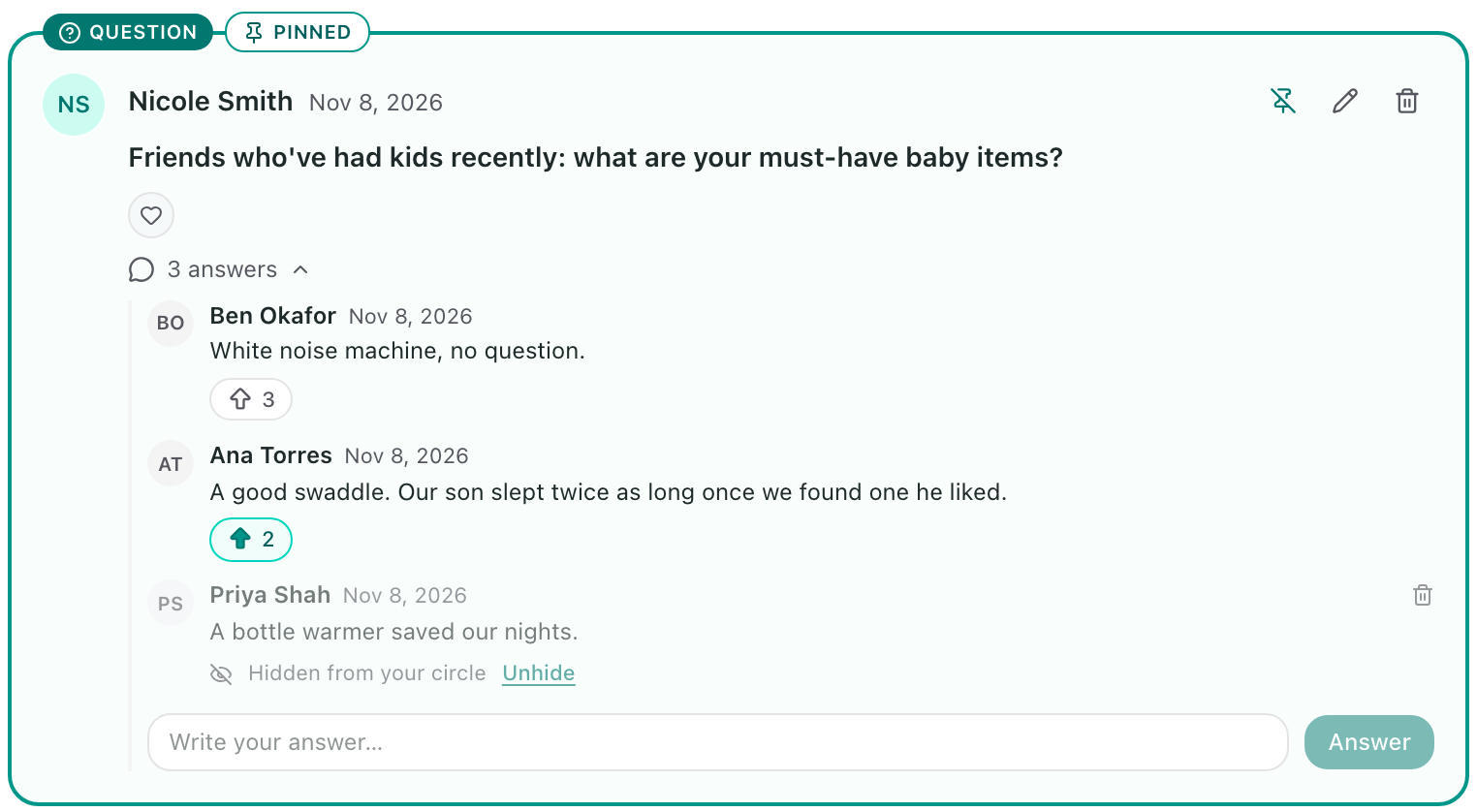
To remove an answer for good, select the trash can next to it instead.
Related articles
Was this article helpful?