How to connect your Venmo
Some things are easier to help with in cash than in casseroles. A cleaning service, a grocery delivery, gas for the drive to an appointment. Connecting your Venmo lets the people in your circle send money directly to you, without anyone having to ask for your username first.
Tip: You will need a Venmo account first. If you don't have one, sign up at venmo.com before connecting it here.
Connect your Venmo
Open your Flote, select Settings, then Connected tools.
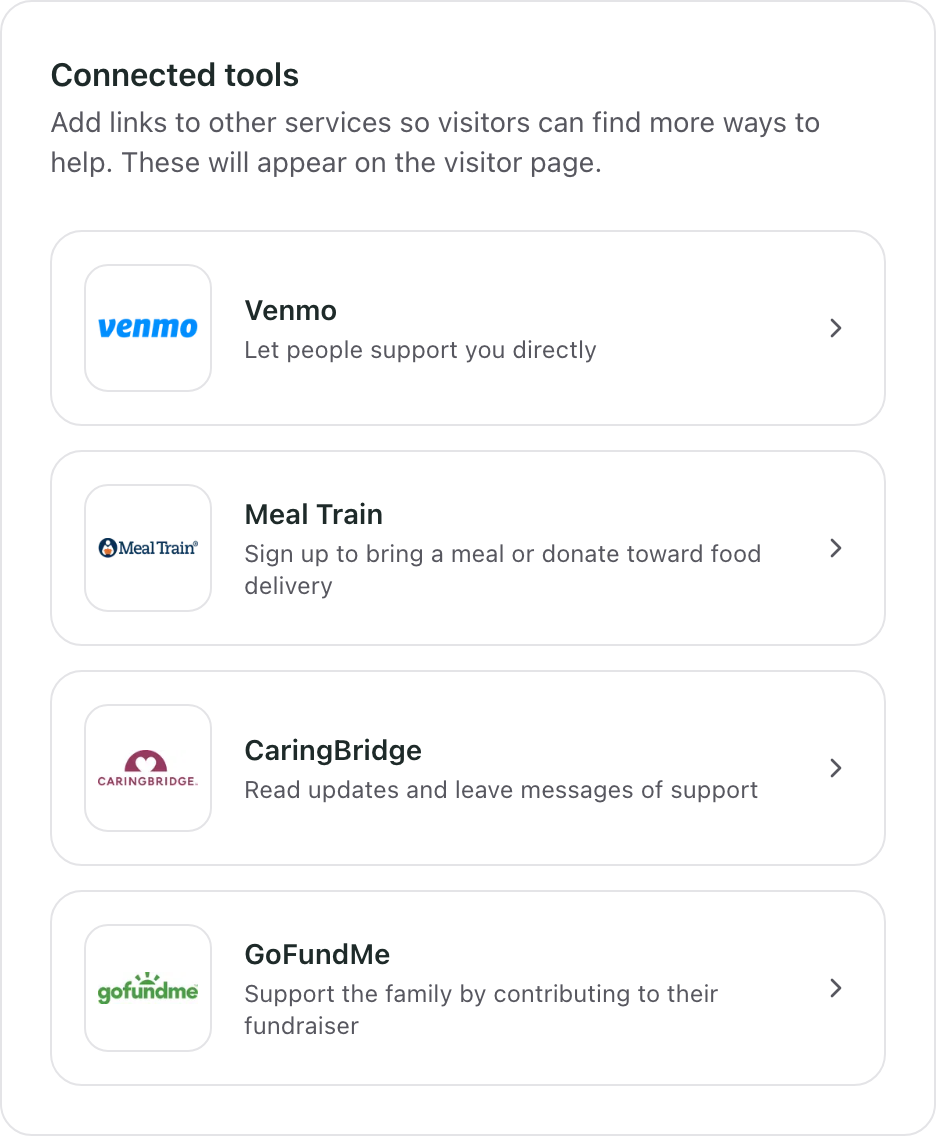
Venmo is listed first. Select it to open the form.
Enter your Venmo username. The @ is already there, so just type what comes after it.
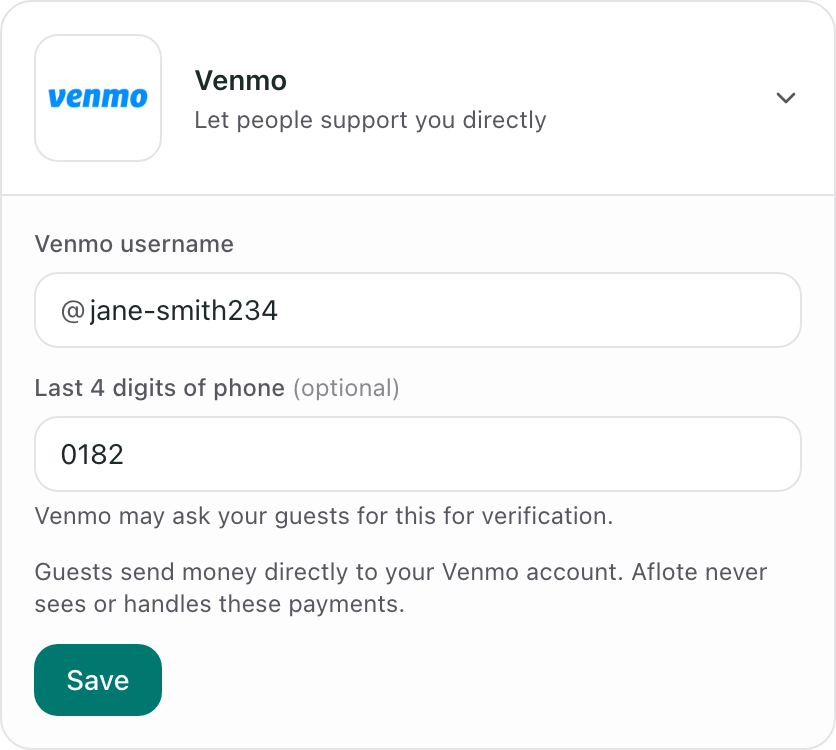
Last 4 digits of your phone number is optional. Venmo sometimes asks a guest paying you for this, so having it here lets them double-check they have the right person before they send anything.
Select Save.
What your circle sees
Once connected, a Venmo card appears on your Flote's page, above Meal Train, CaringBridge and GoFundMe if you have those connected too. Selecting it opens your Venmo profile in a new tab, ready for someone to pay you directly.
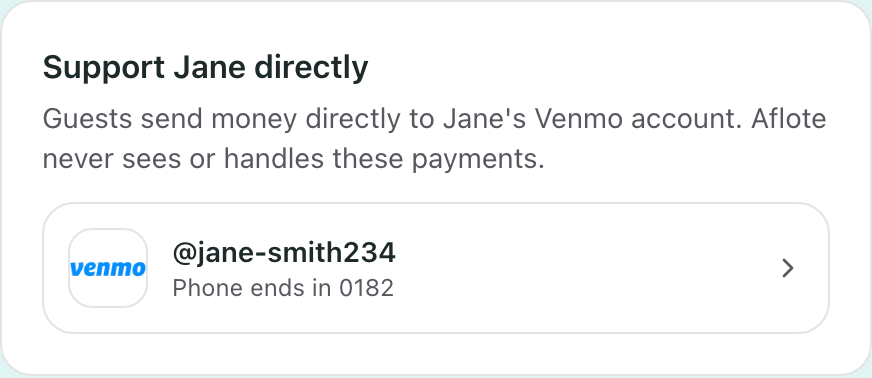
Guests send money directly to your Venmo account. Aflote never sees or handles these payments, so there is nothing for us to track or report on your behalf.
If you need to change or remove it
Go back to Settings, then Connected tools, and select Venmo again. Update the username and select Save, or select Remove to take it down.
Related articles
Was this article helpful?