How to ask for help with costs on your Flote
People often want to help but may not know what would be most useful. Help with costs gives them a clear, practical way to support you by letting you create cash funds for specific expenses, such as cleaning, childcare, or medical bills.
You can add one or more funds, share an optional goal, and let your circle send money directly through Venmo.
Add a cash fund
You must be a Flote admin to access Ways to Help and edit these settings. Open your Flote, select Ways to Help, then select Edit.
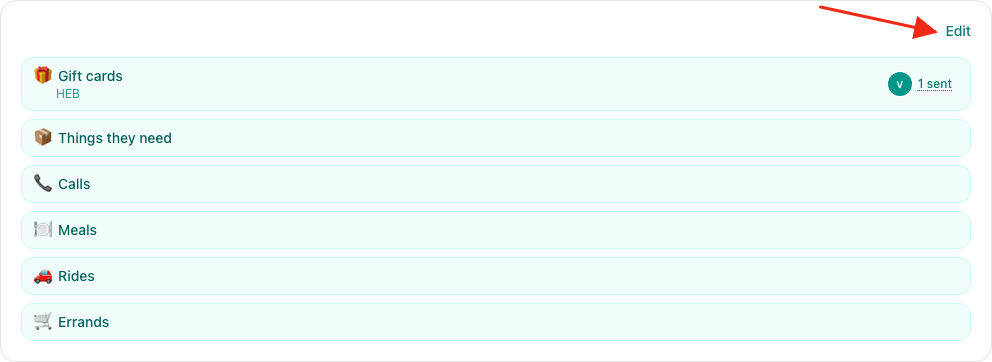
Under How can people help, select Help with costs if it is not already selected.

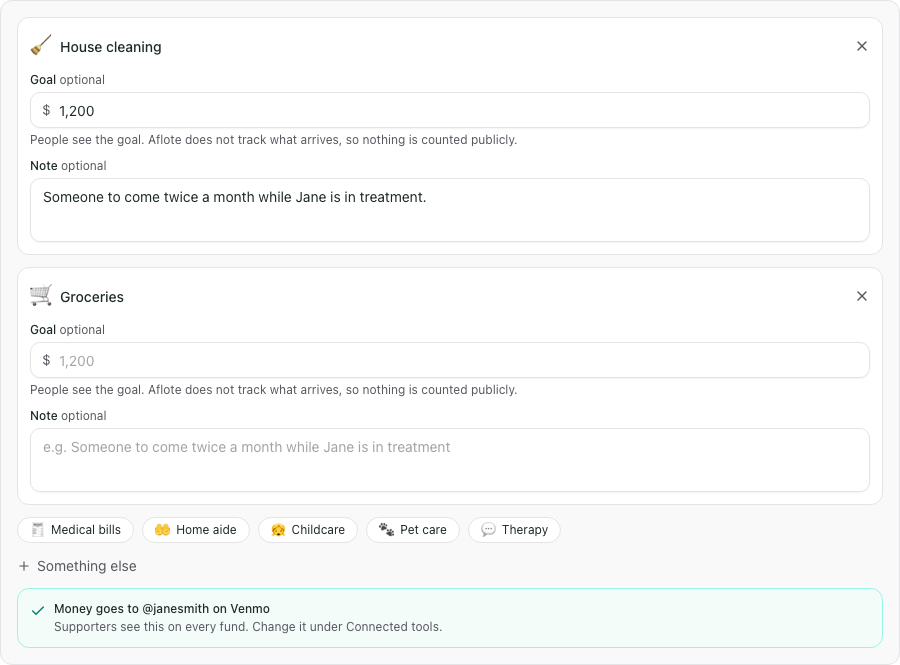
Scroll to Help with costs. Under What kind of cash fund would help most?, choose any preset that fits:
- Medical bills
- House cleaning
- Home aide
- Childcare
- Groceries
- Pet care
- Therapy
Select Something else to enter your own fund name.
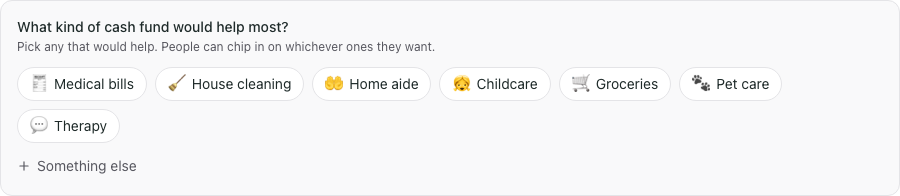
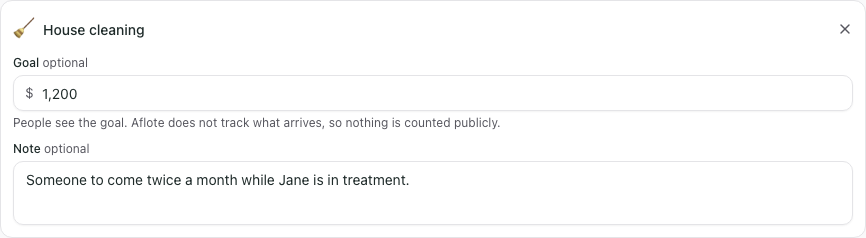
For each fund, you can add:
- A goal amount, such as $1,200. The goal is optional.
- A note explaining what the money would cover. The note is optional too.
If Venmo is not connected yet, the editor asks where people should send money. Add your Venmo username there, or follow How to connect your Venmo.
Select Save when your funds are ready.
What your circle sees
Each fund appears on the supporter view of Ways to Help with its name, goal if you added one, and note. With Venmo connected, the fund also has a Send on Venmo button.
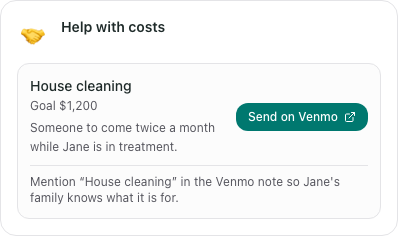
When someone selects Send on Venmo, they leave Aflote and send the money through Venmo. Aflote never takes the payment or receives the money.
The goal is a reference amount. Because the money goes directly to Venmo, Aflote does not count or display a total received.
Add, edit, or remove a fund
Return to Ways to Help and select Edit. In the Help with costs section, you can:
- Select another preset or Something else to add a second fund.
- Edit a fund's name, goal, or note in its card.
- Select the Remove icon beside a fund's name, then select Save.
Removing a fund takes it off your current Flote and archives it. It does not erase the fund's earlier supporter activity.
Related articles
Was this article helpful?