How to set up meals on your Flote
When friends offer to bring food, the hard part is keeping track: who is on point which day, what can everyone eat, and where to leave it. Aflote makes it simple to coordinate meals. You pick the days, your circle signs up for one meal on one day, and nobody brings dinner on the same night as someone else.
Setting it up takes less than five minutes. You must be a Flote admin to do it.
Tip: Creating a new Flote? Choose Meals on the How can people help? screen, and the same meal questions outlined below come right after it. To do them later instead, select I'll set up meals later and follow the steps below whenever you are ready.
Set up meals
Open your Flote, select Ways to Help, then select Edit. Under How can people help, select Meals, then select the arrow on the Meals card to open it. Select Set up meals. If you have set meals up before, the button says Edit meals.
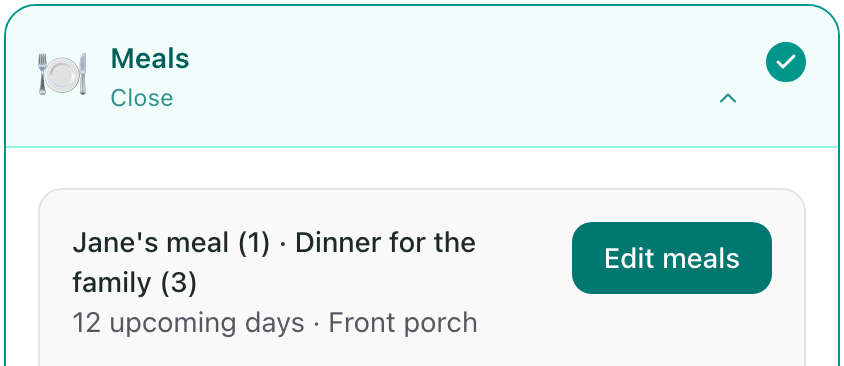
The setup then asks four questions, one screen at a time. Select Continue to go to the next one.
How do you want to organize meals?
Choose where people sign up to bring meals:
- Organize meals here: people sign up right on your Flote. The rest of this article walks you through it.
- We already use Meal Train: people are sent to your Meal Train page instead.
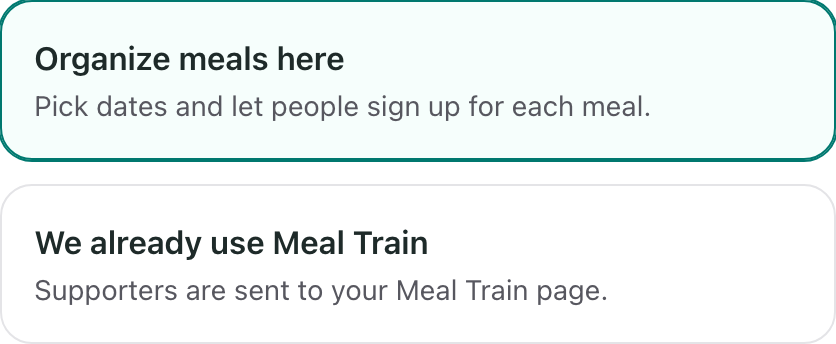
If you chose Meal Train, paste your Meal Train link and select Use Meal Train. That is all you need to do.
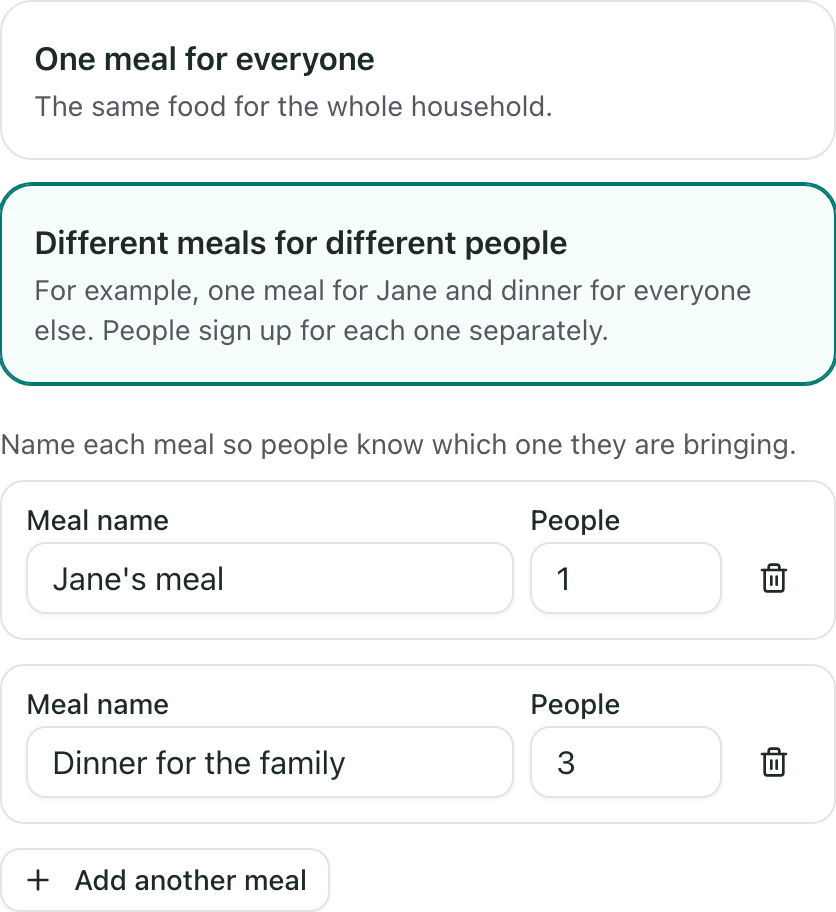
What kind of meals do you need?
Some households need one meal. Others need a separate meal for someone who eats differently.
- One meal for everyone: the same food for the whole household. Enter how many people it feeds.
- Different meals for different people: for example, one meal for the person who is sick and dinner for everyone else. Give each meal a name and the number of people it feeds. People sign up for each meal separately, so nobody is expected to bring both.
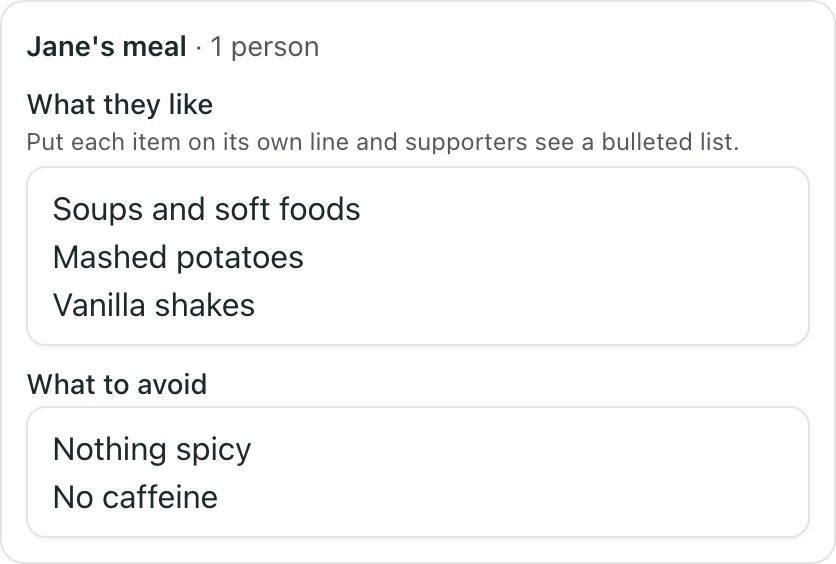
Any foods to avoid?
For each meal, fill in What they like and What to avoid: allergies, things that are hard to eat right now, and favorites. Leave both blank if anything goes.
Put each item on its own line. Supporters see it as a bulleted list, which is much easier to read than one long paragraph.
Which days, and where?
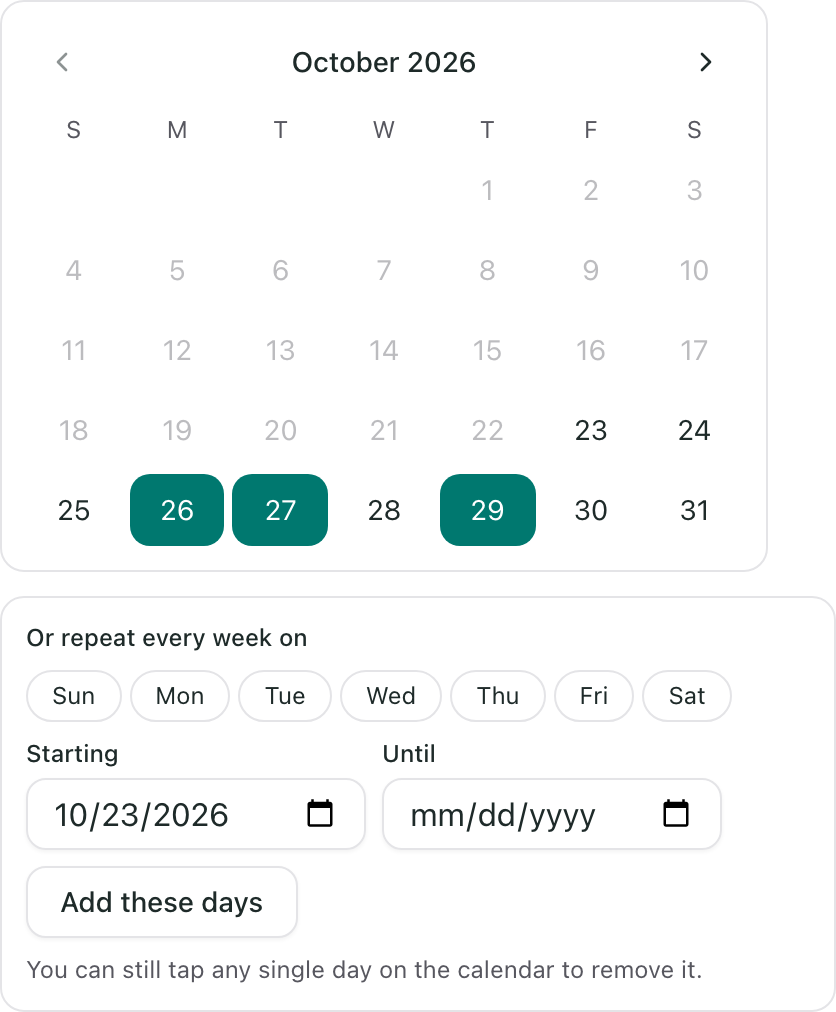
Pick the days. Tap each day on the calendar that you would like food. To fill in a regular pattern, use Or repeat every week on: choose the days of the week, set Starting and Until, then select Add these days. You can still tap any single day to remove it afterward.
Say where and when to drop off.
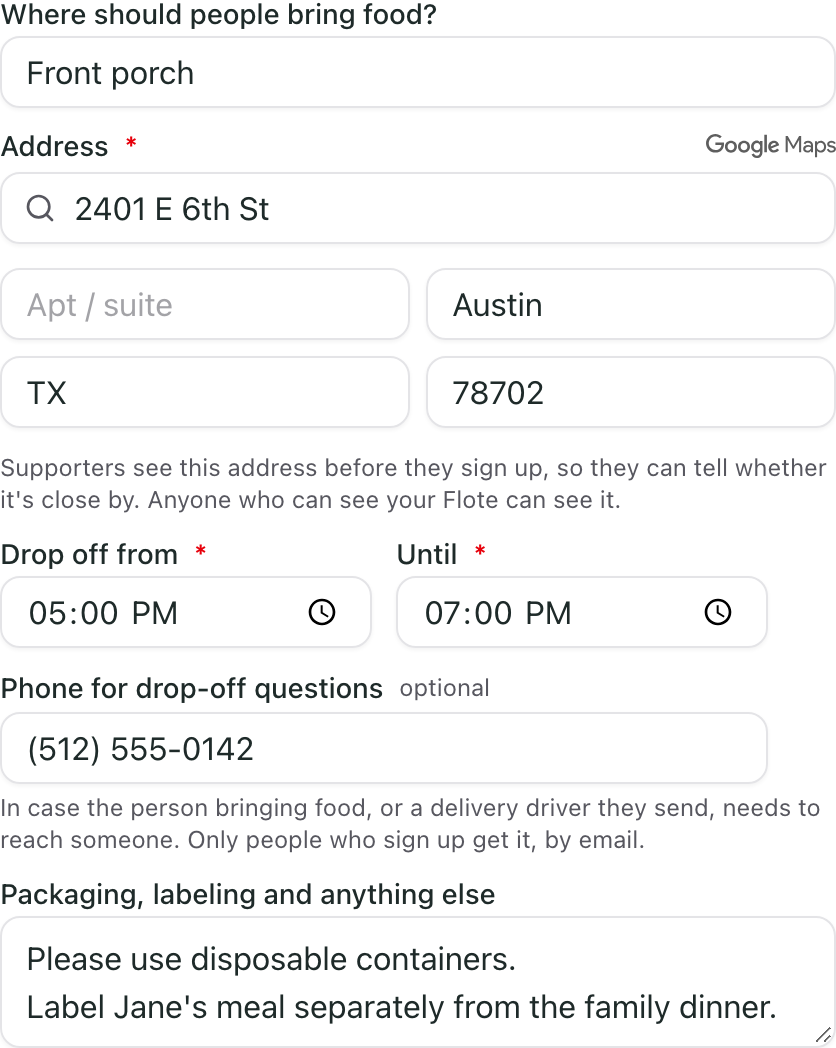
- Where should people bring food? A short name for the place, like "Front porch".
- Address, with the street and city. This is required. Supporters see it before they sign up, so they can tell whether it is close by. Anyone who can see your Flote can see it.
- Drop off from and Until: the window when someone can drop food off. Both are required.
- Phone for drop-off questions: optional, but helpful if someone has a question when they arrive, or sends a delivery driver who does. Only people who have signed up for a meal see this number.
- Packaging, labeling and anything else, like "Please use disposable containers."
Are some days different? Below the drop-off, select Customize a day to see each day on its own.
- Untick a meal on a day it isn't needed. For a meal needed on only one or two days, choose Only some days next to it, then tick those days.
- Select Change the time to give that day a different drop-off window, or Change the place to send food somewhere else that day. Everything you don't change stays the same as usual.
Supporters only see the meals each day needs, and the drop-off for that day.
Let your circle know about new days. When you add days or meals to meals you already set up, a box above Save meals lists the new days, with Email your circle about the new meal days already ticked. Untick it to save without emailing anyone.
This is the last screen. Select Save meals. Back in the editor, you can add a short note under Anything else supporters should know for anything that does not fit in the fields, then select Save.
What happens when someone signs up
On your Flote, the Meals card shows Pick a day. A supporter picks the meal and day they can bring, sees what that meal's people like and should avoid, and adds their name and email. On a public Flote they do not need an account.
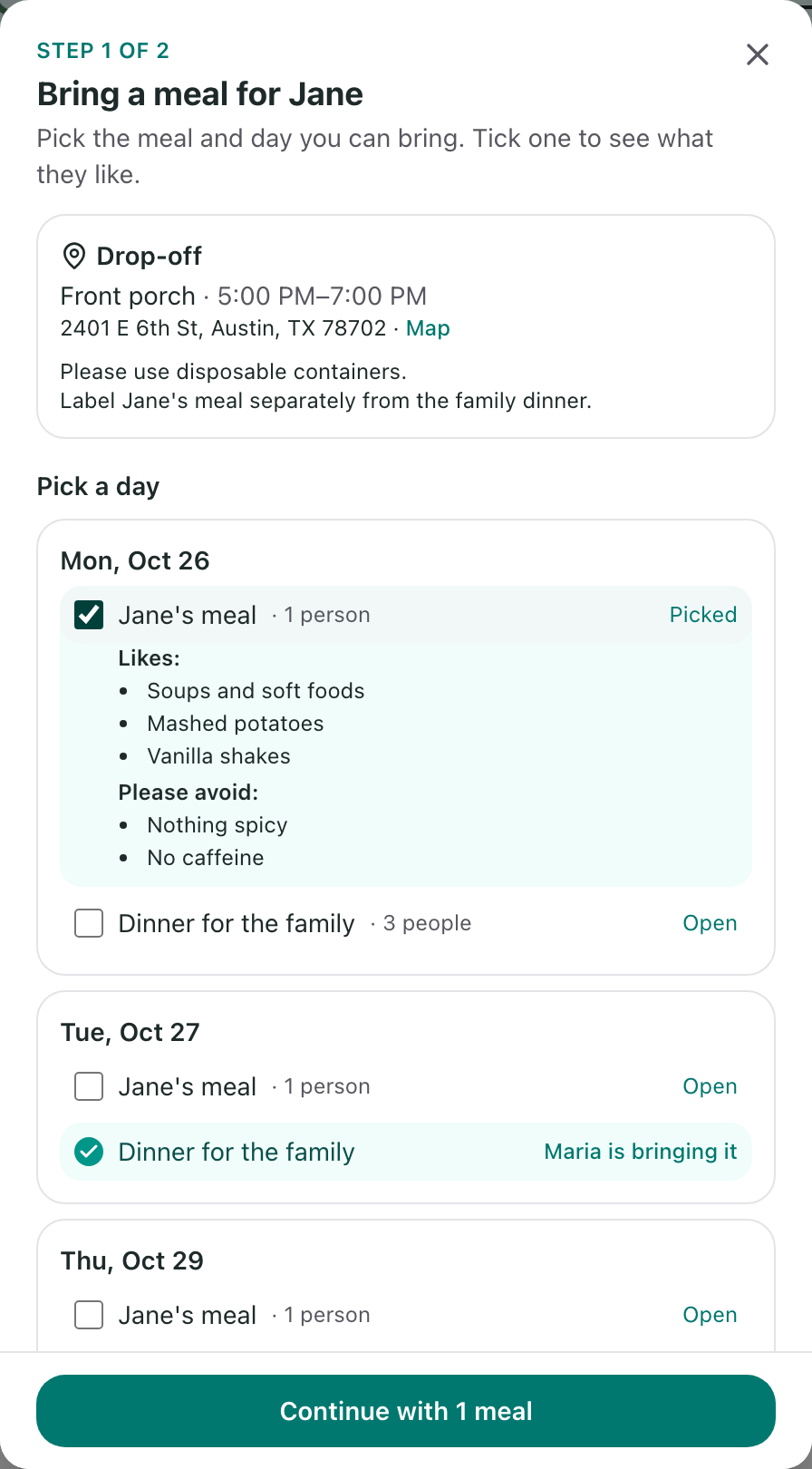
Once someone signs up for a meal, nobody else can sign up for that same meal on that day. Your Flote shows it as taken, with the first name of the person bringing it.
- The person who signed up gets an email with everything they need, including the full address, and a reminder two days before so there is time to shop and prep.
- Your Flote's admins get an email each time someone signs up or cancels, unless they have turned off When someone offers help or sends something (see Change your email notification preferences). It also shows in their Notifications.
See who is bringing what
You can check in two places.
On Ways to Help. The Meals row shows how many meals are covered, the next open day, and who has signed up.
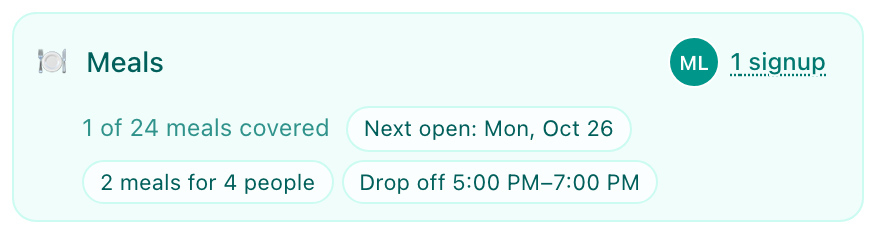
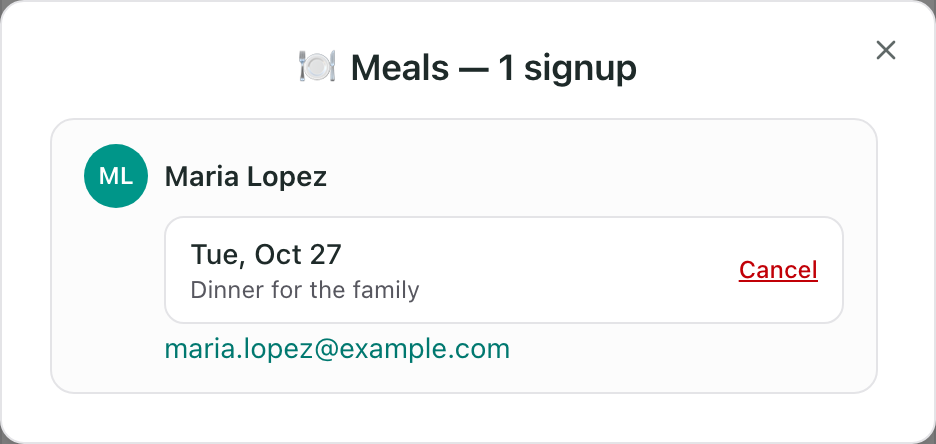
Select the sign-up count, such as 1 signup, to see each person, the meals and days they are bringing, and their email.
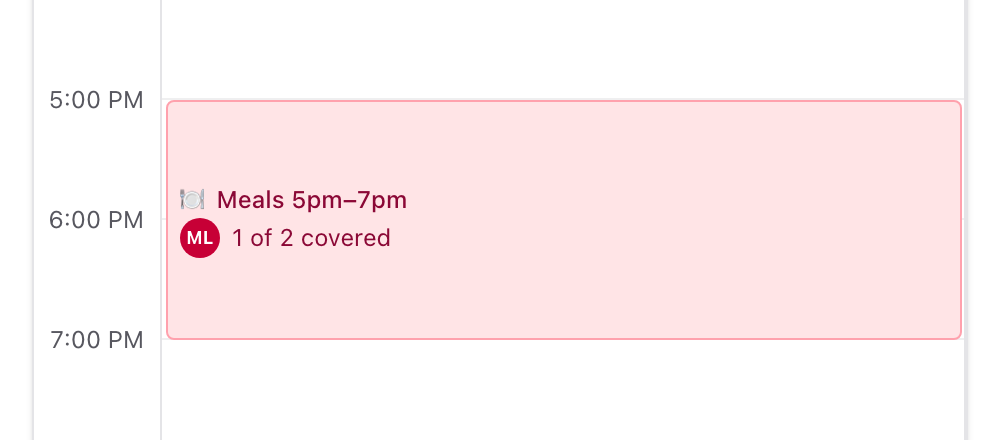
On your Calendar. Each meal day shows across its drop-off window. It is pink while a meal is still needed and turns green once every meal that day is covered.
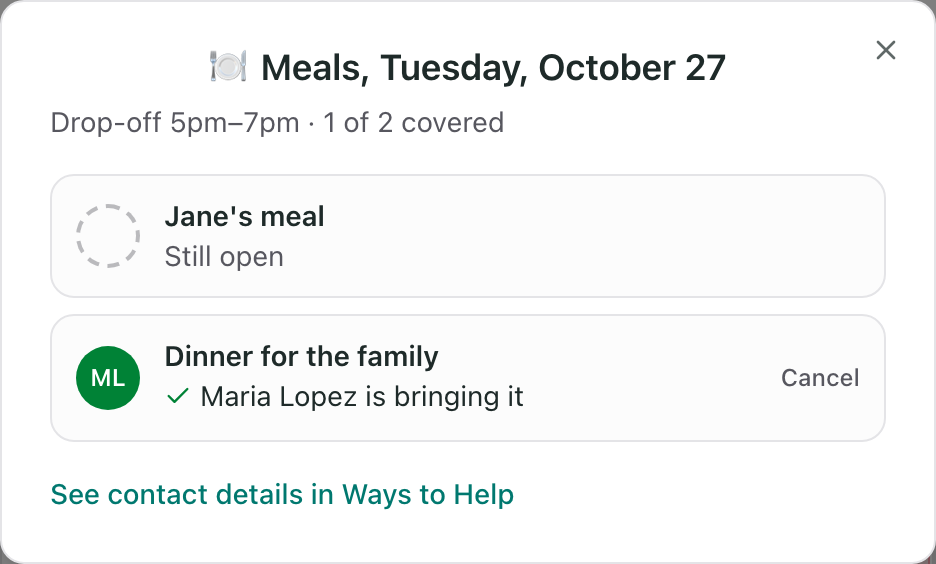
Select a meal day to see who is bringing each meal and which meals are still open.
Change your meals or cancel a sign-up
To change the days, the meals, or the drop-off details, go to Ways to Help, select Edit, then select Edit meals.
To cancel a sign-up, open it in either place above and select Cancel next to the meal, then select Yes, cancel.
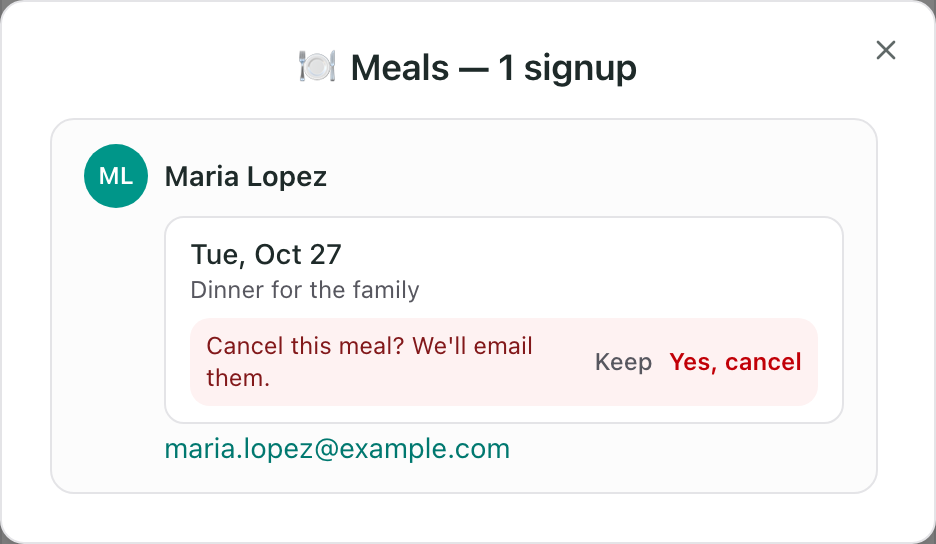
Important: When you cancel a sign-up, or remove a day or meal someone already signed up for, Aflote emails them to say it is no longer needed. If you change your meals in a way that affects a sign-up, including unticking a meal on a day someone signed up for it, you will see who first and choose Remove and let them know or Keep them.
Related articles
Was this article helpful?