How do I approve or decline a visit request?
If you are a Flote Admin and someone has requested an in-person visit, you receive both an email from Aflote and an in-app notification in Aflote. You can approve or decline the visit request through either route:
- Email route. Choose Review Request to open the pending request in Notifications.
- In-app notification route. Open the request from the dashboard or the Notifications page.
Tip: Need to change the time of a visit you have already approved? See How do I reschedule a confirmed visit? for the steps.
Email route
Open the visit request email. It includes the visitor's name, requested date and time, and a Review Request button.
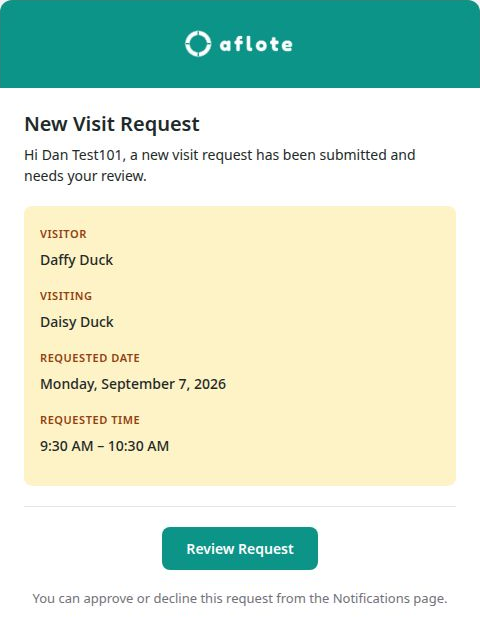
Choose Review Request to open the same pending request in Notifications.
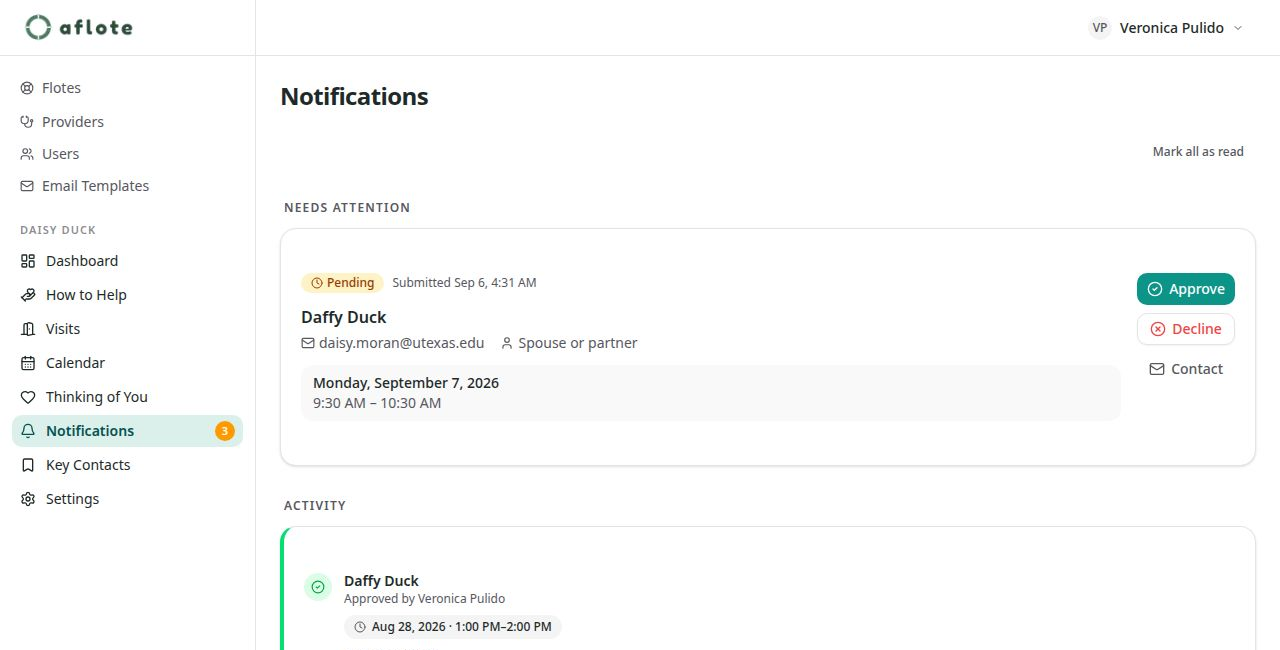
The email button does not approve or decline the request by itself. Finish by accepting or declining the pending request in Notifications.
Approve the request
When the visitor and time look right:
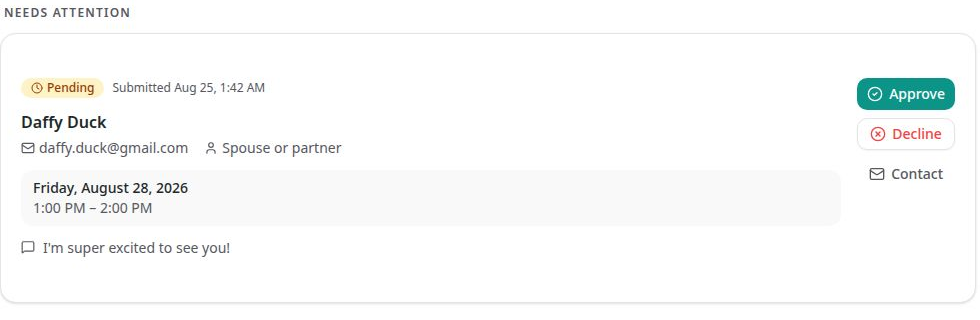
- Choose Approve on the pending request card in Notifications.
- Wait for the confirmation that the visit was approved.
The visitor receives a confirmation email with their visit details. For an in-person visit, that email includes the full address and arrival notes, so they have the practical information they need after you confirm them. Before approval, the full address is not shared with the visitor.
Decline the request
If the requested visit cannot happen:
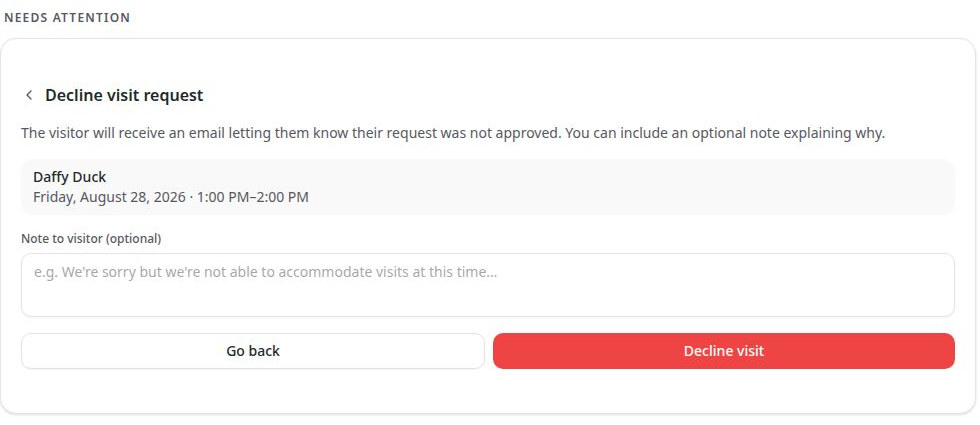
- Choose Decline on the pending request card in Notifications.
- Add a Note to visitor (optional) if a short explanation would help.
- Choose Decline visit.
The request is marked as declined and the visitor receives an email explaining that the request was not approved. If you added a note, it appears in that email. The email also lets the visitor choose Book another visit, so they can try a different available time.
In-app notification route
On the Flote dashboard, find the What’s coming up card and choose the visit requests need your approval callout.

The callout opens Notifications and takes you to the pending request in Needs Attention.
You can also open Notifications directly from the Flote navigation to reach the same view.
The request card shows the visitor's name and contact details, the requested date and time, and their message if they left one. You can also choose Contact to email the visitor before you decide.
Approve the request
When the visitor and time look right:
- Choose Approve on the pending request card in Notifications.
- Wait for the confirmation that the visit was approved.
The visitor receives a confirmation email with their visit details. For an in-person visit, that email includes the full address and arrival notes, so they have the practical information they need after you confirm them. Before approval, the full address is not shared with the visitor.
Decline the request
If the requested visit cannot happen:
- Choose Decline on the pending request card in Notifications.
- Add a Note to visitor (optional) if a short explanation would help.
- Choose Decline visit.
The request is marked as declined and the visitor receives an email explaining that the request was not approved. If you added a note, it appears in that email. The email also lets the visitor choose Book another visit, so they can try a different available time.
For more about the times visitors can choose, see Set when visitors can come. To update the location or arrival notes before approving a request, see Change your visit settings.
Related articles
Was this article helpful?