Using time zones
A visit has one actual date and time, stored in one time zone. Everything you see, your calendar, your notifications, the confirmation page, the Aflote app works out how to show that same moment to you.
What you can do about time zones depends on your role:
- Admins and Members manage a Flote's visiting hours, and have their own account time zone.
- Followers and anyone booking a visit pick the zone they're viewing in each time, since there's no account setting to fall back on.
For Admins and Members
Set your own time zone
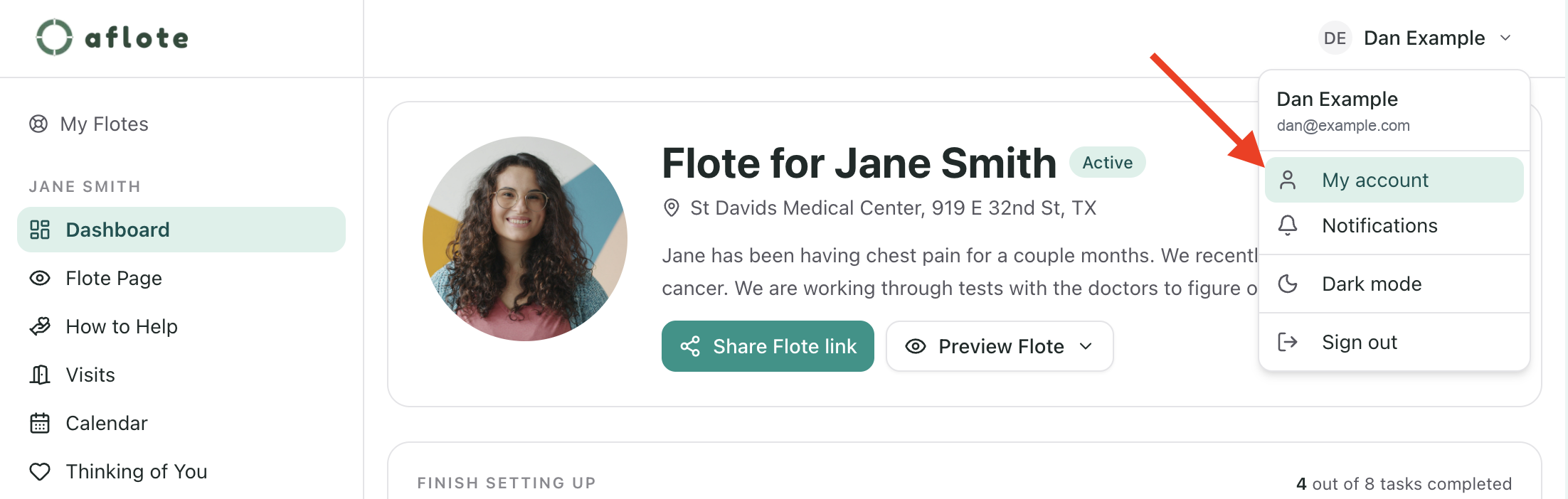
Aflote sets your own time zone automatically the first time you sign in, from your browser. You can check it, or change it, any time: open your account menu (your name, top right) and choose My account.
Under Time zone, pick the zone you want your calendar and notifications shown in.
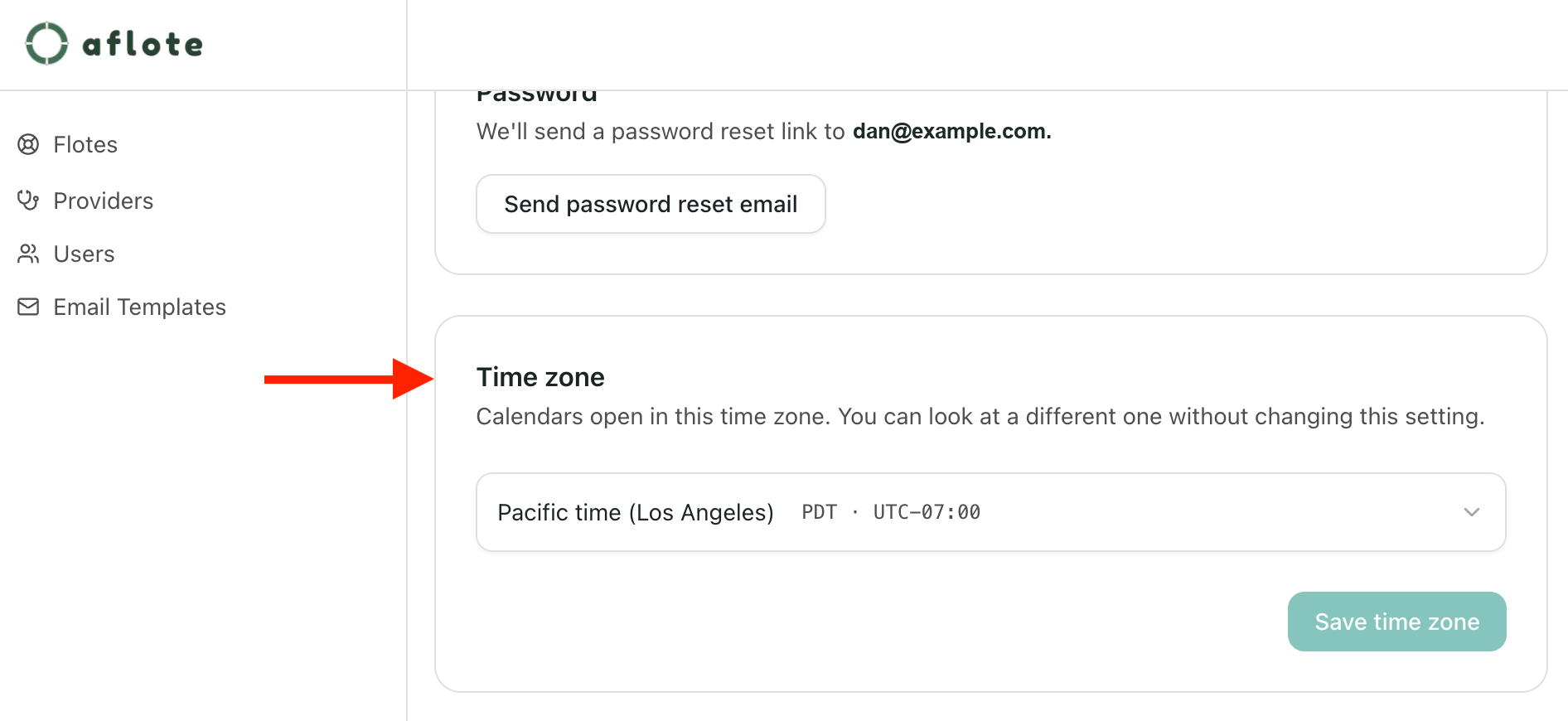
Tip: The first time you sign in, this is already filled in from your browser. If it looks right, there's nothing else to do.
This setting only changes how things look to you. It controls your own calendar and your own notifications, and nothing else. It never changes when a visit actually happens, and it never changes anyone else's visiting hours.
Set the time zone for a Flote's visiting hours
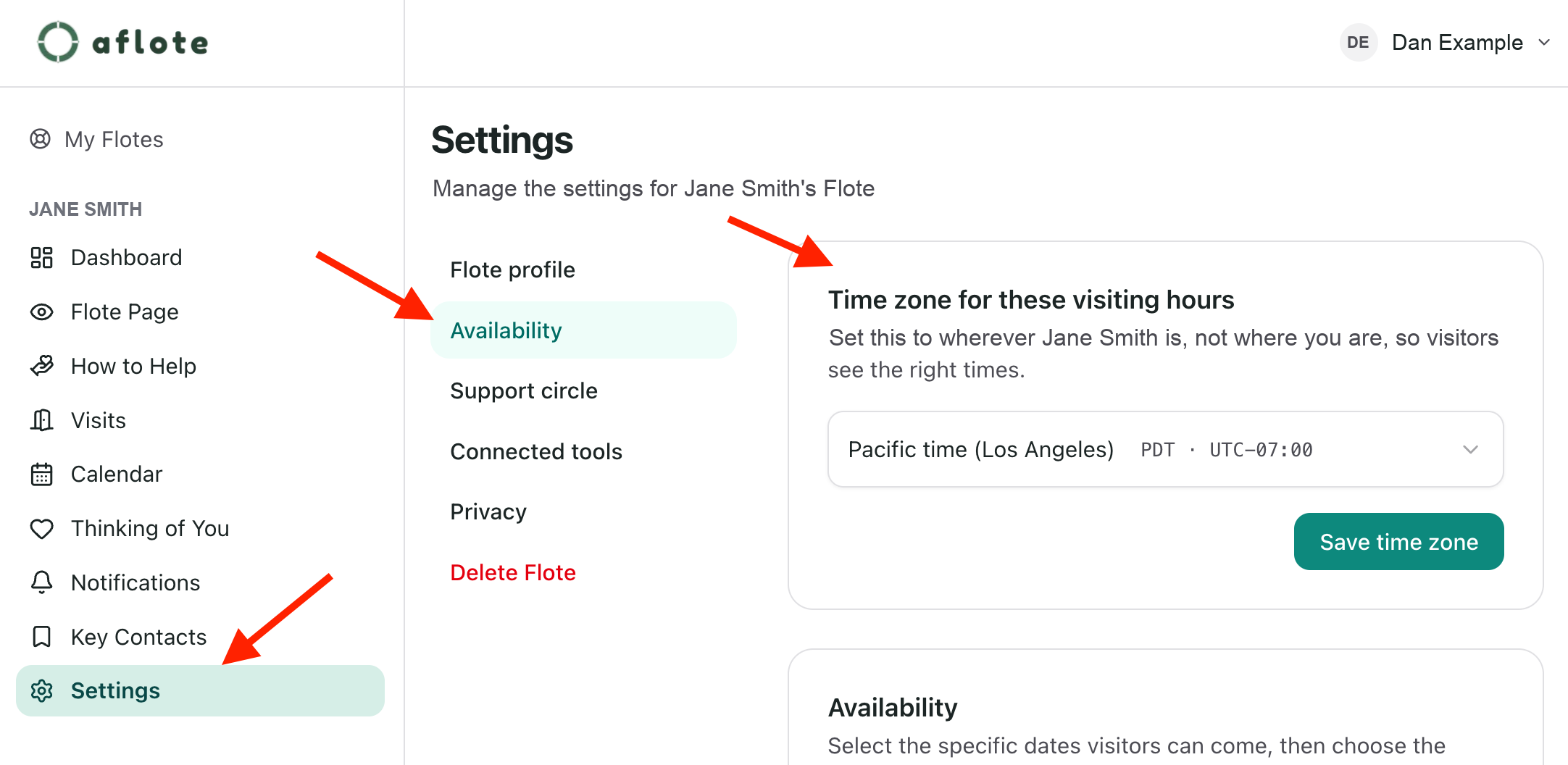
If you're an admin setting up when visitors can come, this lives on Settings → Availability, above the hours themselves, under Time zone for these visiting hours.
The same field also shows up on Ways to Help, under In-person visits — it's the same visiting-hours zone, just reachable from a second place.
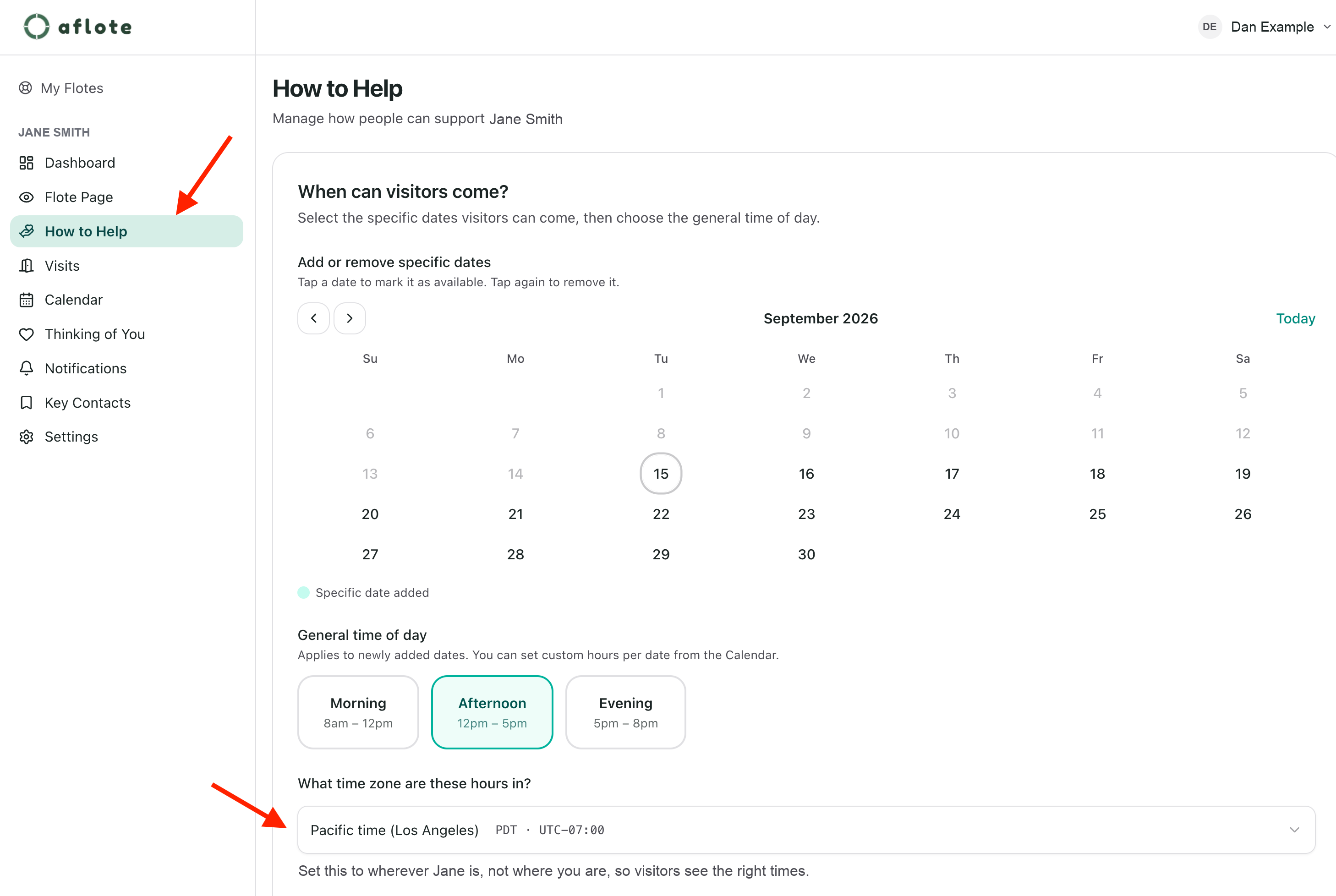
Important: Set this to wherever the patient actually is, not wherever you are. A daughter in Boston setting hours for her father in Austin needs to choose Austin here. Get it wrong and every hour you post is an hour off for every visitor who signs up.
This is not a display setting. It's the zone Aflote reads "Tuesdays, 9 AM to 5 PM" in, so it's what actually decides when visiting hours open and close. Changing it changes the hours themselves, going forward. It does not change any visit that's already been confirmed. Each visit keeps the zone it was booked in.
The calendar's own "Times shown in" view
A Flote's calendar has its own Times shown in control, separate from your account's time zone. It starts out on your account zone, and you can switch it any time, for instance to check what a Denver patient's hours look like while you're actually looking at a Boston one.
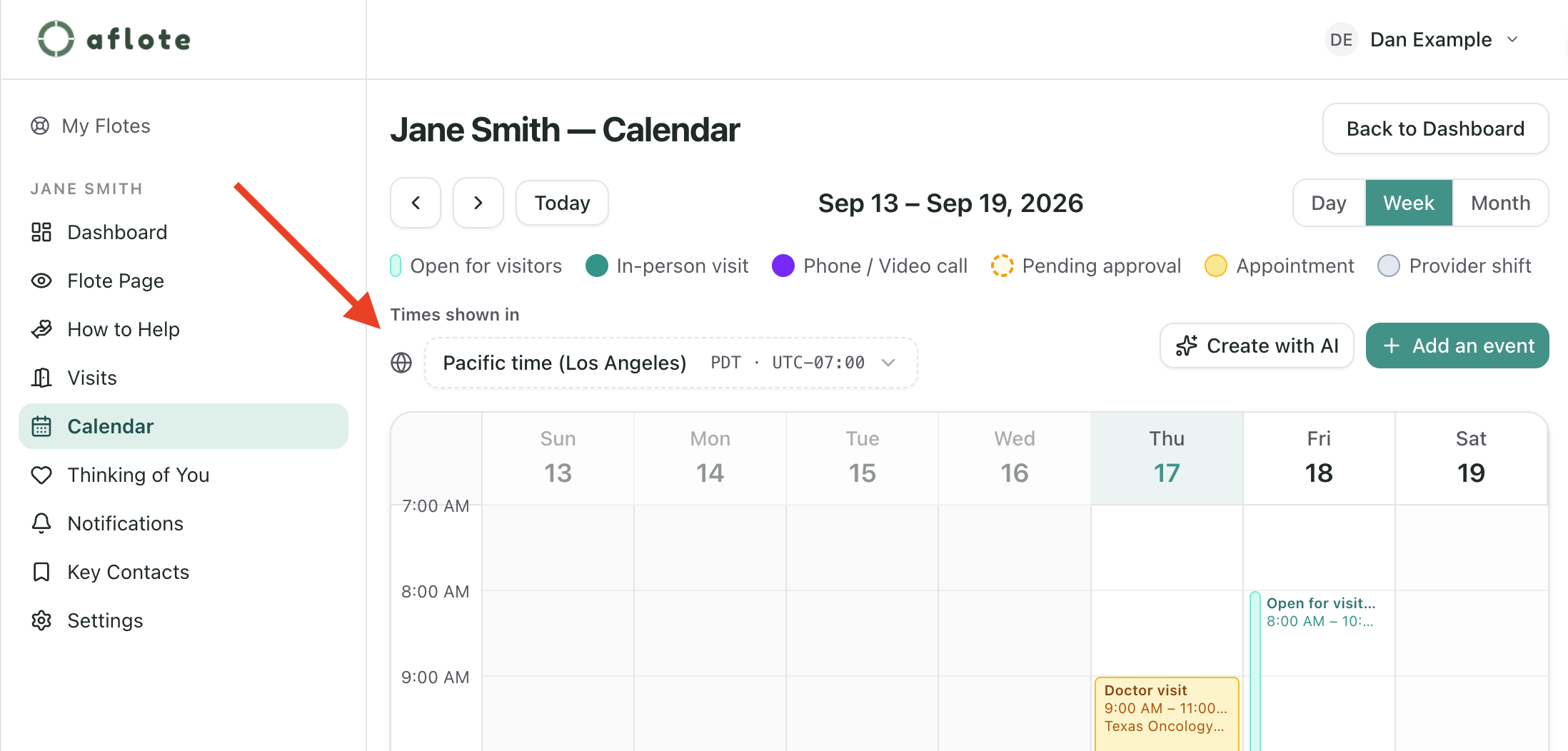
Two things are worth knowing about it:
- A new event or available time you add while it's switched defaults to that zone. The Time zone for these times field, in the dialog where you set a day and hours, starts out matching whatever "Times shown in" is currently showing, not necessarily your account zone or the Flote's Settings → Availability zone. Check it before saving if you've recently switched what you're viewing.
- It only lasts for your current browser session. Close your browser, or open Aflote fresh on another device, and it goes back to your account's time zone. It isn't something you set once, the way your account time zone or a Flote's visiting-hours zone is.
Recurring visiting hours and daylight saving
A recurring time you add through Calendar, like "Tuesdays 9 AM to 5 PM," has its own Time zone for these times field, right in the same dialog where you set the day and hours. It defaults to whichever zone the calendar was showing when you created it (see above), but once you save it, that's the zone the block belongs to. Changing your own time zone, or the Flote's Settings → Availability zone, afterward doesn't move it. To change it, open that time on the calendar and update its own time zone.
That stored zone is what keeps a recurring time right through daylight saving: when the clocks change, 9 AM stays 9 AM in the zone the block was set in.
Traveling or changing time zones
Your own time zone doesn't follow you automatically when you travel. Aflote only asks your browser once, the first time you sign in, and after that it stays whatever you set on My account until you change it yourself.
If you're traveling and want your calendar and notifications in local time, open My account and update your time zone there. Change it back the same way once you're home.
A Flote's visiting hours are different. They should almost never change for travel, because they follow wherever the patient is, not wherever an admin happens to be that week. Update a Flote's visiting-hours zone only when the patient themselves has moved.
Troubleshooting
If a time in Aflote looks wrong:
- Check your own time zone on My account.
- If it's a Flote's visiting hours that look off, check the zone under Settings → Availability.
- Check what Times shown in is set to on the calendar. It only lasts for your current browser session, so don't assume it's still on whatever you last picked days ago.
- If one specific appointment or slot looks wrong, open it and check its own Time zone for these times field. It's set once, when the block is created, and doesn't move afterward even if you change your view or the Flote's Settings → Availability zone.
- If it's only off by an hour and it's near a clock-change date, check whether one zone involved has switched to or from daylight saving and the other hasn't yet.
- Compare against the calendar file attached to a confirmation email.
- Still stuck? Email support@aflote.com with the Flote's link and the time you expected versus the time you saw.
For Followers and booking a visit
Followers don't have a personal time zone setting in Aflote, and there's no calendar to look at. What you see is the Flote page, where In-person visits shows a Sign up to visit button.
Choosing the right zone when you book
Choose Sign up for a time to come by, then pick a date. Above the list of times, you'll see a Times shown in control, starting from your browser's own zone.
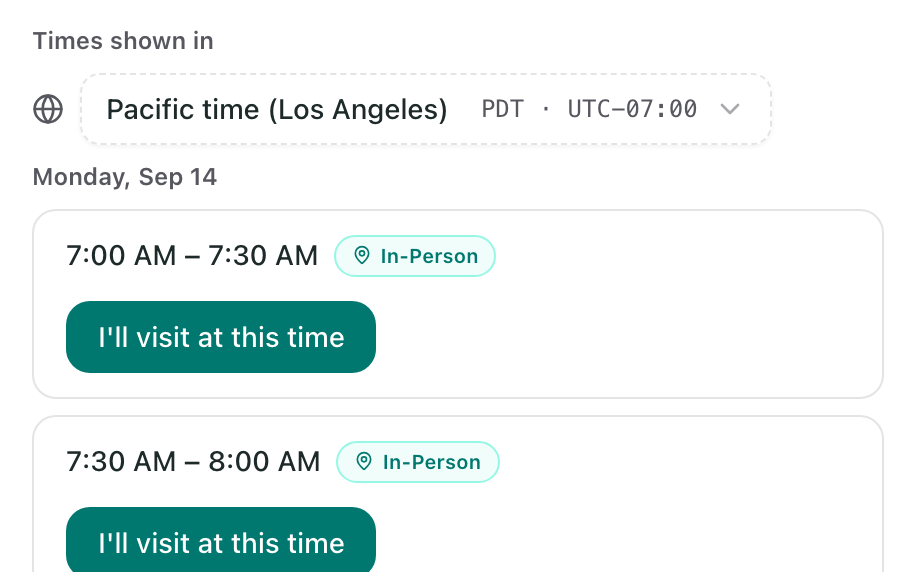
Pick your own zone here before you choose a time, especially if you're checking on behalf of someone else, or looking at a Flote from a different time zone than usual. Whatever zone is showing when you choose I'll visit at this time is the one Aflote uses for your confirmation email and any reminders, so it's worth a glance.
It also doesn't carry over between visits. Come back to sign up for another time next week, and it starts back on your browser's zone, not whatever you picked last time.
After you book
The calendar file attached to your confirmation email always carries the visit's real time and zone, so adding it to your own calendar app shows it correctly regardless of what Times shown in happened to say when you booked.
Troubleshooting
- Check what Times shown in is set to before you choose a time.
- If a time looks off by an hour and it's near a clock-change date, that's usually daylight saving catching up in one zone but not the other yet, not a mistake.
- Compare against the calendar file attached to your confirmation email.
- Still stuck? Email support@aflote.com with the Flote's link and the time you expected versus the time you saw.
Related articles
Was this article helpful?