How do I invite people to my support circle?
Only a Flote admin can invite people to the support circle. Choose one of these three options:
- Option 1: Invite someone from the dashboard. Find Support circle on the dashboard, then select + Invite.
- Option 2: Invite someone from the Support Circle page. Select Support Circle, then Invite someone.
- Option 3: Share the Flote link. From the dashboard, select Share Flote link to share it.
Option 1: Invite someone from the dashboard
Click Dashboard, then scroll down to the Support circle card and select Invite someone to help or + Invite.
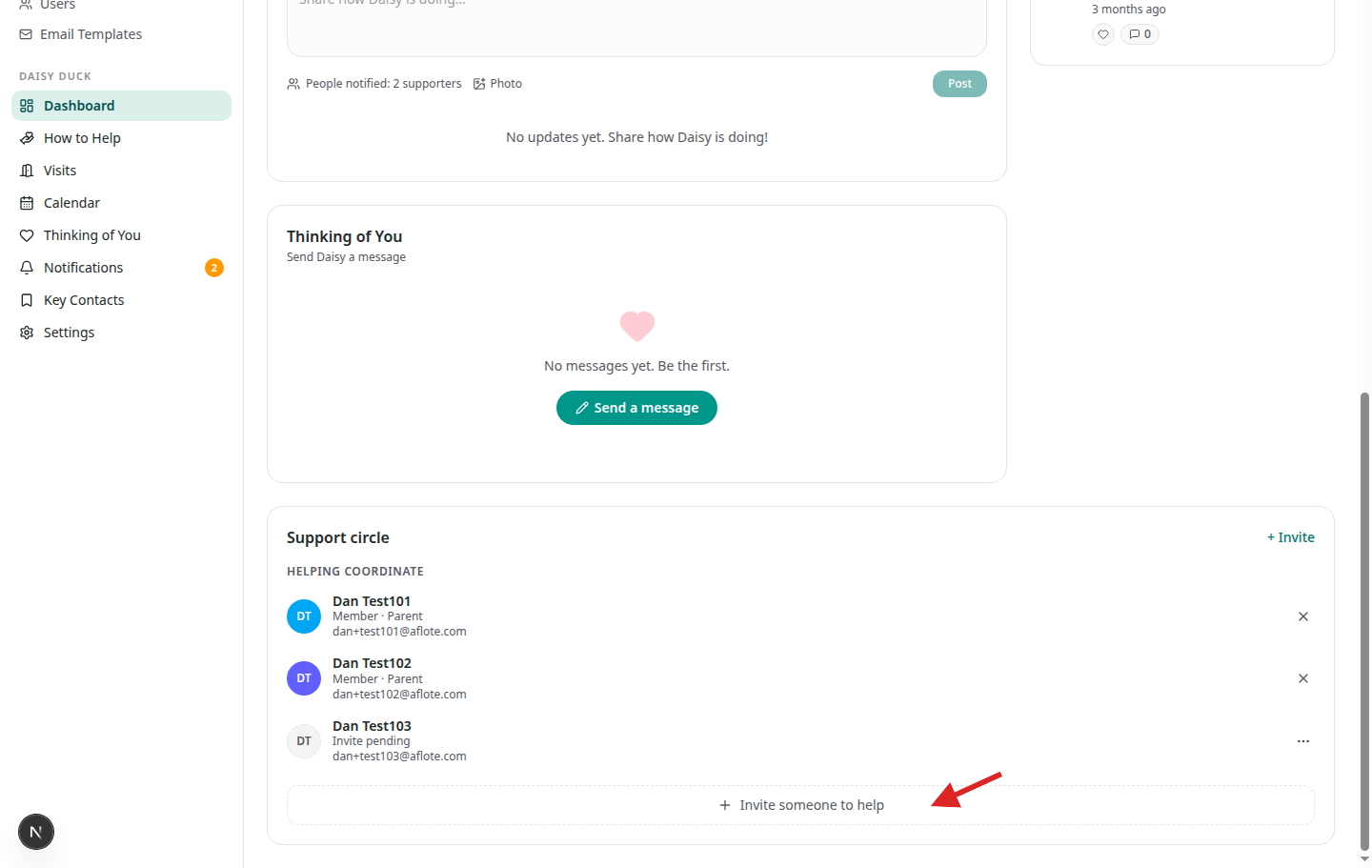
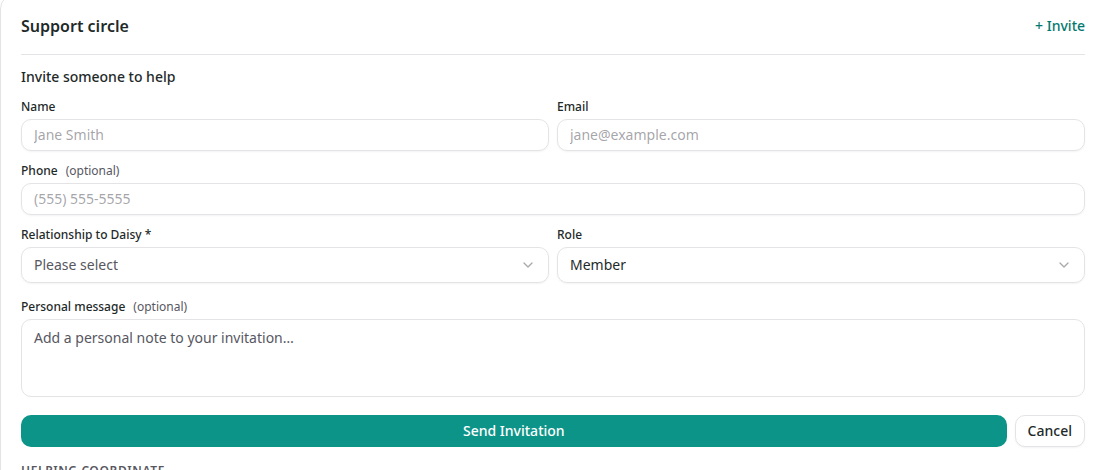
In the invitation form, fill in their name and email, then choose their relationship to the person the Flote is for and a role.
For more information about the available roles, read Roles and permissions.
Phone number and a personal message are optional. Select Send Invitation when you are ready.
Option 2: Invite someone from the Support Circle page
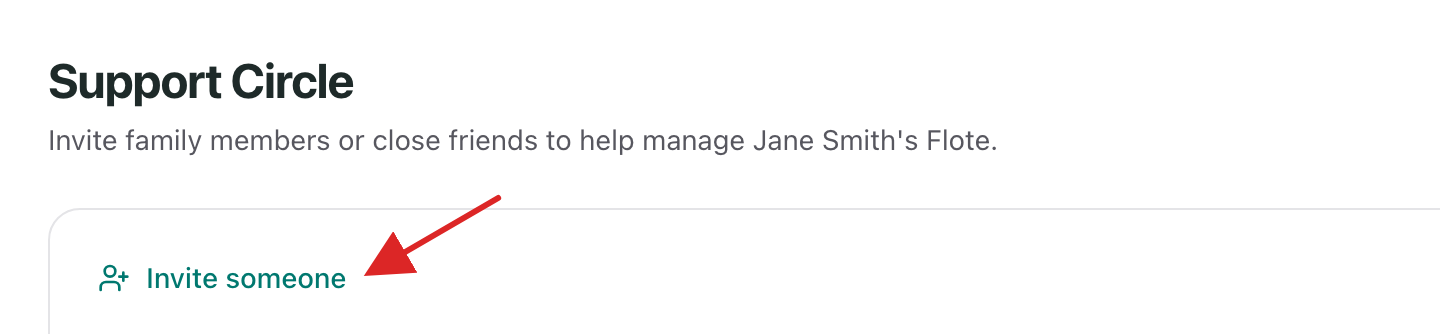
Select Support Circle, then select Invite someone.
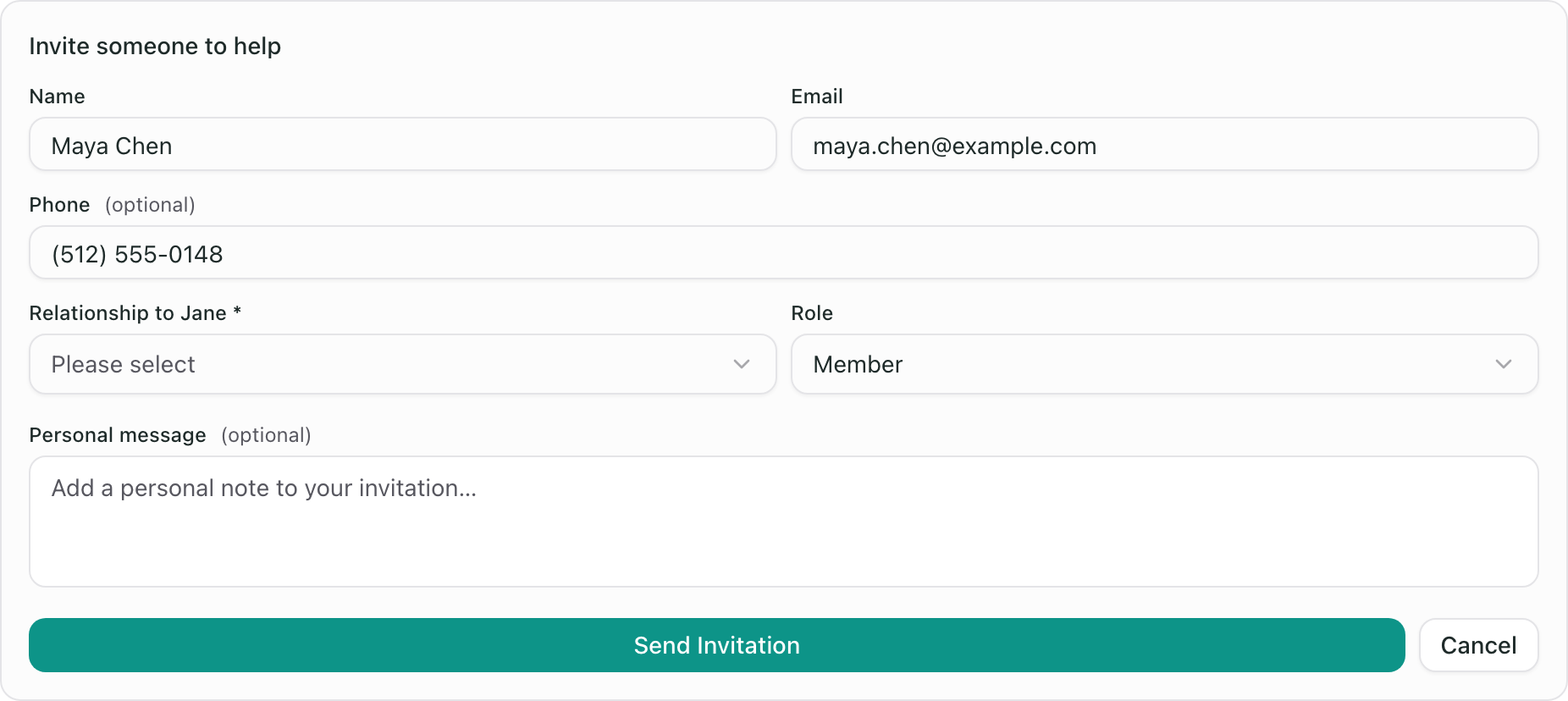
In the invitation form, fill in their name and email, then choose their relationship to the person the Flote is for and a role.
For more information about the available roles, read Roles and permissions.
Phone number and a personal message are optional. Select Send Invitation when you are ready.
Option 3: Share the Flote link
From the Flote dashboard, select Share Flote link.
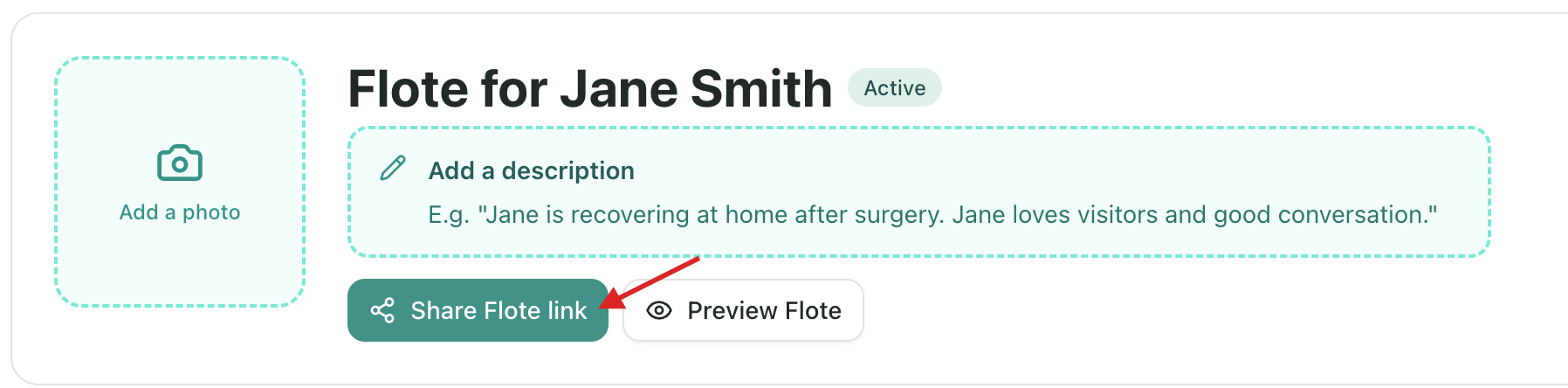
What you see next depends on whether the Flote is private or public. Either way, anyone who joins through this link becomes a follower, not a Member or Admin. See Roles and permissions if you're not sure what that means.
If your Flote is private
The dialog shows two links, and they behave differently on purpose.
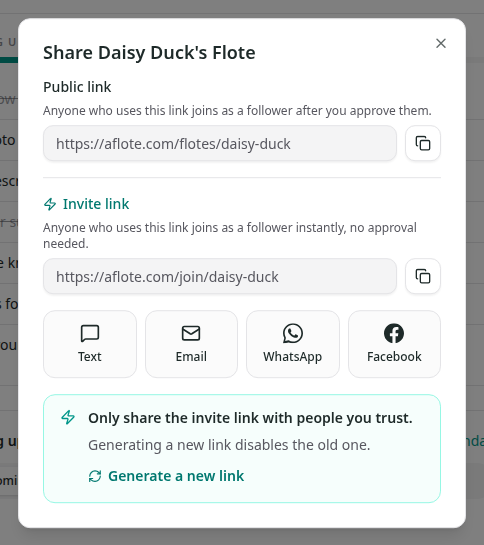
- Public link. Anyone who uses it can see the Flote, but joining as a follower still needs your approval.
- Invite link. Think of it like a bouncer with a guest list: anyone holding this link gets waved straight in as a follower, no approval needed. Share it only with people you actually want in, using Text, Email, WhatsApp, or Facebook, or by copying it directly.
If you need a fresh Invite link, select Generate a new link at the bottom of the dialog. The old link stops working the moment you do.
If your Flote is public
The dialog shows one link.
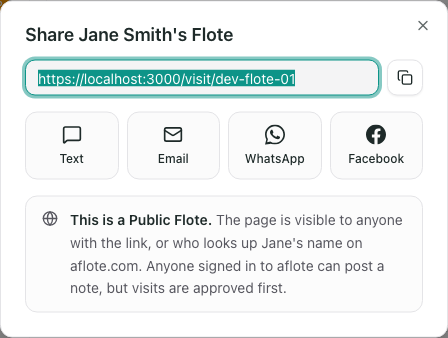
Anyone with this link, or who looks up the person's name on aflote.com, can see the Flote and choose to follow it right away, no approval needed. Visits people offer to help with are still approved before they are confirmed.
What happens for the person you invited
Depends on which option you used. A direct invitation (Option 1 or 2) arrives as an email they need to accept. Either kind of shared link (Option 3) takes them straight to the Flote or to a screen asking them to request access, no email involved. See How do I accept an invitation? for exactly what each looks like from their side.
Related articles
Was this article helpful?