How do I post an update?
We know that one of the most stressful parts of caring for someone is keeping well-meaning friends and family up to date. Updates give you one place to share how things are going, so you don't have to repeat the same news in separate texts and calls.
Important: Only Flote admins can write and post updates.
Write your update
- Open your Flote dashboard and find Updates.
- Start typing where it says Share how [first name] is doing....
- We recommend reading through it and making sure you are comfortable posting the information.
- Select Post.
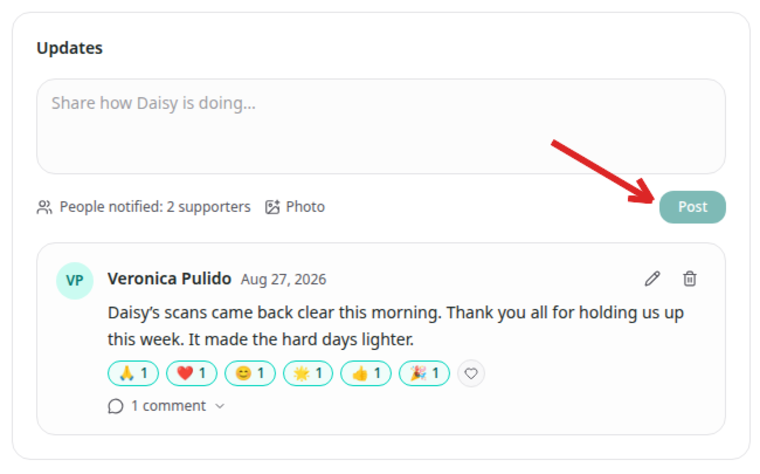
Once posted, the update appears below with the writer’s name and the date.
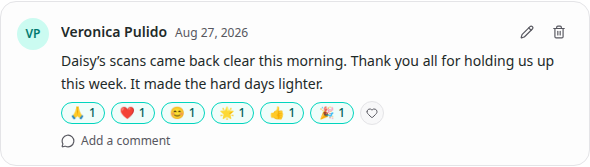
Who can read it?
All supporters of the Flote, including admins, members, and followers, get the update. On a public Flote, it appears in the visitor view under Updates about [first name], together with its comment count.
When an update is posted, everyone in the Flote's support circle (admins, members, and followers) receives an email. The exceptions are the person who posted it and anyone who has turned off Updates email notifications for that Flote. To turn those emails off, follow Change your email notification preferences.
Read comments and react to a response
- Find the update you want to check.
- Select Add a comment or the comment count below it.
- You can read the replies in the expanded thread.
- To reply, select the message you want to respond to, start typing where it says Write a comment..., then select Post.
- To react while viewing a response, select Add reaction below the update.
- Choose the reaction that fits.
- Select the same reaction again if you want to remove it.
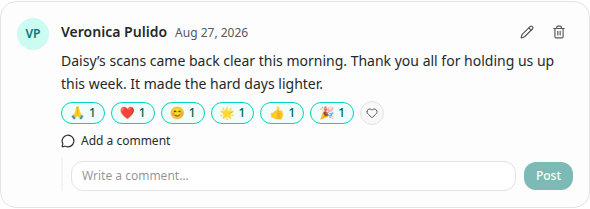
Comments stay with the update they answer, so you can read the news and the conversation together.
Reactions are added to the update rather than to a specific reply.
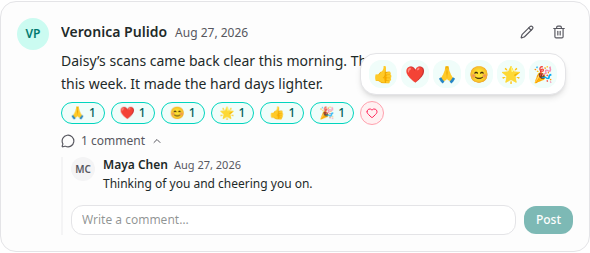
Your reaction appears below the update with a count.
Related articles
Was this article helpful?