How do I find someone's Flote?
Looking for a friend's or family member's Flote? You can search for their Flote by name on aflote.com. This guide will walk you through how to find a Flote, what to do if it does not appear in your search, and how to access a private Flote.
Search by name
Go to aflote.com and select Find a Flote.
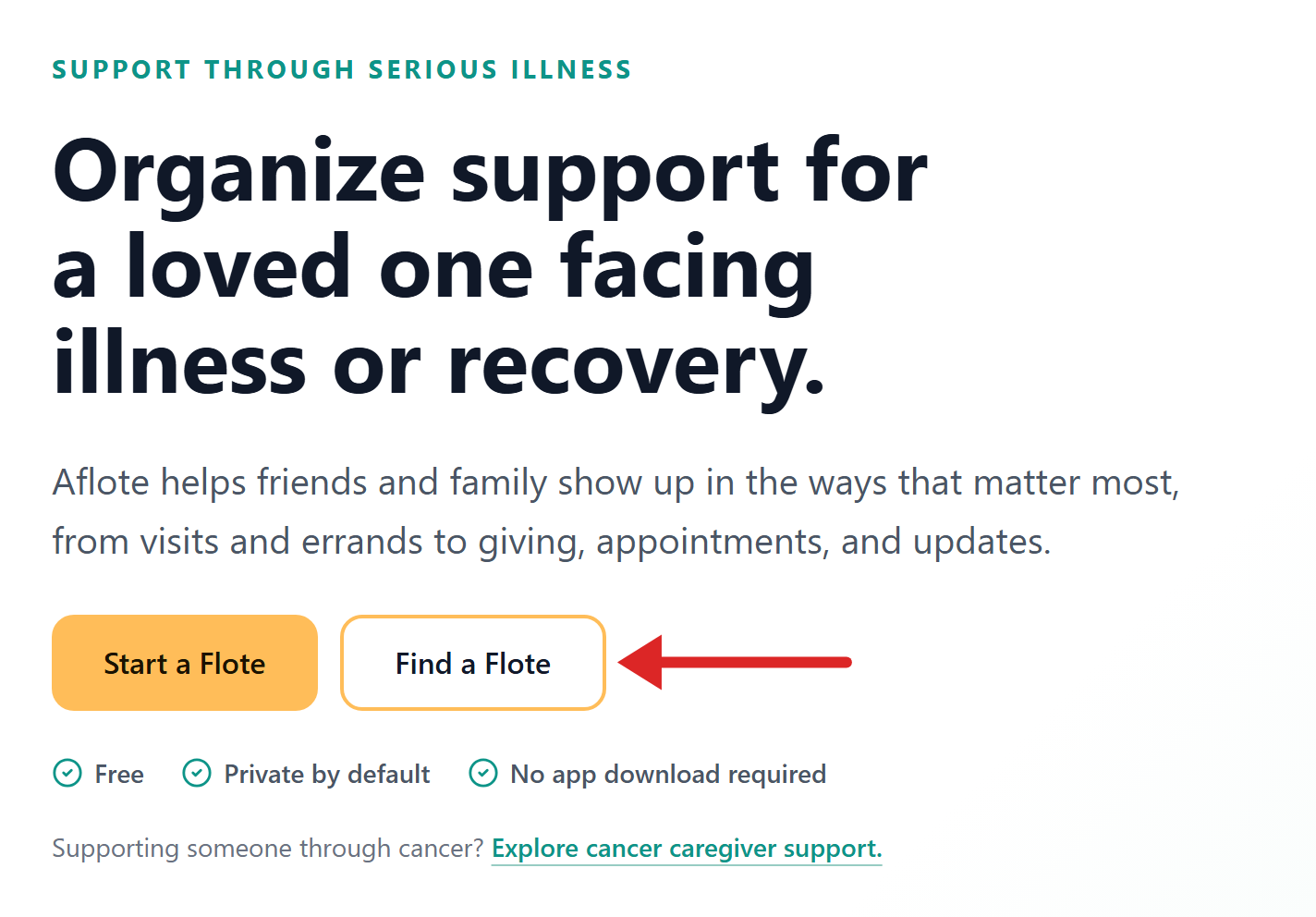
Enter the person's name in the Search by name field. Simply typing their first name should be enough for their Flote to pop up.
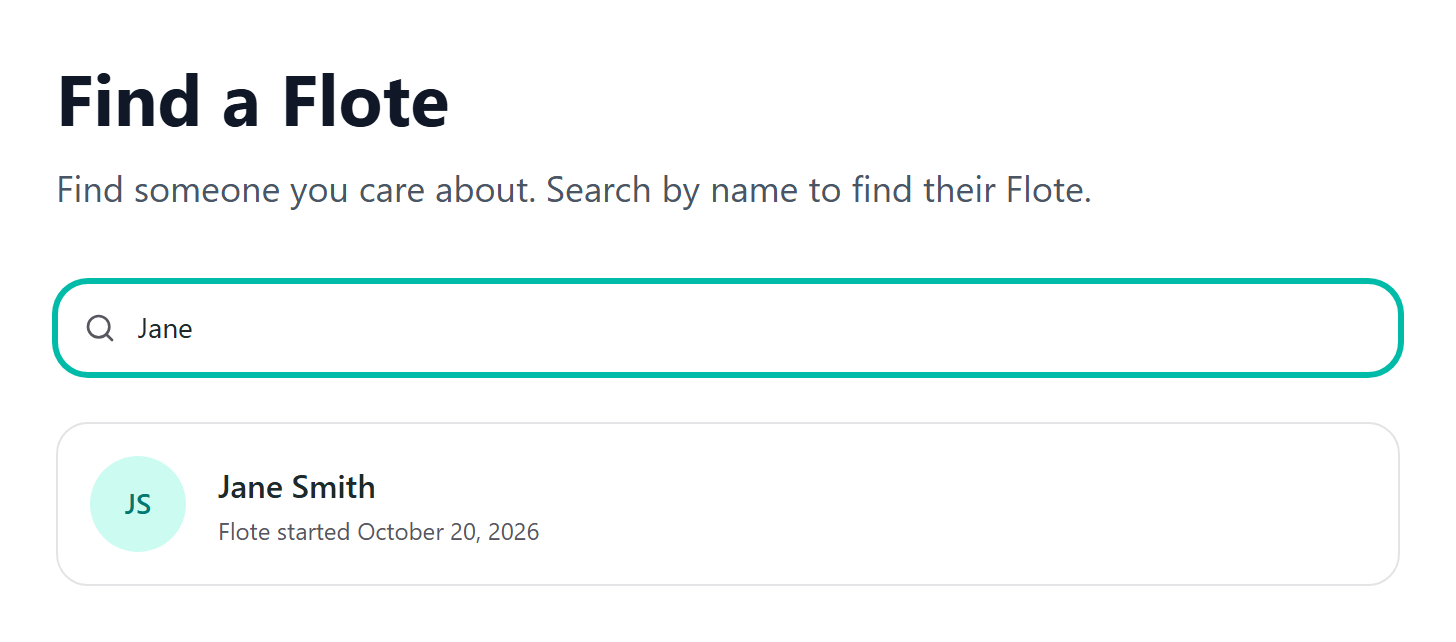
Select the person you are looking for in the results. Each result shows their name, their photo if they have one, and the date their Flote was started.
See What is a Flote? for what you will find once you are on one.
If their Flote does not appear in your search results, see What to do if you cannot find a Flote below.
If you received a message saying the Flote is private, see What if a Flote is private? below.
What to do if you cannot find a Flote
A Flote only appears in search when its family has turned on Search visibility. A public Flote starts with it on. A private Flote starts with it off, and many families keep it that way, so searching for a private Flote often comes back empty even though it exists.
When nothing matches, the page says so:
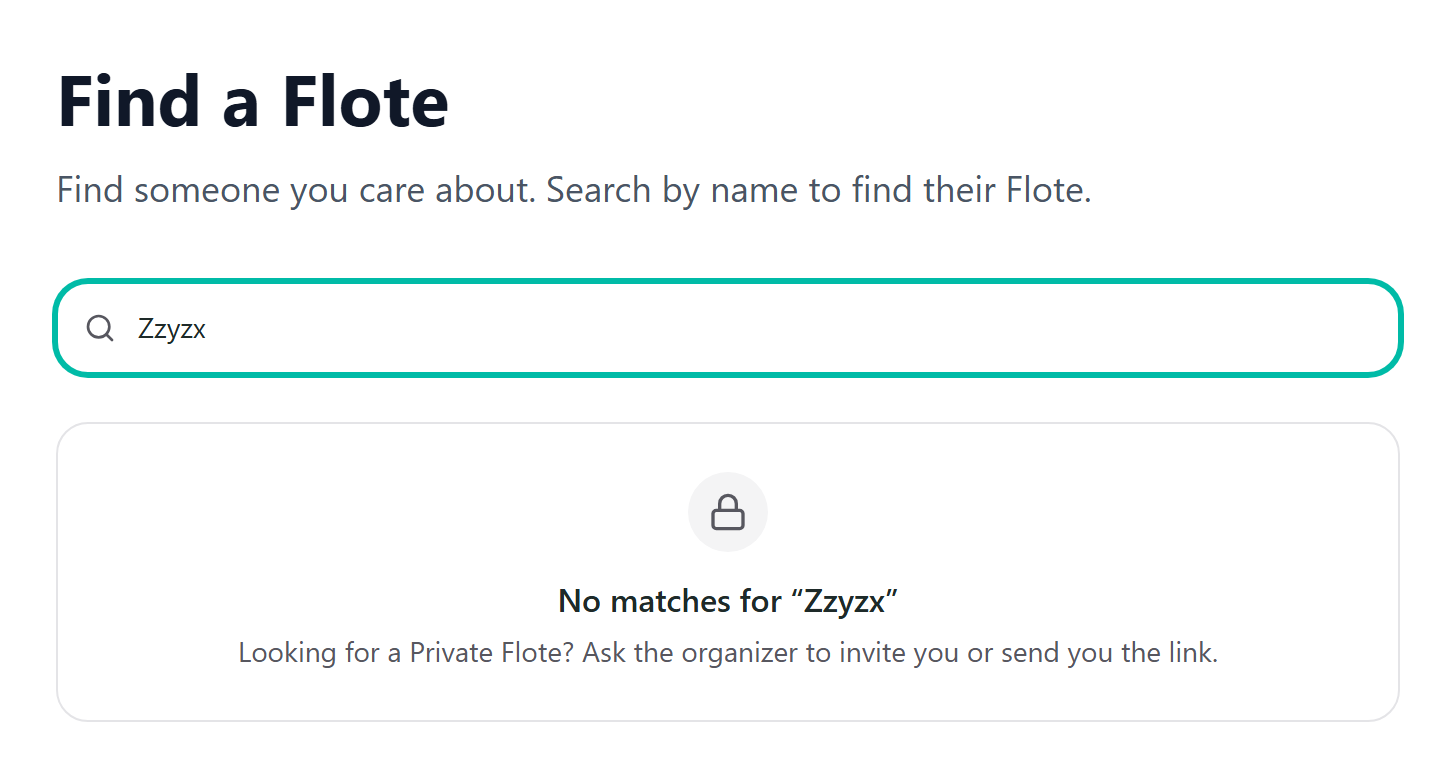
Here are some things to try:
- Ask the family, or whoever told you about the Flote, for the link. Anyone with the link can open it, and on a private Flote it takes you to the page where you can ask to join.
- Ask the family to invite you. They can send an invitation straight to your email. See How do I accept an invitation? for what to do when it arrives.
- Try another spelling or a nickname. The name you search for must match the name the family used when creating the Flote. For example, searching for "Robert" may not show a Flote listed under "Rob".
Search directly on Aflote, not Google. Flotes do not appear in Google or other search engine results, regardless of whether they are public or private.
What if a Flote is private?
Select Request access. You will be asked to sign in with your email, or to create an account if you do not have one yet. It is free and takes about a minute.
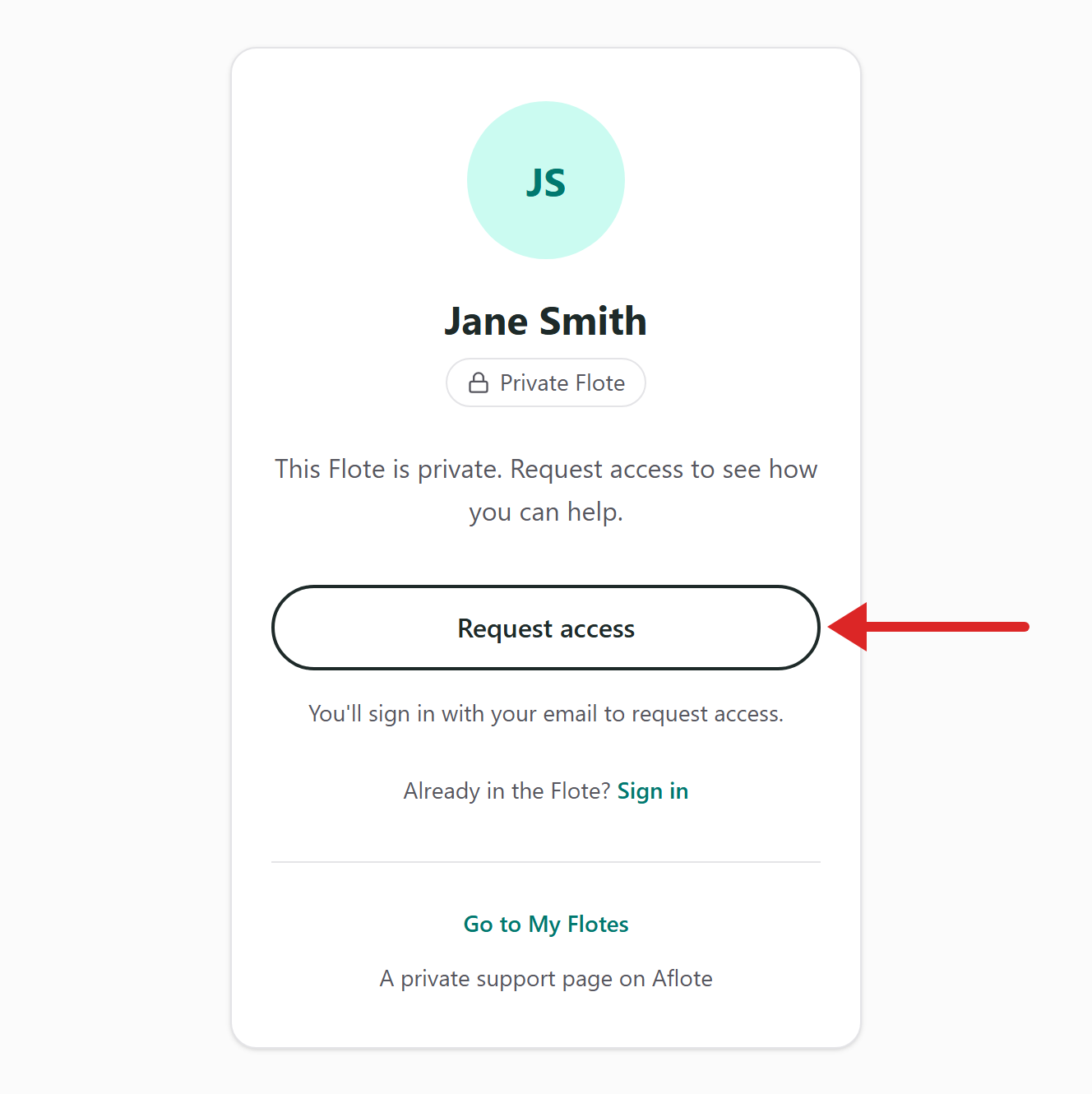
You can then add a short message, such as how you know the family, and select Send request. The family reviews it, and you get an email when they approve you.
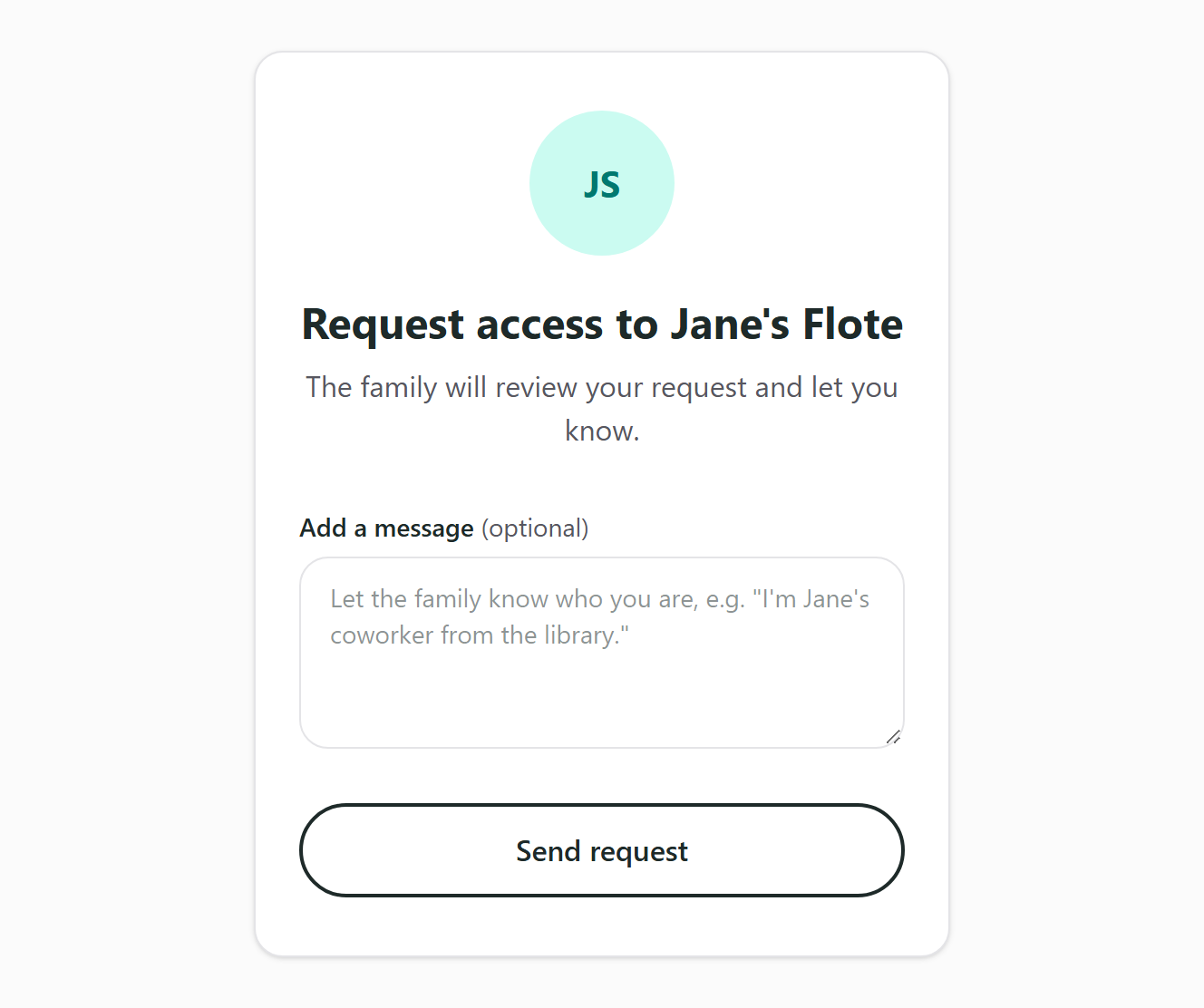
Tip: Try to be specific about who you are and how you know the person the Flote is for. For example, a message like "I'm Jane's coworker from the library" can help the family recognize your connection and feel more comfortable approving your request.
How a family decides who can see and find their Flote is covered in Who can see my Flote?.
Related articles
Was this article helpful?