How to add a key contact
Key contacts let you keep important contact information, such as doctors, clinics, pharmacies, and other helpful resources, organized in one place on your Flote. This makes it easier for your circle to find the information they need without having to search for it.
Important: Only admins can add, edit or remove a key contact.
Add a key contact
Open your Flote and select Key Contacts.
Select Add contact to create a new key contact. You can also select Add next to a specific category to create a contact under that category.
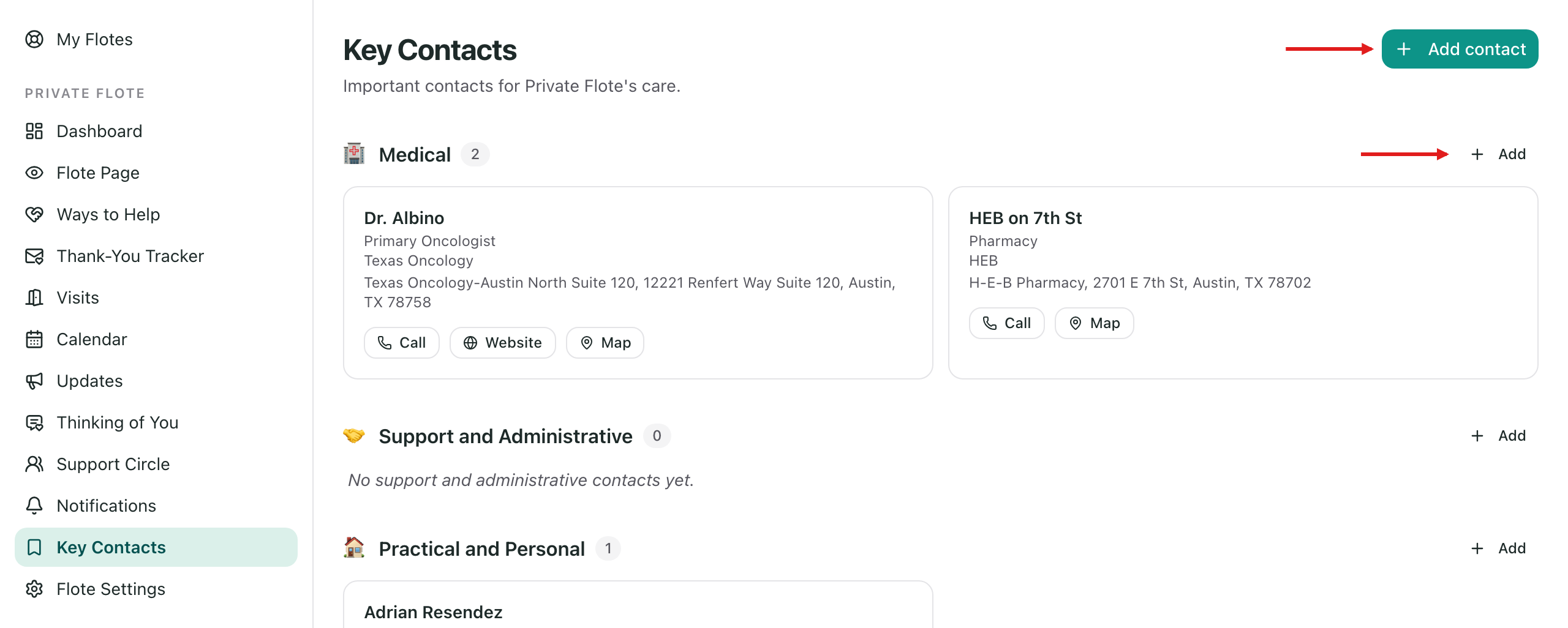
Choose a category: Medical, Support and Administrative, or Practical and Personal.
Enter a Name or organization, such as a doctor's name or the name of a hospital.
Choose a Role from the list. The roles change with the category. If none fits, pick the Other option at the bottom and describe the role in your own words.
Fill in whatever else you have, then select Save contact.
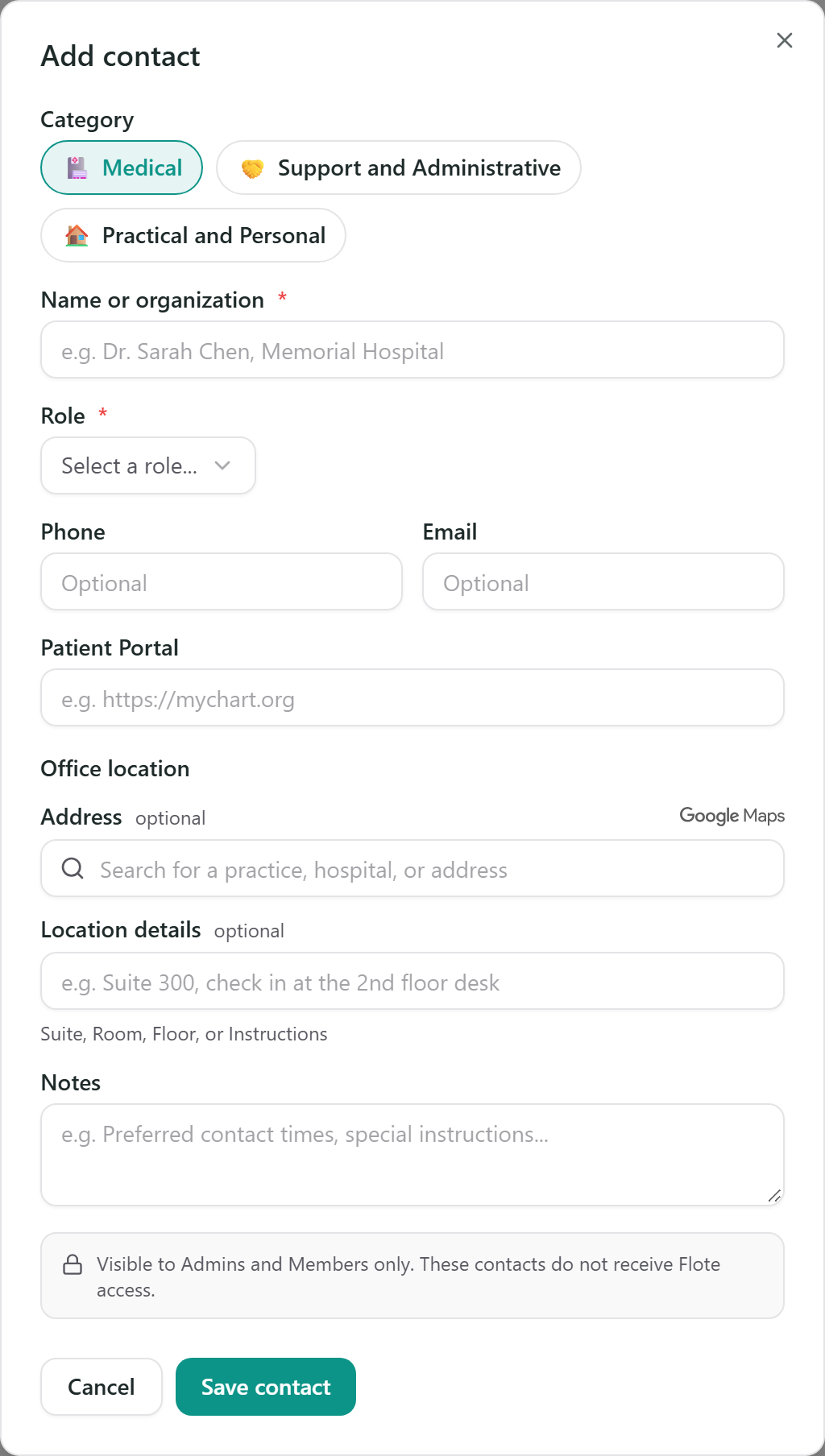
Only the name and role are required. Everything else is optional:
- Phone and Email
- Patient Portal for a Medical contact, or Website for the other two categories
- Address, which you search for by practice, hospital or street address
- Location details, such as a suite, floor or where to check in
- Notes, such as the best time to call
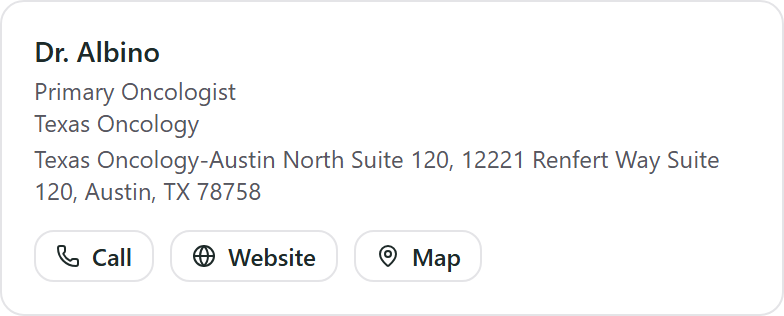
Each saved contact appears as a card under its category. A card shows the name and role, with Call, Email, Website and Map buttons for whatever you filled in.
Edit or remove a key contact
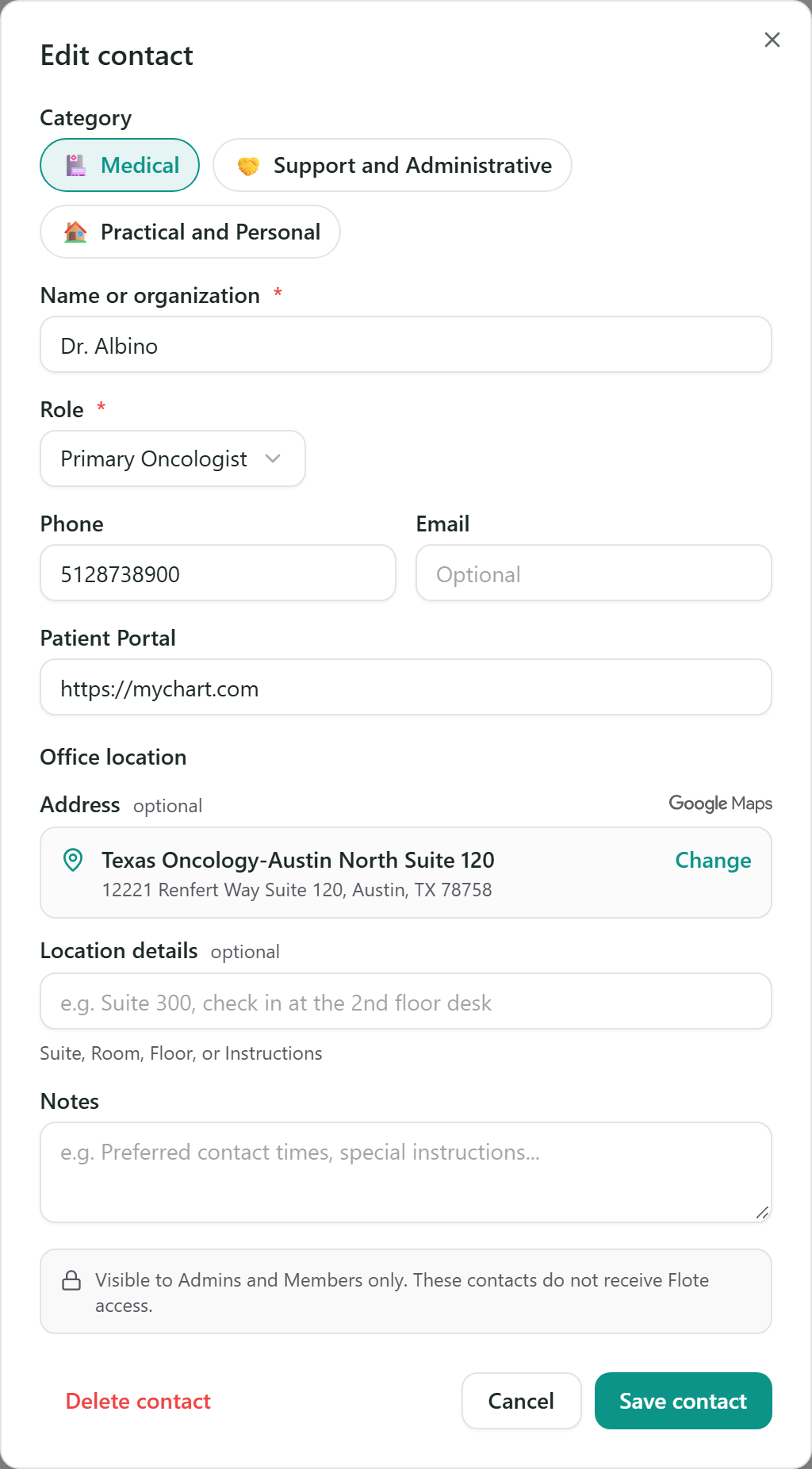
Select the contact's card to reopen the form. Change anything and select Save contact.
To remove a contact, open it and select Delete contact.
You are asked to confirm. Select Delete to remove the contact, or Cancel to keep it.
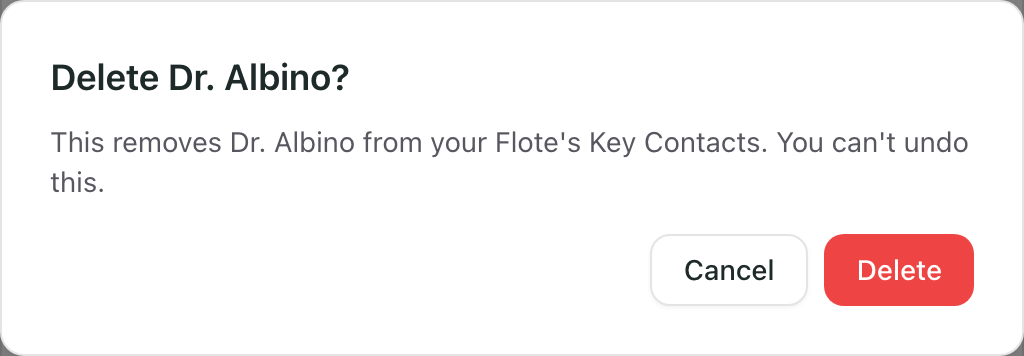
Important: A deleted contact cannot be brought back. If you only need to change a phone number or an address, edit the contact instead.
Who can see key contacts
Key contacts are private to your circle. They live on the Flote dashboard, so admins and members can see them, and they never appear on the page you share with supporters. Followers do not see them either. Saving someone as a key contact does not give that person any access to your Flote.
See Who can see my Flote for what supporters can and cannot see.
Use a saved clinic when you add an appointment
When you save a clinic or hospital under the Medical category, you can use its saved address when adding an appointment with AI. Mention the clinic or hospital in your appointment description, and AI will automatically fill in the location using the information you saved.
This only works for contacts saved under the Medical category that include an address. Contacts without an address or saved under other categories cannot be used to fill in appointment locations.
Related articles
Was this article helpful?