How to add an appointment with AI
You already have a lot on your plate, so instead of filling out the whole appointment form by hand, you can just tell AI about it. With Create with AI, describe an appointment in plain language, something like "chemo every four weeks on Fridays at Texas Oncology," and AI works out the date, time, recurrence, and location for you to check before it saves. Here's how.
Open Create with AI
On your Flote's Calendar, Admins see a Create with AI button next to Add an event.

Click it, then describe the appointment or event the way you'd say it out loud.
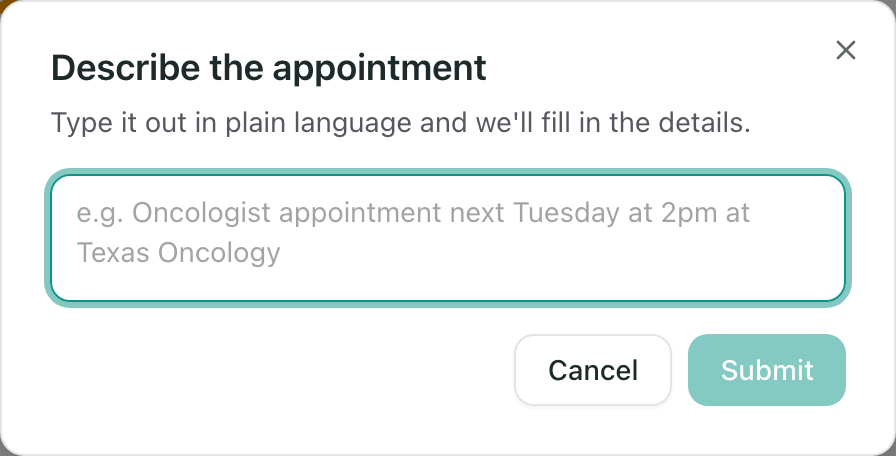
You don't need to give every detail. If you leave something out, like the time of day, AI fills it in with a reasonable guess and you can correct it before saving.
What AI works out for you
From one description, AI fills in:
- The title and any notes
- The date and time
- Whether it repeats, and how often
- The location, if you named a clinic or hospital already saved in your Key Contacts, or a real place Google can find
- Whether Members can see it on their dashboard
"Chemo every four weeks on Fridays at Texas Oncology" becomes an appointment that repeats every 4 weeks on Fridays, at whichever address Texas Oncology resolves to.
Review before it saves
AI never saves anything on its own. Submitting your description opens the same appointment form you'd fill out by hand, already filled in, with a note at the top: This event was created using AI. Please review the details below before saving.
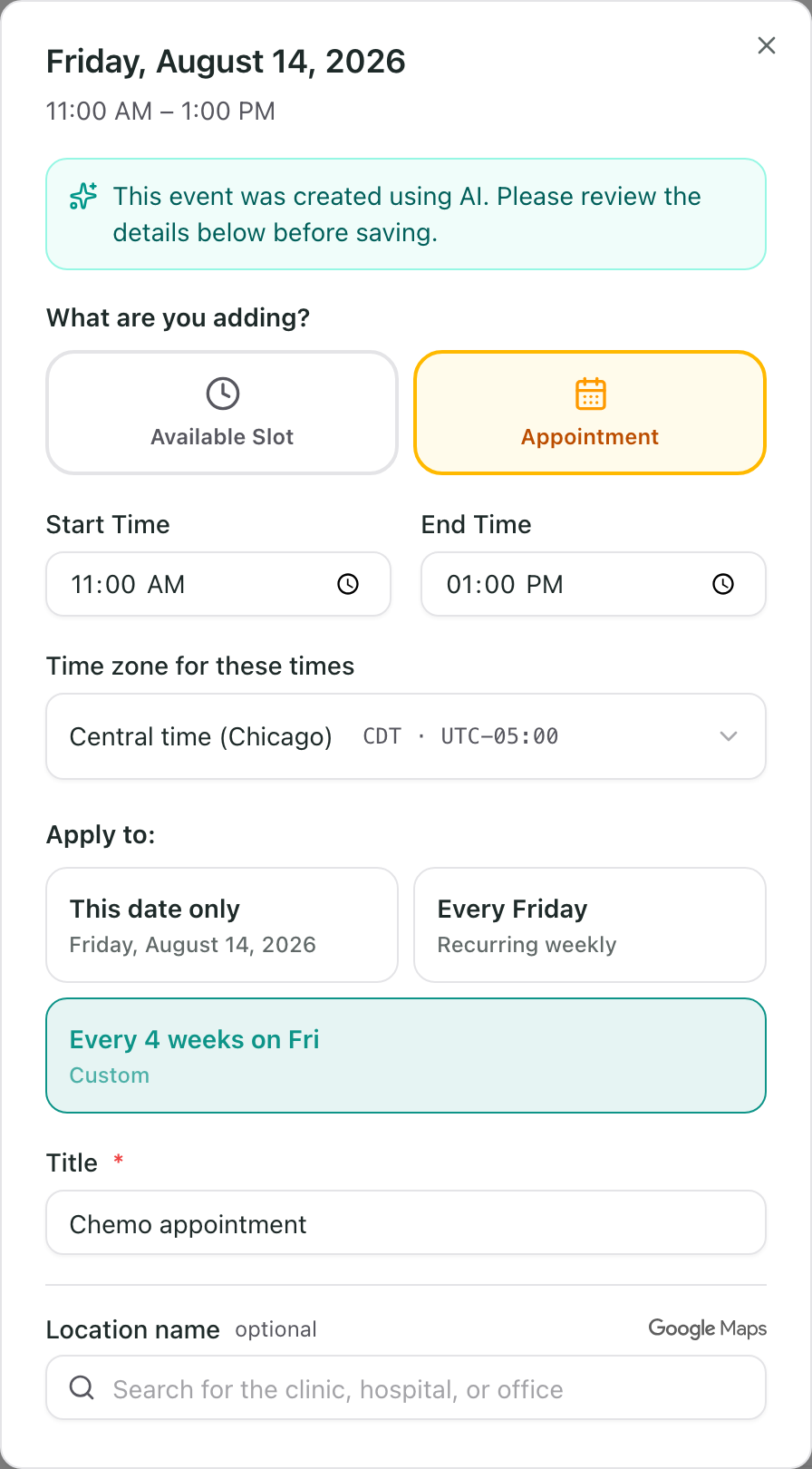
Check anything AI had to guess, especially the time and the repeat pattern, since a single word can change either. Edit any field the same way you would on a form you filled in yourself, then select Confirm to save it.
If the location isn't quite right
Underneath the note, you'll see where the address came from:
- Location matched from your Key Contacts means AI recognized a place you'd already saved.
- Location found on Google Maps, check it's the right one means AI found a real address on its own. Confirm it's the location you meant before saving.
If AI couldn't find a match at all, the Location field is left for you to fill in, with a reminder of what it heard so you can search for the right place yourself.
Tip: Naming the clinic or hospital, rather than a person, gives AI a much better shot at finding the right address. "Texas Oncology" resolves to a real place. "Dr. Patel's office" does not.
If AI can't make sense of it
If your description is too vague, or something goes wrong on our end, you'll see a message that it couldn't be parsed. Nothing is lost: select Add an event instead and fill in the details by hand.
Create with AI is available to Admins on a Flote. See Roles and permissions for what else an Admin can do.
Related articles
Was this article helpful?