Delete or recover a Flote
If you no longer need your Flote, you can delete it. When you do:
- The page comes down for everyone. Nobody in your circle can open it.
- Upcoming visits, meals and sign-ups are canceled. Each person who had signed up gets one email listing what was canceled.
- You have 30 days to change your mind. An admin can bring the Flote back from the link in the email. After 30 days, the Flote and everything in it is permanently deleted.
Select the option below to jump directly to the instructions you need:
How to delete a Flote
Who can delete a Flote
Only the Flote's owner. That is whoever created it, unless they have since handed it to somebody else.
If the owner cannot do it, because they are unwell or are no longer here, email support@aflote.com and we will help. See Transfer ownership of a Flote for how ownership moves to somebody else.
Steps to delete a Flote
Open the Flote, go to Settings, then Delete Flote. Only the owner sees this option.
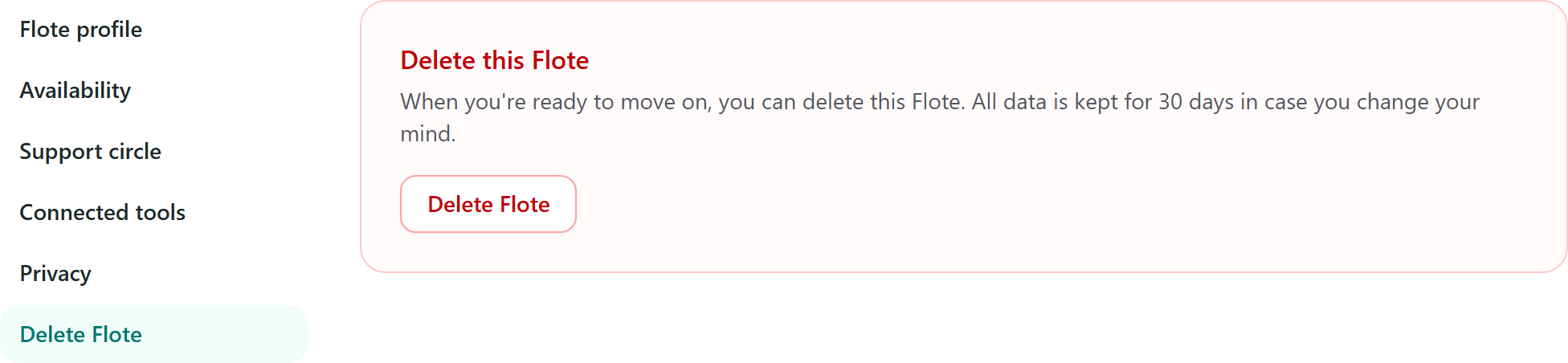
Select Delete Flote. A box opens that lists what is about to happen and asks you to type the Flote's name. The name has to match exactly, and the Delete Flote button in the box cannot be selected until it does.
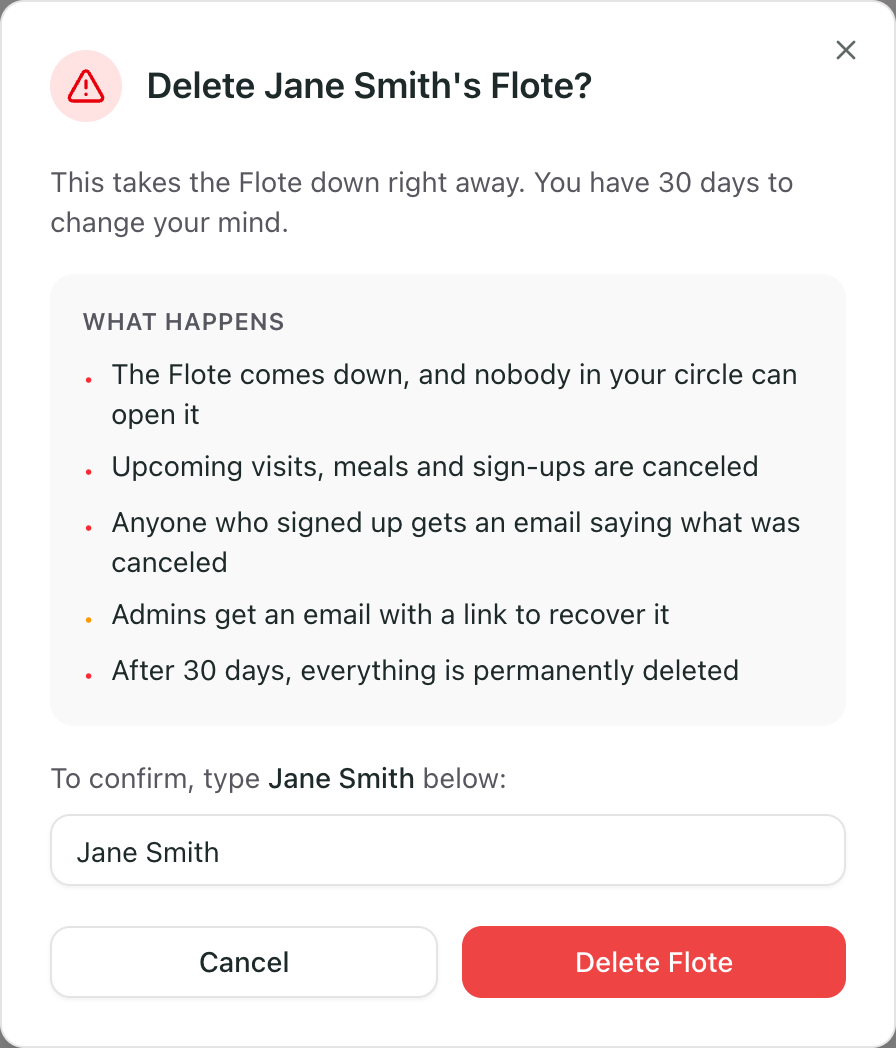
Select Delete Flote once more to finish.
What happens right away
You land on the recovery page. If you change your mind straight away, the button to bring the Flote back is right there.
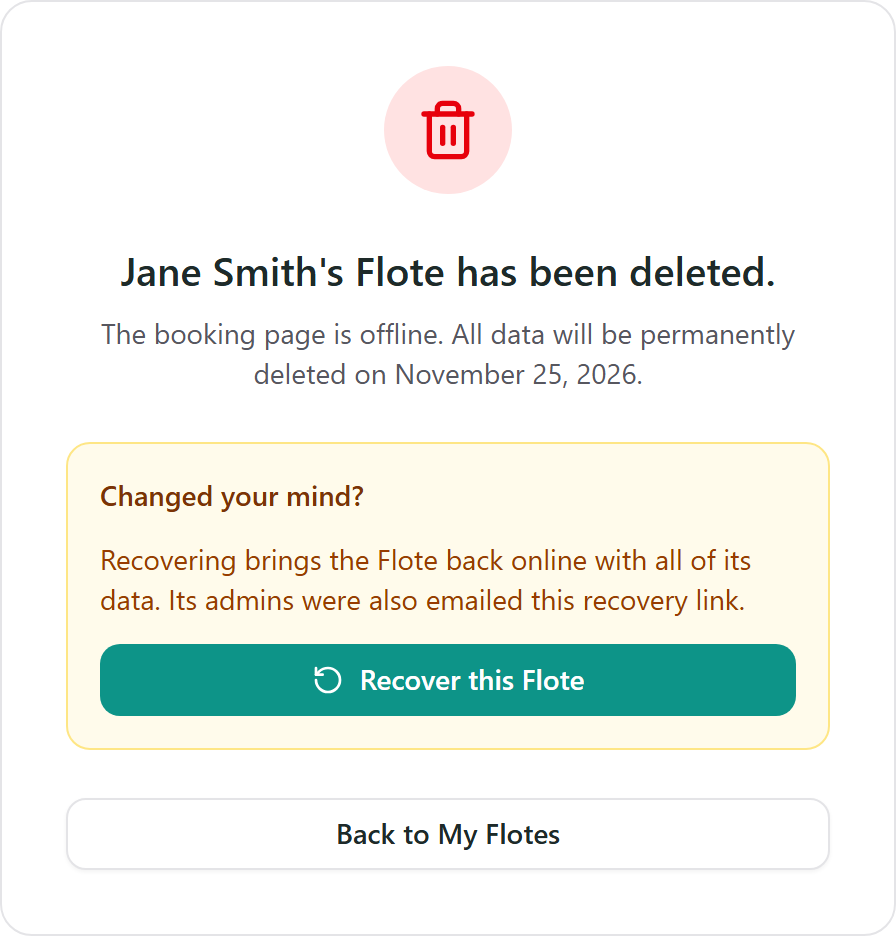
The page comes down. Anybody who opens the Flote's link sees a page saying This Flote has been disabled. The exception is an admin, who is taken to the recovery page instead.
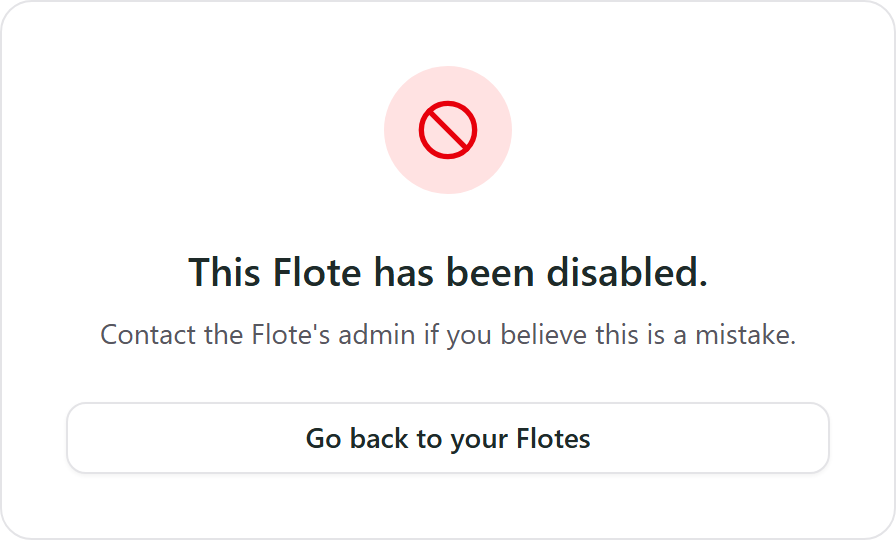
Everybody loses access. That includes the people in your circle.
Upcoming visits, meals and sign-ups are canceled. That covers everything still ahead: a visit next Tuesday, a dinner on Friday, an offer to help with rides.
Who is told
Admins get an email straight away, with a link to recover the Flote. Nobody else in the circle is told the Flote was deleted.
Anyone who had signed up for something gets one email listing what was canceled, so nobody turns up with a meal or for a visit. The email does not say why. If you would like them to know, you can tell them in your own words.
How to recover a Flote
Only an admin can recover a Flote. When a Flote is deleted, every admin is emailed a link to recover it. Open that email and select Recover this Flote. If you are not signed in, you will be asked to sign in first.
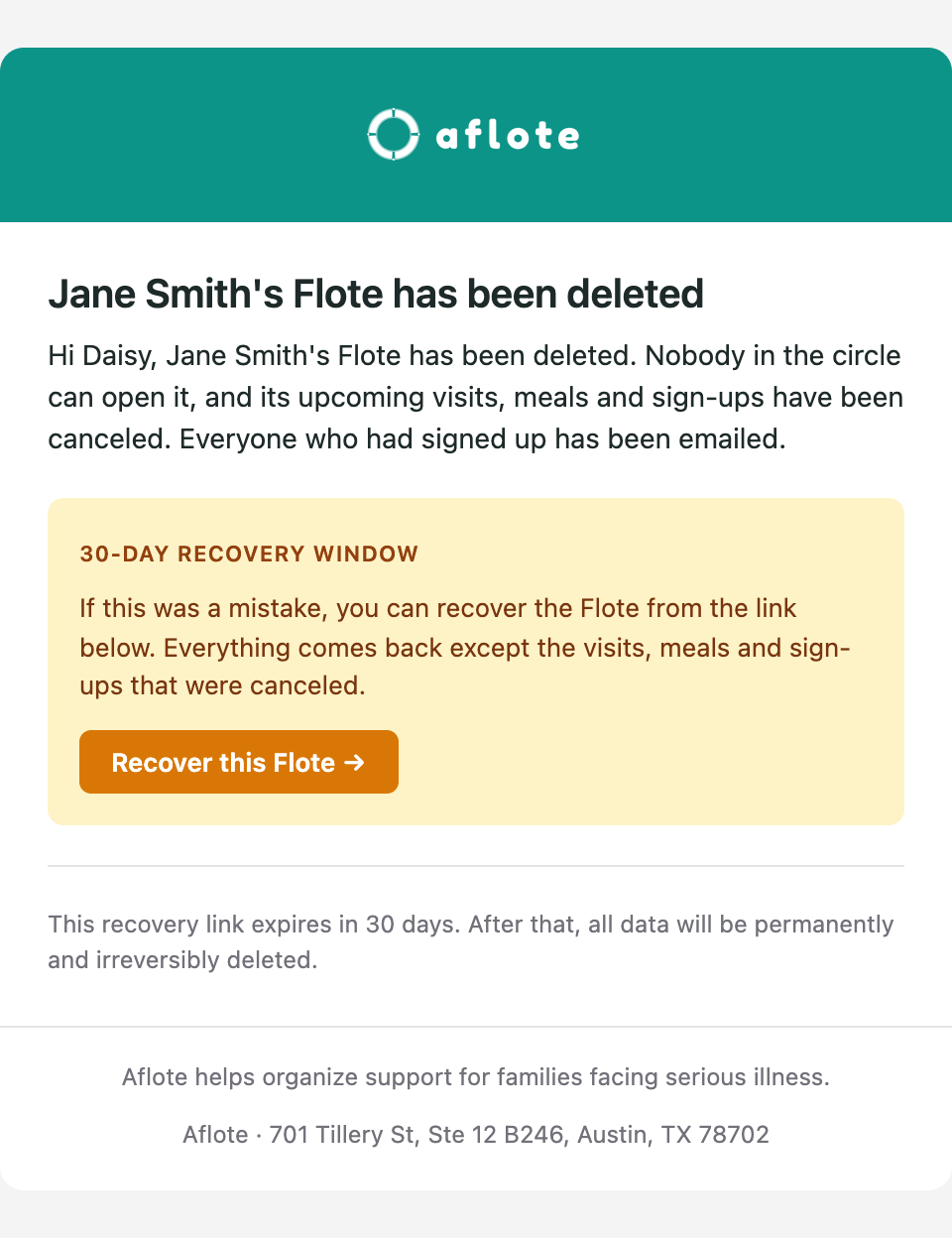
If you cannot find the email, open the Flote's own link while you are signed in as an admin. It takes you to the same recovery page.
The Flote is back online as soon as you select the button, and you land on its dashboard. Everything on it comes back as it was, with one exception: the visits, meals and sign-ups that were canceled stay canceled. Your Ways to Help and calendar are still set up, so people can sign up again once you let them know the Flote is back.
Important: The link works for 30 days. After that the Flote cannot be recovered, and it and everything in it is permanently deleted.
If you only need a break
You do not have to delete a Flote to step away from it. The page, your updates and your circle all stay where they are, and you can turn things back on whenever you are ready. Pause only the parts you need to:
- Visits: set your visit status to Visits are paused for now, and nobody can book. See Change your visit settings.
- Meals and other help: remove anything you no longer need from Ways to Help. If you remove Meals, anyone signed up for an upcoming meal is told. See Add something you need help with.
- Emails to you: choose which emails you get and how often. See Change your email notification preferences.
Related articles
Was this article helpful?